

How to Add Social Media Icons to an Email Signature
Enhance your email signature by adding social media icons. Discover step-by-step instructions to turn every email into a powerful marketing tool.

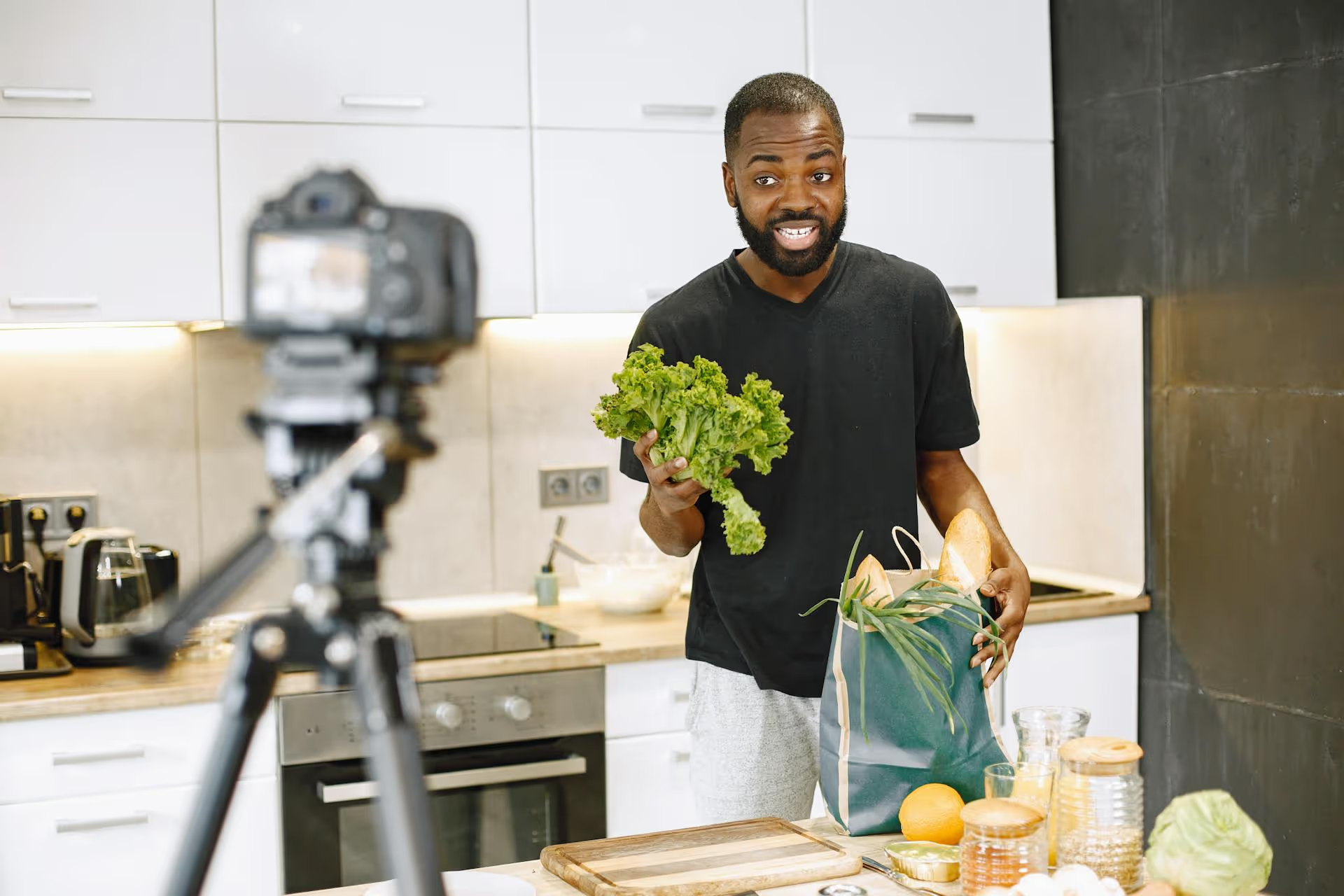
Bringing your Zoom meeting or webinar to a bigger stage on Facebook is an absolute game-changer for reaching a wider audience. It transforms a private video call into a public broadcast, letting you connect with your community, share valuable content, and grow your presence in real-time. This guide will walk you through exactly how to livestream your Zoom sessions directly to your Facebook Page, Group, or Event, step by step.
Connecting Zoom to Facebook isn't just a neat tech trick, it's a smart strategy. When you broadcast your meeting or webinar, you immediately break out of the "Zoom room" and tap into the massive user base of the world's largest social network. It's a powerful way to maximize the impact of your content.
Here's why it's worth setting up:
Before you hit "Go Live," you need to make sure both your Zoom and Facebook accounts are properly configured. This is a one-time setup that takes just a few minutes, but it's the foundation for a smooth broadcast. Skipping this part will stop you right in your tracks.
To livestream, you need a paid Zoom account. The free, Basic account does not have this capability. You'll need one of the following plans:
If you're on a free plan, you'll need to upgrade before the livestreaming options will appear for you.
You can't stream to just any Page or Group. You need to have the right permissions to go live.
This is the most important step! By default, livestreaming might be turned off in your account settings. You need to enable it from the Zoom web portal (not the desktop app).
Here's how to do it:
Once you've done this, your account is ready to go, and you won't have to do it again unless you want to disable the feature.
With the setup done, you're ready for the main event. The process is pretty straightforward. You'll start your Zoom meeting first, and then from within the meeting, you'll initiate the connection to Facebook.
Open the Zoom desktop client and start your scheduled meeting or webinar. Make sure your video and audio are working properly. It's often a good idea to have at least one other person in the meeting with you, ideally a co-host who can help manage things behind the scenes.
In the meeting controls toolbar at the bottom of your Zoom window, click the More button (it looks like three dots ...).
From the dropdown menu, select Live on Facebook.
Your default web browser will automatically open and take you to Facebook, where you'll tell Zoom where to send the stream.
Facebook will ask you where you want to go live. This is where you connect your stream to a specific Page or Group.
Zoom will then prepare the stream. This can take anywhere from 10 to 20 seconds. Once it's connected, you'll see a notification in your Zoom meeting that confirms, "You are now livestreaming on Facebook." Your Facebook Page will now show a live video broadcast of your Zoom meeting.
Streaming to a Group is almost identical to a Page, with one heads-up: the first time you do it, you might need to add the Zoom app to your Group's approved apps.
Heads-up for first-time Group streamers: If you get an error message, it likely means you need to add the Zoom app to your Group. To do this, go to your Facebook Group >, click Group Settings on the left menu >, scroll down to Apps >, click the pencil icon >, click Add Apps >, search for "Zoom" and add it. After you do this once, you can stream to that Group anytime without issue.
Going live is more than just flipping a switch. The difference between a clunky broadcast and a professional one often comes down to a few small details. Taking a moment to prepare will make your audience's experience much better.
Trying to present on Zoom while simultaneously monitoring Facebook comments is a recipe for disaster. Assign a teammate to be the dedicated "Facebook Moderator." Their job is to:
Never let a high-stakes event be your first time trying this. Create a private, unlisted Facebook Group just for testing. A day or two before your event, do a full test run. Go live from Zoom to your private group to confirm that the audio is clear, the video is sharp, and the connection is stable. This 5-minute check can save you from a major headache.
Don't expect an audience to just show up. Build anticipation! Create promotional posts, send an email to your subscriber list, and create a Facebook Event to let people know when you'll be live. Building a little hype helps guarantee that people will be there waiting when the stream starts.
Remember, you have two audiences: the people in the Zoom meeting and the people watching on Facebook. Make sure you acknowledge the Facebook viewers. A simple "Hello to everyone watching us on Facebook! Let us know where you're tuning in from in the comments" makes them feel included and boosts engagement.
When your broadcast is over, you need to properly end the stream.
This action only stops the broadcast to Facebook. Your Zoom meeting will continue running until you officially end it. This is handy if you want to have a private debrief with your panelists after the public part of the broadcast is over.
After you stop the stream, the video recording is automatically saved and published to the Facebook Page or Group where you were streaming. You can go back to this post later to edit the title or description, check views, and reply to any comments you missed.
Livestreaming Zoom to Facebook gives you a straightforward way to break out of a closed meeting and turn your presentation, interview, or team panel into a massive public event. By following these steps to connect the two platforms, you can grow your reach, connect with your community on their favorite platform, and create valuable video content that works for you long after the live event is over.
Once your livestream is finished and the video is posted on your Facebook Page, managing what comes next is just as important as the broadcast itself. Managing social can get chaotic, which is why we built Postbase. We designed our platform to make it simple to monitor comments on your newly posted video from our unified inbox, use our visual calendar to schedule follow-up promotional content, and track your livestream's performance - all in one place.
```
Spencer's spent a decade building products at companies like Buffer, UserTesting, and Bump Health. He's spent years in the weeds of social media management—scheduling posts, analyzing performance, coordinating teams. At Postbase, he's building tools to automate the busywork so you can focus on creating great content.

Enhance your email signature by adding social media icons. Discover step-by-step instructions to turn every email into a powerful marketing tool.
Record clear audio for Instagram Reels with this guide. Learn actionable steps to create professional-sounding audio, using just your phone or upgraded gear.
Check your Instagram profile interactions to see what your audience loves. Discover where to find these insights and use them to make smarter content decisions.
Requesting an Instagram username? Learn strategies from trademark claims to negotiation for securing your ideal handle. Get the steps to boost your brand today!
Attract your ideal audience on Instagram with our guide. Discover steps to define, find, and engage followers who buy and believe in your brand.
Activate Instagram Insights to boost your content strategy. Learn how to turn it on, what to analyze, and use data to grow your account effectively.
Wrestling with social media? It doesn’t have to be this hard. Plan your content, schedule posts, respond to comments, and analyze performance — all in one simple, easy-to-use tool.



