

How to Add Social Media Icons to an Email Signature
Enhance your email signature by adding social media icons. Discover step-by-step instructions to turn every email into a powerful marketing tool.

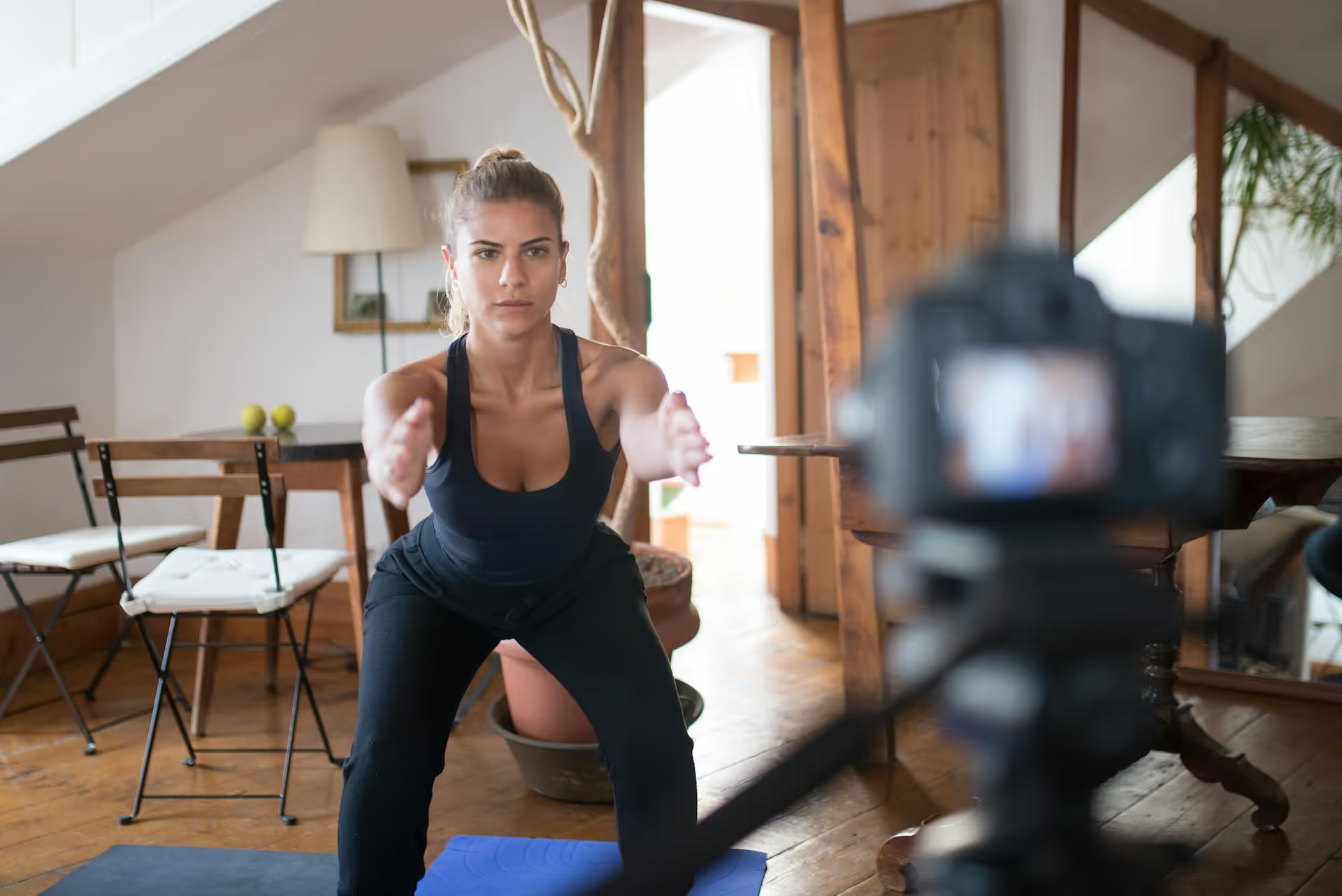
Creating compelling TikTok clips is easier than you think, even if you’re not a professional video editor. You don't need fancy equipment or complex software to start making content that resonates with an audience. This guide breaks down everything from the ground up: planning your shot, using TikTok's built-in editor, and leveling up with external tools for a more polished feel.
A great TikTok rarely happens by accident. While spontaneity is part of the platform's charm, a minute of planning can make the difference between a clip that gets swiped away and one that captures attention. The best clips often start with a simple idea inspired by what’s already working.
More often than not, the audio is the starting point for a TikTok video. Trending sounds provide a ready-made structure, emotion, and comedic timing that you can build upon. The easiest way to find them is by simply scrolling your For You Page (FYP).
You don't need a Hollywood film set, but good lighting is non-negotiable. It makes your video look cleaner, more professional, and more pleasant to watch.
TikTok’s built-in creation tools are incredibly powerful and more than enough to create viral content. For most creators, this is the fastest and most efficient way to make clips.
When you tap the "+" button at the bottom of the screen, you open up a full-featured camera. Here’s a quick overview of the essential tools:
After you’ve filmed your clips (or uploaded them from your phone), you'll land on the editing screen. This is where the real storytelling begins.
While the in-app editor is excellent, sometimes you need more precision or cooler effects. That's where third-party mobile editing apps come in. They give you a granular level of control that TikTok’s editor doesn’t.
Most big creators edit their videos outside the app first, then upload the finished clip to TikTok. The most popular choice by far is CapCut, because it’s made by the same company as TikTok (ByteDance) and seamlessly integrates with its trends.
Pro Workflow: A common practice is to do all your primary video editing in an app like CapCut - trimming, transitions, text overlays, and color corrections. Then, export the finished video to your camera roll. Finally, upload that masterpiece to TikTok, where you can add the final layer: a trending sound. TikTok’s algorithm favors videos that use trending audio, so adding it last inside the TikTok app is always a good idea.
For brands, marketers, and creators who are serious about repurposing long-form content, editing on a desktop provides the most control and highest quality.
If you have a podcast, a webinar, or a YouTube channel, you’re sitting on a massive amount of potential TikTok content. The strategy is simple: find the most valuable, interesting, or entertaining 15-60 second "nuggets" from your long-form video and clip them out.
Manually finding these moments can be time-consuming. This is where AI-powered tools shine. Services like Opus Clip can analyze a long YouTube video and automatically identify the most compelling segments, reframe them into a vertical 9:16 format, and generate stylized, animated captions - turning one hour of content into a dozen ready-to-post TikTok clips.
Creating the clip is only half the battle. Your final steps before posting are what help the algorithm understand your content and show it to the right audience.
Making standout TikTok clips isn't about having expensive gear, it’s about understanding the basic tools and learning how to tell a short, punchy story. Whether you're editing entirely in the app for speed or using desktop software for maximum quality, the principles of creating content that stops the scroll are the same.
Once you get into a groove and start batch-creating a bunch of great clips, keeping them organized and publishing them consistently can become a huge bottleneck. We built Postbase because we were tired of legacy social media tools that were clunky and not designed for the short-form video that drives social media today. It lets us plan our TikToks, Reels, and Shorts on one visual calendar, schedule them to go out at the right times, and manage our whole content strategy without the stress.
```
Spencer's spent a decade building products at companies like Buffer, UserTesting, and Bump Health. He's spent years in the weeds of social media management—scheduling posts, analyzing performance, coordinating teams. At Postbase, he's building tools to automate the busywork so you can focus on creating great content.

Enhance your email signature by adding social media icons. Discover step-by-step instructions to turn every email into a powerful marketing tool.
Record clear audio for Instagram Reels with this guide. Learn actionable steps to create professional-sounding audio, using just your phone or upgraded gear.
Check your Instagram profile interactions to see what your audience loves. Discover where to find these insights and use them to make smarter content decisions.
Requesting an Instagram username? Learn strategies from trademark claims to negotiation for securing your ideal handle. Get the steps to boost your brand today!
Attract your ideal audience on Instagram with our guide. Discover steps to define, find, and engage followers who buy and believe in your brand.
Activate Instagram Insights to boost your content strategy. Learn how to turn it on, what to analyze, and use data to grow your account effectively.
Wrestling with social media? It doesn’t have to be this hard. Plan your content, schedule posts, respond to comments, and analyze performance — all in one simple, easy-to-use tool.



