

How to Add Social Media Icons to an Email Signature
Enhance your email signature by adding social media icons. Discover step-by-step instructions to turn every email into a powerful marketing tool.

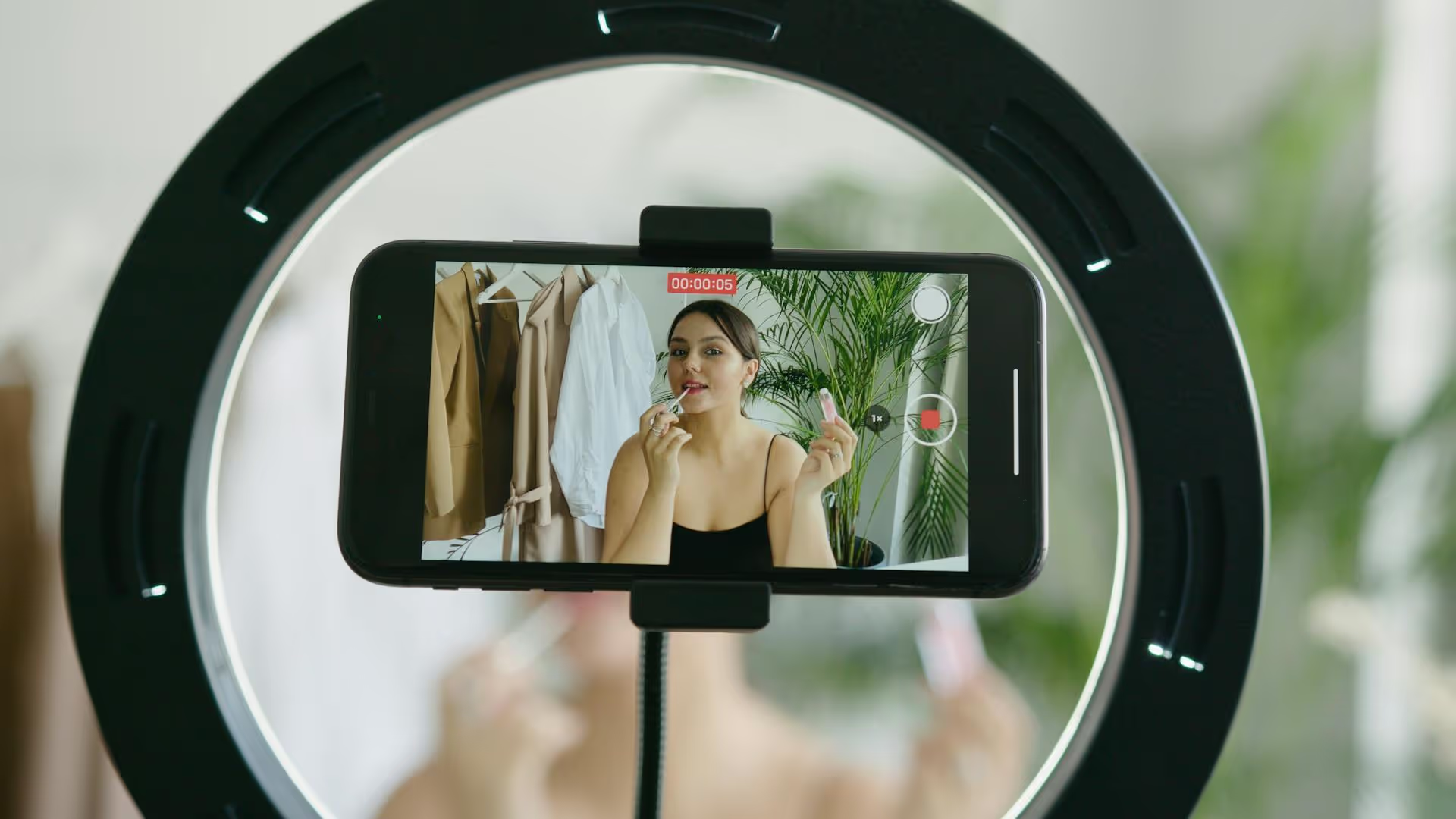
Uploading a YouTube Short is one of the most effective ways to grow your channel right now, but getting it right involves a bit more than just tapping the publish button. This guide gives you the complete breakdown, from creating and uploading Shorts on your phone to scheduling them from your computer, along with practical tips to help them actually get seen.
Before you upload, you have to make sure your video file is formatted correctly. YouTube looks for specific signals to identify and categorize a video as a Short. If you miss these, your video might just show up as a regular (and awkwardly formatted) video.
Here are the non-negotiables:
Get these four things right, and you're ready to go. Missing just one can prevent your video from entering the Shorts feed, which is where all the organic discovery happens.
For most creators, the YouTube mobile app is the fastest and most intuitive way to create Shorts. It's designed to be an all-in-one studio where you can record, edit, and publish in a few minutes.
At the bottom of the home screen, you'll see a navigation bar. In the center is a plus sign inside a circle. This is your create button. Tap it to open up a menu of content options.
The menu will give you a few choices like "Upload a video," "Go live," and "Create a Post." Choose "Create a Short" to open the Shorts camera and editing interface. If you accidentally select "Upload a video," you can still upload a Short, but you’ll miss out on the dedicated in-app creation tools like adding sound from the YouTube library.
You have two main paths from here:
Once you've recorded or imported your clip(s), you’ll be taken to the editing screen. This is where you bring your Short to life. Tap the checkmark in the bottom-right corner to proceed.
When you're happy with your edits, click "Next" in the top-right corner.
This is the final details page before you upload. Don’t rush through it!
That's it! Tap the blue "Upload Short" button at the bottom, and your video will begin processing. You can track its progress in your library.
If you edit your videos with more advanced software like CapCut for desktop, DaVinci Resolve, or Adobe Premiere Pro, you'll be uploading the finished file from your computer. The process is similar to uploading a regular YouTube video, with a few important distinctions.
Before you even open YouTube, double-check that your finished video file meets the Shorts criteria. This is the step where most people make a mistake.
If you upload a horizontal (16:9) video, it will not be classed as a Short, no matter its length.
Navigate to studio.youtube.com and sign in. At the top-right corner of your Studio dashboard, you’ll see a "CREATE" button. Click it.
A pop-up will appear allowing you to drag and drop your video file or select it from your computer. Choose the vertical video file you prepared in step one.
As your video uploads, you'll be prompted to fill out all the important metadata. This section is much more detailed than the mobile interface.
After the Checks tab (where YouTube scans for copyright issues), you’ll reach the Visibility tab. Here, you have several options:
Once you’ve made your selection, click "Save" or "Schedule," and you're all set.
Uploading is only half the battle. Here are a few strategies to give your Shorts the best chance of being picked up by the algorithm and shown to a wider audience.
The average attention span on short-form content is incredibly low. Your opening is everything. Start with immediate action, a provocative question, a surprising statement, or the most visually interesting part of your video. If you don't grab them right away, they'll swipe on to the next one.
The Shorts algorithm often favors videos using popular or "trending" sounds. When you’re looking to add sound on the mobile app, keep an eye on the tracks that have an arrow icon pointing up - that's a sign they’re trending. Using one of these can help your Short get categorized and shown to an audience who has already engaged with that sound.
Your title is one of the only pieces of text viewers see as they scroll. Don't just describe the video, create a reason for someone to stop and watch. Titles like "The biggest mistake every cat owner makes" or "I tried the viral ramen hack so you don't have to" are much more effective than "My cat doing a funny thing."
A major metric for the Shorts algorithm is audience retention and re-watches. A "perfect loop" is a video that ends in a way that seamlessly transitions back to the beginning. Viewers often watch it two or three times before they even realize it's restarting, which dramatically increases your total watch time and signals to YouTube that your content is engaging.
You don't need to post five Shorts every day, but establishing a regular schedule - whether that's three times a week or once a day - tells the algorithm that your channel is active and reliable. Consistency helps build momentum and gives you more opportunities for one of your videos to go viral.
Whether you're making quick, spontaneous videos on your phone or uploading polished productions from your desktop, mastering how to upload YouTube Shorts is a straightforward process. The real growth comes from consistently applying simple, viewer-focused strategies like crafting a strong hook, thinking carefully about your titles, and maintaining a regular posting schedule.
Staying consistent with Shorts, Reels, and TikToks is a lot to juggle, especially when you're trying to keep all those platforms aligned. To keep everything organized without feeling overwhelmed, we built a tool called Postbase. We designed its visual content calendar so we could plan out our entire short-form video strategy in one place, across all our accounts. It helps us schedule videos for weeks at a time for every platform, letting us focus on creating instead of worrying about posting deadlines or whether our content even published correctly.
Spencer's spent a decade building products at companies like Buffer, UserTesting, and Bump Health. He's spent years in the weeds of social media management—scheduling posts, analyzing performance, coordinating teams. At Postbase, he's building tools to automate the busywork so you can focus on creating great content.

Enhance your email signature by adding social media icons. Discover step-by-step instructions to turn every email into a powerful marketing tool.
Record clear audio for Instagram Reels with this guide. Learn actionable steps to create professional-sounding audio, using just your phone or upgraded gear.
Check your Instagram profile interactions to see what your audience loves. Discover where to find these insights and use them to make smarter content decisions.
Requesting an Instagram username? Learn strategies from trademark claims to negotiation for securing your ideal handle. Get the steps to boost your brand today!
Attract your ideal audience on Instagram with our guide. Discover steps to define, find, and engage followers who buy and believe in your brand.
Activate Instagram Insights to boost your content strategy. Learn how to turn it on, what to analyze, and use data to grow your account effectively.
Wrestling with social media? It doesn’t have to be this hard. Plan your content, schedule posts, respond to comments, and analyze performance — all in one simple, easy-to-use tool.



