

How to Add Social Media Icons to an Email Signature
Enhance your email signature by adding social media icons. Discover step-by-step instructions to turn every email into a powerful marketing tool.

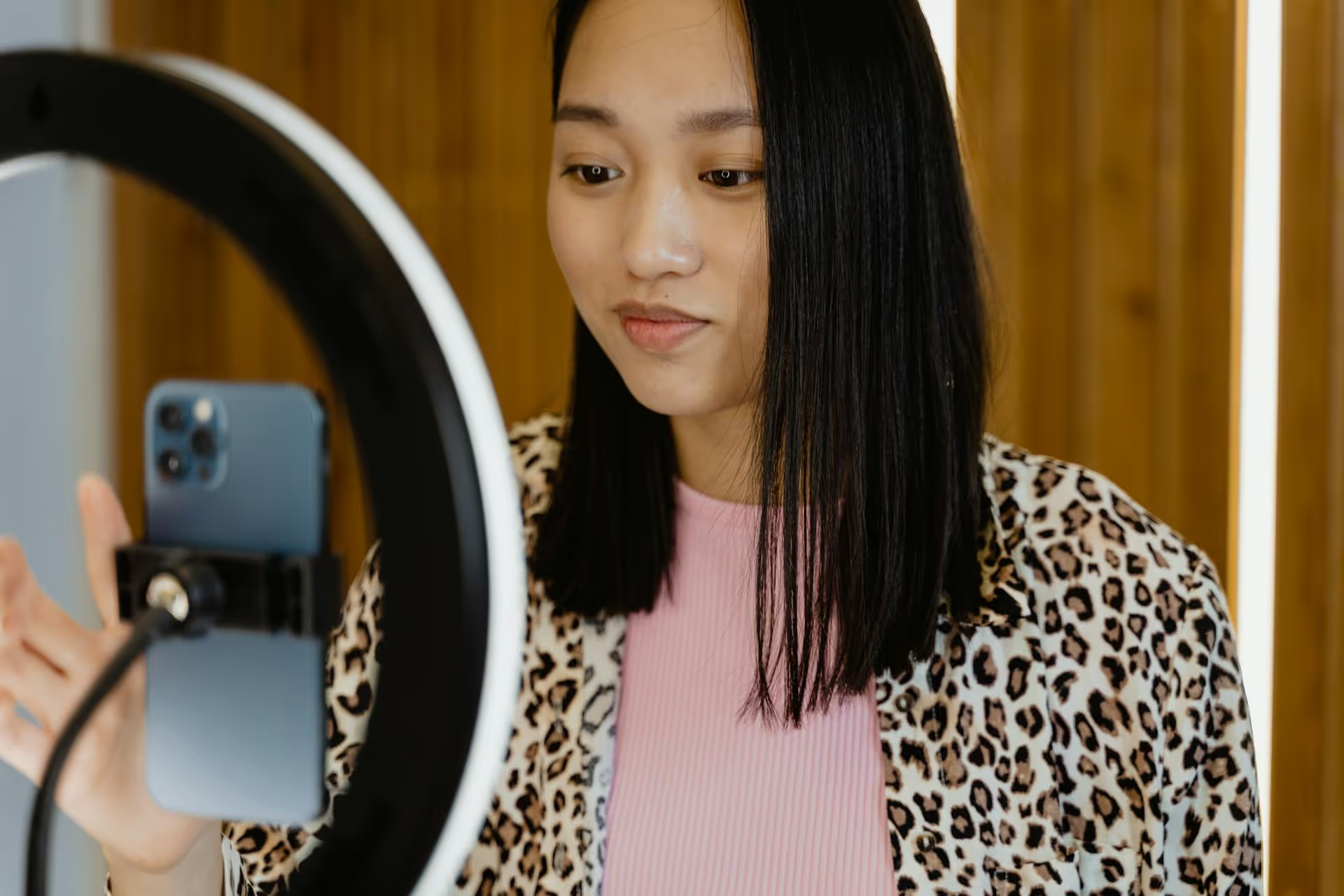
Speeding up a video is one of the fastest ways to add energy, comedy, or just plain practicality to your TikTok content. This simple editing trick can turn a long, drawn-out process into a punchy timelapse or a normal reaction into a hilarious, chaotic moment. This guide will walk you through exactly how to adjust the speed of your videos directly within the TikTok app, both for the entire clip and for specific sections.
Before getting into the how-to, it’s worth understanding why this feature is so popular. Altering your video’s speed isn’t just a gimmick, it’s a strategic tool used by successful creators to make their content more engaging. Here’s why you might want to increase the tempo:
For most day-to-day needs, TikTok's built-in editor has all the power you need. You can speed up your video either while recording it live or after you’ve uploaded a clip from your camera roll. Let's start with adjusting a clip you've already recorded or uploaded.
Start by opening the TikTok app and tapping the plus (+) icon at the bottom of the screen to create a new post. Here, you can either record new footage using the TikTok camera or tap the "Upload" button on the bottom right to select a video from your phone’s gallery.
Once your video is recorded or selected, tap the red checkmark or "Next" button to proceed. This brings you to the main editing screen where you can add sounds, text, filters, and more. Look for the toolbar on the right side of the screen.
In the right-hand editing toolbar, tap on the "Edit" icon, which often looks like a pair of scissors over a film strip. A new set of options will appear at the bottom. Tap the icon that looks like a speedometer, labeled "Speed."
A slider will appear at the bottom with several options: 0.5x (slow-motion), 1x (normal speed), 2x (twice as fast), and 3x (three times as fast). To speed up your video, select either 2x or 3x. As you tap each option, you'll see a live preview of how it affects your video. Note that choosing 2x or 3x speed will also speed up the original audio, creating that iconic high-pitched sound.
Once you’re happy with the speed, tap "Save" at the top right of the editing screen. You’ll be taken back to the main post preview screen. From here, you can add text, stickers, or a trendy sound before moving on to write your caption and post.
Sometimes you don’t want to speed up the entire video. You might want to show a normal-speed introduction, speed up the middle section, and then return to normal speed for the end. This technique gives your content a more professional, dynamic feel. The key is using the "Split" tool.
Follow the same first steps as above. Upload or record your clips and tap "Next" to get to the main post preview screen. Then, tap the "Edit" icon on the right-hand toolbar.
In the clip editor, you'll see your video represented on a timeline at the bottom of the screen. Tap on the clip you want to edit. Now, drag the white playback head (the vertical line) to the start of the section you want to speed up. Tap the "Split" option from the menu at the bottom. This will cut the clip into two parts.
Next, drag the playback head to the end of the section you want to speed up and tap "Split" again. You now have three separate clips in your timeline: the part before, the part you want to speed up (the middle), and the part after.
Tap on the newly created middle clip to select it. With just this clip highlighted, tap on the "Speed" tool from the bottom menu. Select 2x or 3x speed. You'll notice that this speed change only applies to the highlighted clip, leaving the other segments at their normal 1x speed.
Play the entire timeline back to make sure the transitions are smooth and the pacing feels right. If you’re happy, tap "Save" in the top right. You've successfully created a video with variable speed, giving it a much more polished look.
Pro Tip: When you speed up a clip with spoken audio, it may become hard to understand. It's often best to mute the sped-up section and either add text overlays explaining what's happening or cover the entire video with a trending song or sound.
While TikTok's editor is surprisingly capable, there are times when an external editing app provides more flexibility. You might consider using a third-party app if you need to:
For most creators, the built-in tools are more than enough. But as your content becomes more sophisticated, don't be afraid to add an app like CapCut to your workflow - it integrates seamlessly with TikTok.
Mastering video speed control is a simple but powerful way to elevate your TikTok content, making it more dynamic, humorous, and watchable. Whether you’re speeding up an entire clip for a quick tutorial or just a small segment for comedic timing, the steps are straightforward and can be handled right inside the app.
Creating great content is only half the battle, getting it published consistently on platforms like TikTok, Instagram, and YouTube Shorts is what drives growth. That’s why we built our social media management tool, Postbase, with a video-first approach. We understand the juggling act of customizing videos for each platform, so we made it simple to schedule your content across all your accounts from one visual calendar, ensuring your posts always go live reliably, every single time.
Spencer's spent a decade building products at companies like Buffer, UserTesting, and Bump Health. He's spent years in the weeds of social media management—scheduling posts, analyzing performance, coordinating teams. At Postbase, he's building tools to automate the busywork so you can focus on creating great content.

Enhance your email signature by adding social media icons. Discover step-by-step instructions to turn every email into a powerful marketing tool.
Record clear audio for Instagram Reels with this guide. Learn actionable steps to create professional-sounding audio, using just your phone or upgraded gear.
Check your Instagram profile interactions to see what your audience loves. Discover where to find these insights and use them to make smarter content decisions.
Requesting an Instagram username? Learn strategies from trademark claims to negotiation for securing your ideal handle. Get the steps to boost your brand today!
Attract your ideal audience on Instagram with our guide. Discover steps to define, find, and engage followers who buy and believe in your brand.
Activate Instagram Insights to boost your content strategy. Learn how to turn it on, what to analyze, and use data to grow your account effectively.
Wrestling with social media? It doesn’t have to be this hard. Plan your content, schedule posts, respond to comments, and analyze performance — all in one simple, easy-to-use tool.



