

How to Add Social Media Icons to an Email Signature
Enhance your email signature by adding social media icons. Discover step-by-step instructions to turn every email into a powerful marketing tool.

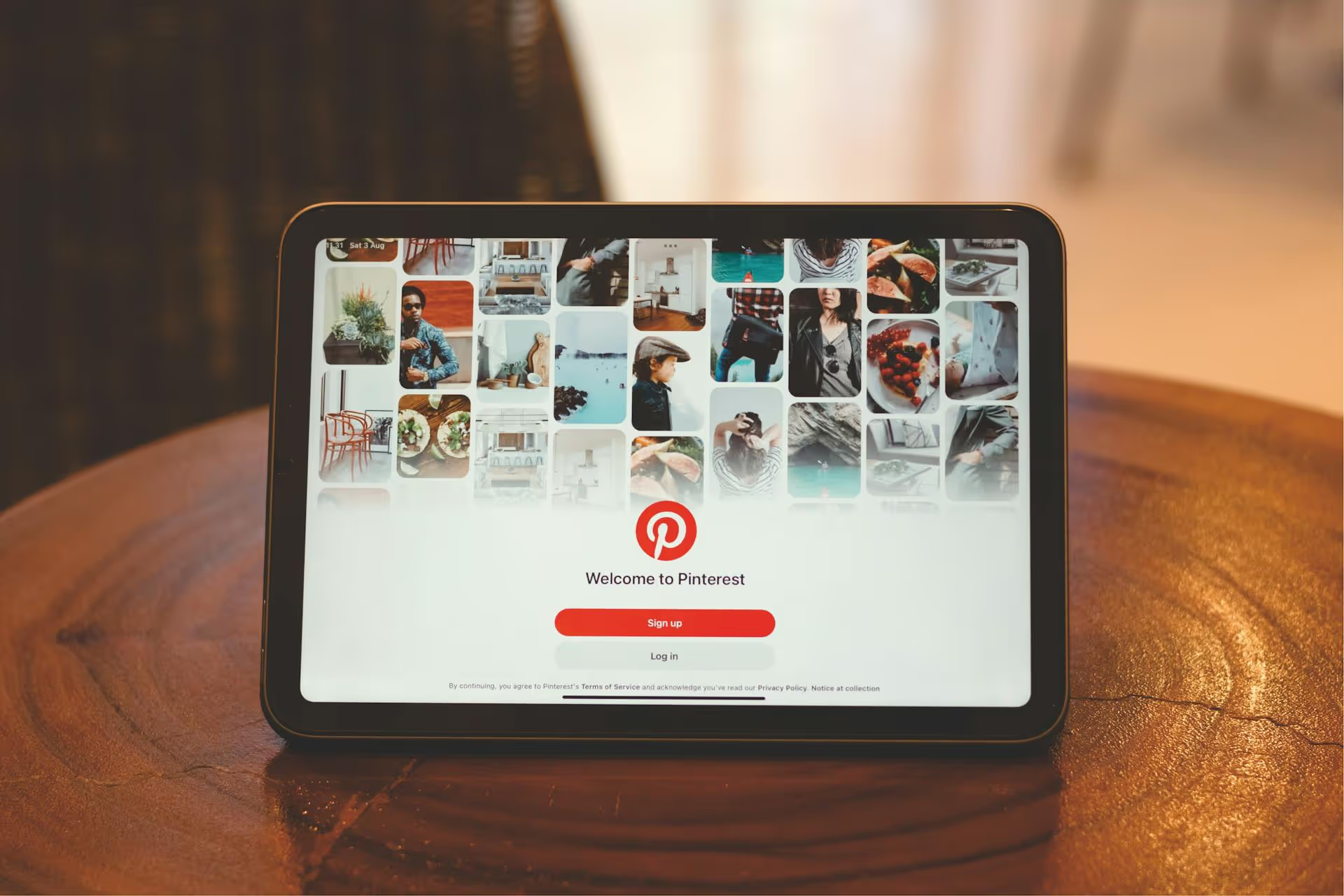
Selling your digital templates on Pinterest can completely transform your online business, turning a visual discovery platform into a powerful sales engine. This guide breaks down exactly how to set up your profile, design pins that convert, and build a strategy that drives consistent traffic to your template shop. We’ll cover everything from profile optimization and board strategy to the anatomy of a pin that actually sells.
Unlike other social media platforms where content has a lifespan of hours, Pinterest is a visual search engine. Users, or "Pinners," come to the platform actively searching for solutions, inspiration, and products to buy. This search-driven behavior makes them high-intent buyers. When someone types in "Instagram story templates" or "editable resume templates," they aren't just browsing - they're looking to take action.
Your content on Pinterest is evergreen. A well-designed pin can continue to drive traffic and sales for months, or even years, after you originally post it. This makes it an incredible asset for solopreneurs and small business owners who create digital products like templates. You create the pin once, and it works for you long-term, attracting new customers organically without you having to be constantly active.
Before you start pinning, you need a professional foundation. Your profile is the virtual storefront for your template business, and optimizing it signals to both Pinterest and potential customers that you’re a credible seller.
If you’re still using a personal account, the first step is to switch to a free Business account. This gives you access to a suite of essential tools, including:
Your profile needs to tell people exactly what you offer at a glance. Think about the keywords your ideal customer would use to find your products. Sprinkle these naturally throughout your profile:
Claiming your website (like your Shopify store, blog, or standalone sales page) is a step that validates your authenticity to Pinterest. It adds your profile picture to any pins created from your site and gives you access to web analytics, showing you exactly what content people are saving from your domain. You can claim websites and stores from platforms like Etsy, Shopify, and Squarespace.
Pinterest boards are how you organize your content. Think of them like aisles in a store. Randomly pinning templates everywhere is messy and confusing for users. A well-organized board structure helps Pinners find what they're looking for and encourages them to follow you for more.
Don't create a single board called "My Templates." Get specific. If you sell a variety of templates, create a board for each category. Your board names should be based on what people are actually searching for.
Don’t forget to write a keyword-rich description for each board! Repeat the main keywords from the board title and add other related terms to help Pinterest understand the context of your content.
Your Pinterest account shouldn't be 100% self-promotion. Aim for a mix of your own content (your template pins) and relevant third-party content that your ideal customer would find valuable. For example, on your "Social Media Canva Templates" board, you could also pin articles about "Instagram caption ideas" or "how to grow your brand on social media." This positions you as a helpful resource, not just a seller.
On a visual platform, the design of your pin is everything. Your template could be amazing, but if the pin promoting it is sloppy or unclear, no one will ever click on it. Your goal is to stop the scroll.
Static images are great, but video can be even better for showing off templates.
Remember, Pinterest is a search engine. To get your templates discovered, you need to use the right keywords in the right places.
The easiest way to find keywords is to use the Pinterest search bar itself. Type in a broad term related to your template, like "social media templates." Pinterest will suggest a list of popular, related searches, like "social media templates for realtors" or "social media templates minimalist." These search bubbles are a fantastic source of long-tail keywords that actual users are looking for.
Once you have a list of keywords, integrate them into:
Consistency is more important than volume. Pinterest rewards creators who are active on the platform, but this doesn't mean you need to pin 50 times a day. Aim to pin a few new, original pins each day. Planning your content ahead of time with a content calendar is the best way to stay on track.
Regularly check your Pinterest Analytics to see which of your pins are getting the most impressions, saves, and outbound clicks. Find your top-performing pins and create more designs like them. If a particular template category is driving a lot of traffic, that’s a signal to create more products and pins for that niche.
Selling templates on Pinterest is a long-term strategy that pays off by creating a sustainable source of organic traffic and sales. By treating it like the powerful visual search engine it is, you can connect with customers who are actively looking for the exact solutions you provide and build a thriving digital product business.
Staying consistent is what separates template sellers who succeed from those who fade. At Postbase, we built our platform to help creators and small businesses manage all their social media, including Pinterest, from one simple calendar. By planning and scheduling your pins weeks in advance, you can focus on creating great templates while we make sure your content goes live exactly when it should - no more last-minute scrambles to get a pin out. Try using a clean, visual planner like Postbase to streamline your workflow and keep your template sales engine running smoothly.
Spencer's spent a decade building products at companies like Buffer, UserTesting, and Bump Health. He's spent years in the weeds of social media management—scheduling posts, analyzing performance, coordinating teams. At Postbase, he's building tools to automate the busywork so you can focus on creating great content.

Enhance your email signature by adding social media icons. Discover step-by-step instructions to turn every email into a powerful marketing tool.
Record clear audio for Instagram Reels with this guide. Learn actionable steps to create professional-sounding audio, using just your phone or upgraded gear.
Check your Instagram profile interactions to see what your audience loves. Discover where to find these insights and use them to make smarter content decisions.
Requesting an Instagram username? Learn strategies from trademark claims to negotiation for securing your ideal handle. Get the steps to boost your brand today!
Attract your ideal audience on Instagram with our guide. Discover steps to define, find, and engage followers who buy and believe in your brand.
Activate Instagram Insights to boost your content strategy. Learn how to turn it on, what to analyze, and use data to grow your account effectively.
Wrestling with social media? It doesn’t have to be this hard. Plan your content, schedule posts, respond to comments, and analyze performance — all in one simple, easy-to-use tool.



