

How to Add Social Media Icons to an Email Signature
Enhance your email signature by adding social media icons. Discover step-by-step instructions to turn every email into a powerful marketing tool.

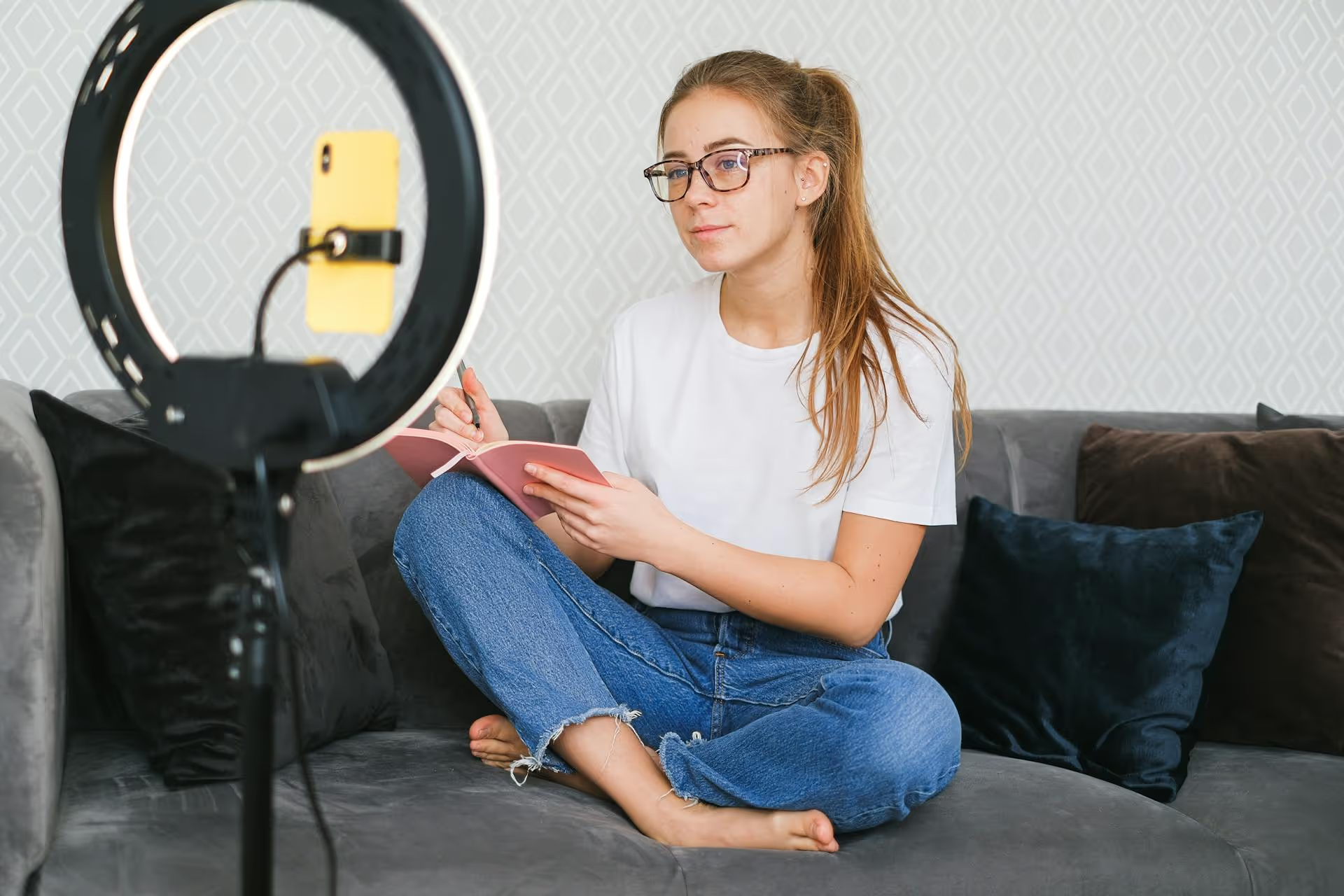
Trying to find your TikTok drafts on a desktop computer can feel like searching for something that’s not there. And in a way, it isn’t. Drafts you save inside the TikTok mobile app are not directly accessible from your desktop browser or the desktop app, which can be a major frustration for creators who want to build a better workflow. This article breaks down why this limitation exists and, more importantly, presents the practical workarounds and strategies you can use to manage, edit, and schedule your TikTok content from the comfort of your computer.
First, let’s get the bad news out of the way. You haven’t missed a secret menu or a hidden button. The fact that you can't see your mobile drafts on your desktop is an intentional design choice by TikTok, not a bug. It boils down to a few key reasons.
When you save a draft in the TikTok app on your phone, you're not uploading anything to TikTok's servers. The video file, along with any edits, text overlays, and effect choices, is saved directly to your device's local storage. This is beneficial for a few reasons: it saves an immense amount of server space for TikTok (imagine the data required to store every unfinished video from over a billion users), it works offline, and it means your half-finished, experimental, or private videos aren’t sitting on a company server somewhere before you’re ready to share them.
The downside, of course, is that local storage means the draft is trapped on that specific device. It's the same reason a photo in your iPhone's camera roll isn't automatically on your Windows PC unless you use a service like iCloud or Google Photos to sync it.
TikTok was born on mobile. Its entire creative suite - from the in-app editor to the augmented reality filters, viral sound library, and interactive stickers - is deeply woven into the hardware and software of modern smartphones. Many of these features leverage the phone's camera, gyroscope, and specialized processing chips in a way that just doesn't translate to a standard desktop web browser. Forcing a direct sync between mobile drafts and a desktop uploader would be a technical nightmare, as the desktop environment lacks the tools to render or edit those unique mobile-only elements correctly.
It helps to think of TikTok's platforms as having two different jobs. The mobile app is the all-in-one creative studio and social network. It's where the magic of in-the-moment creation happens. The desktop version, by contrast, is primarily a content consumption platform and a simple uploader for finished videos. It's designed for creators who have already produced and edited their videos using more powerful, professional desktop software and just need a way to get the final file onto TikTok.
So, you can't edit mobile drafts on a computer. What can you do? Instead of fighting the system, the key is to adopt a workflow that plays to the strengths of both your desktop and your mobile device. This "edit first, upload later" strategy is what most professional creators and social media managers use anyway.
Start by recording all your video clips on your phone, just as you normally would. Capture everything you need for your video, but don't bother with any editing inside the TikTok app just yet. Once you have your raw files, you need to move them to your computer. Here are the best ways to do it without losing quality:
This is where your computer truly shines. Editing on a large monitor with a mouse and keyboard is a game-changer. You have more precision, more power, and access to software that gives you far more creative control than the mobile TikTok editor.
On your desktop, you can perform tasks that are difficult or impossible on mobile: precise color grading, sophisticated audio mixing, detailed key-framing for animations, and adding high-resolution graphics or branded overlays.
Once your video is fully edited and exported in the proper 9:16 vertical format, you can upload it straight to TikTok through your web browser.
This workflow is best for branded content, cinematic videos, or any post that doesn't rely on a specific trending TikTok sound or effect.
What if you absolutely need to use a trending song from TikTok's library? That's when you use a hybrid workflow.
This hybrid approach gives you the best of both worlds: professional desktop editing power combined with the virality of native TikTok features.
One of the single biggest advantages of the desktop workflow is the ability to schedule posts - a feature not available to all users on the mobile app. Scheduling content is central to any good social media strategy, allowing you to maintain a consistent presence without having to manually post every single day.
Here’s how to use it:
Heads up: A scheduled post is not an editable draft. It’s locked in. If you notice a mistake or want to change something, you will have to delete the scheduled post and re-upload the corrected version. Think of scheduling as the final step in your content production line.
To make this process as smooth as possible, integrate a few of these habits into your routine:
While you can't view or edit your mobile drafts on desktop, that limitation actually opens the door to a more professional and streamlined content creation process. By adopting a workflow that uses your computer for heavy editing and your phone for adding native touches like trending sounds, you can improve the quality of your content and manage your posting schedule more effectively.
Staying organized is the foundation of any good content strategy, especially when moving files between platforms and devices. At Postbase, we designed our platform for this modern reality. Having a clear, visual calendar to plan your videos helps you see the bigger picture, while our reliable scheduling for short-form video on TikTok, Reels, and Shorts removes the headaches of wondering if your content will actually go live. We built a tool that simplifies the chaos so you can get back to creating.
Spencer's spent a decade building products at companies like Buffer, UserTesting, and Bump Health. He's spent years in the weeds of social media management—scheduling posts, analyzing performance, coordinating teams. At Postbase, he's building tools to automate the busywork so you can focus on creating great content.

Enhance your email signature by adding social media icons. Discover step-by-step instructions to turn every email into a powerful marketing tool.
Record clear audio for Instagram Reels with this guide. Learn actionable steps to create professional-sounding audio, using just your phone or upgraded gear.
Check your Instagram profile interactions to see what your audience loves. Discover where to find these insights and use them to make smarter content decisions.
Requesting an Instagram username? Learn strategies from trademark claims to negotiation for securing your ideal handle. Get the steps to boost your brand today!
Attract your ideal audience on Instagram with our guide. Discover steps to define, find, and engage followers who buy and believe in your brand.
Activate Instagram Insights to boost your content strategy. Learn how to turn it on, what to analyze, and use data to grow your account effectively.
Wrestling with social media? It doesn’t have to be this hard. Plan your content, schedule posts, respond to comments, and analyze performance — all in one simple, easy-to-use tool.



