

How to Add Social Media Icons to an Email Signature
Enhance your email signature by adding social media icons. Discover step-by-step instructions to turn every email into a powerful marketing tool.

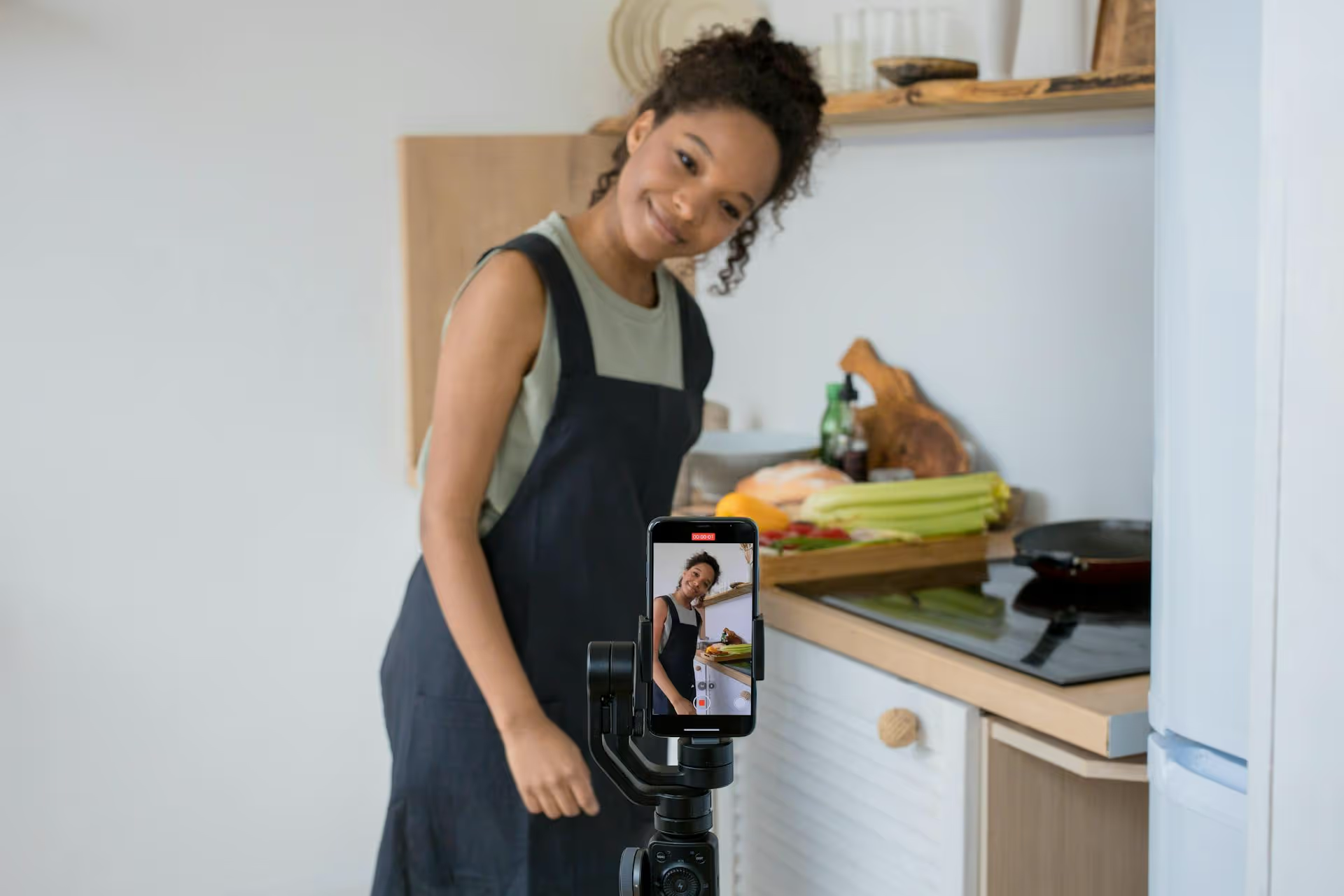
Thinking about posting your first TikTok? It's way easier than it looks. A few taps, a short video, and you're officially part of the conversation. This guide will walk you through the entire process, from a simple first post to creating content that finds its audience and maybe even goes viral. We'll cover the step-by-step mechanics, then get into the strategies that differentiate casual viewers from the creators who grow.
Let's start from the very beginning. If you've never posted before, this is your blueprint. Open the app and follow along.
It all starts with the big plus symbol (+) at the bottom center of your screen. Tap it. This opens up the TikTok camera, your main creation space.
You have two main choices here:
Once you're happy with your raw footage, tap the red checkmark to move to the main editing screen.
When you're happy with your raw footage, tap the red checkmark to move to the main editing screen.
This is where your video comes to life. Welcome to the post-production studio. At the top of the screen and on the right-hand menu, you'll see all your creative tools. Don't feel like you have to use them all at once, but get familiar with what they do.
At the very top of the screen is the "Add sound" option. This is arguably the most powerful feature on TikTok. Tapping it opens the audio library where you can search for a trending song, a funny audio clip, or a popular soundbite. Adding a trending sound is one of the quickest ways to give your video a chance to be seen.
Tap the "Text" icon (Aa) on the right. You can type out text, change the font, color, and add a background highlight to make it pop. After typing, you can drag the text anywhere on the screen and pinch to resize it. Pro tip: Tap the text box once, and an option will appear to "Set duration." This lets you control exactly when your text appears and disappears in the video, perfect for telling a story or highlighting different elements sequentially.
Tapping "Stickers" lets you add GIFs, emojis, or interactive polls. "Effects," located at the bottom menu bar, opens up a massive library of augmented reality filters, visual gags like Green Screen, and other fun additions. These are what power most of the app's visual trends.
Once your video looks and sounds how you want it, hit "Next." This brings you to the final publishing screen. A few things to handle here:
The moment of truth. You can tap the red "Post" button to send your video out into the world. Alternatively, you can hit "Drafts" to save it to a private folder in your profile. This is great for batch-creating content to post later.
That's it! You've successfully broken down the process of posting a TikTok.
Posting is the easy part. The fun part is creating videos that connect with an audience. That doesn't happen by accident. It happens by understanding a few principles of the platform.
Trending audio acts like a category tag for the algorithm. When you use a popular sound, you're tapping into a conversation that millions of people are already listening to. Here’s how to find them:
Using a sound isn't enough, you need to adapt the sound's trend to your own niche. If a sound is used for a comedic "reveal," think about a reveal relevant to your business, hobby, or a funny personal story.
Viewer attention is fleeting. Your first one to three seconds determine whether someone keeps watching or swipes away. You have to give them a reason to stay. This is called a "hook." Here are some formulas that work:
Your video should immediately present a question, curiosity, or value that viewers want to see paid off.
The accounts that grow fastest have a focus. Instead of posting random ideas, they stick to a few core themes, or "content pillars." This trains the algorithm on who to show your videos to and gives viewers a reason to follow you. They know what to expect.
Are you the person who shares Excel tips? The one who tries viral coffee recipes? The go-to source for book recommendations? Decide on your niche and stick with it. Your audience will find you much faster if your content is consistent.
Hashtags are still a useful signal to the algorithm. But stuffing your caption with dozens of generic tags is ineffective. A better approach is to use a mix:
The goal is to use hashtags to accurately describe what your video is about so TikTok can put it in front of the right people.
To access analytics, you'll need to switch to a free Creator or Business account in your settings. Once you've done that and posted a few videos, navigate to your "Creator Tools" and into your "Analytics." Under the "Followers" tab, you'll find a graph showing the hours and days your audience is most active on the app.
Posting an hour or two before that peak activity gives your video time to get indexed and start building momentum just as most of your followers are opening the app. If you don't have analytics yet, a good rule of thumb is to post on weekday evenings (e.g., 6 PM - 9 PM) and weekend afternoons, when many people are relaxing and scrolling.
Getting started on TikTok seems like a lot, but at its core, the process is simple: record a short clip, add a sound, write a quick caption, and post. The real learning comes from experimenting with content, seeing what gets a reaction, and doubling down on what works for your audience. Stay consistent, pay attention to trends, and don't be afraid to try new ideas.
Once you get into a rhythm, managing your TikTok alongside other platforms like Instagram Reels and YouTube Shorts can feel overwhelming. At Postbase, we built our tool specifically for this modern, video-first world. We let you plan all your short-form video content in one visual calendar, schedule it reliably across every platform at once, and analyze what’s working with clear analytics - all without the clunky interface of tools built a decade ago. It’s about spending less time on the logistics of posting and more time creating great videos.
Spencer's spent a decade building products at companies like Buffer, UserTesting, and Bump Health. He's spent years in the weeds of social media management—scheduling posts, analyzing performance, coordinating teams. At Postbase, he's building tools to automate the busywork so you can focus on creating great content.

Enhance your email signature by adding social media icons. Discover step-by-step instructions to turn every email into a powerful marketing tool.
Record clear audio for Instagram Reels with this guide. Learn actionable steps to create professional-sounding audio, using just your phone or upgraded gear.
Check your Instagram profile interactions to see what your audience loves. Discover where to find these insights and use them to make smarter content decisions.
Requesting an Instagram username? Learn strategies from trademark claims to negotiation for securing your ideal handle. Get the steps to boost your brand today!
Attract your ideal audience on Instagram with our guide. Discover steps to define, find, and engage followers who buy and believe in your brand.
Activate Instagram Insights to boost your content strategy. Learn how to turn it on, what to analyze, and use data to grow your account effectively.
Wrestling with social media? It doesn’t have to be this hard. Plan your content, schedule posts, respond to comments, and analyze performance — all in one simple, easy-to-use tool.



