

How to Add Social Media Icons to an Email Signature
Enhance your email signature by adding social media icons. Discover step-by-step instructions to turn every email into a powerful marketing tool.

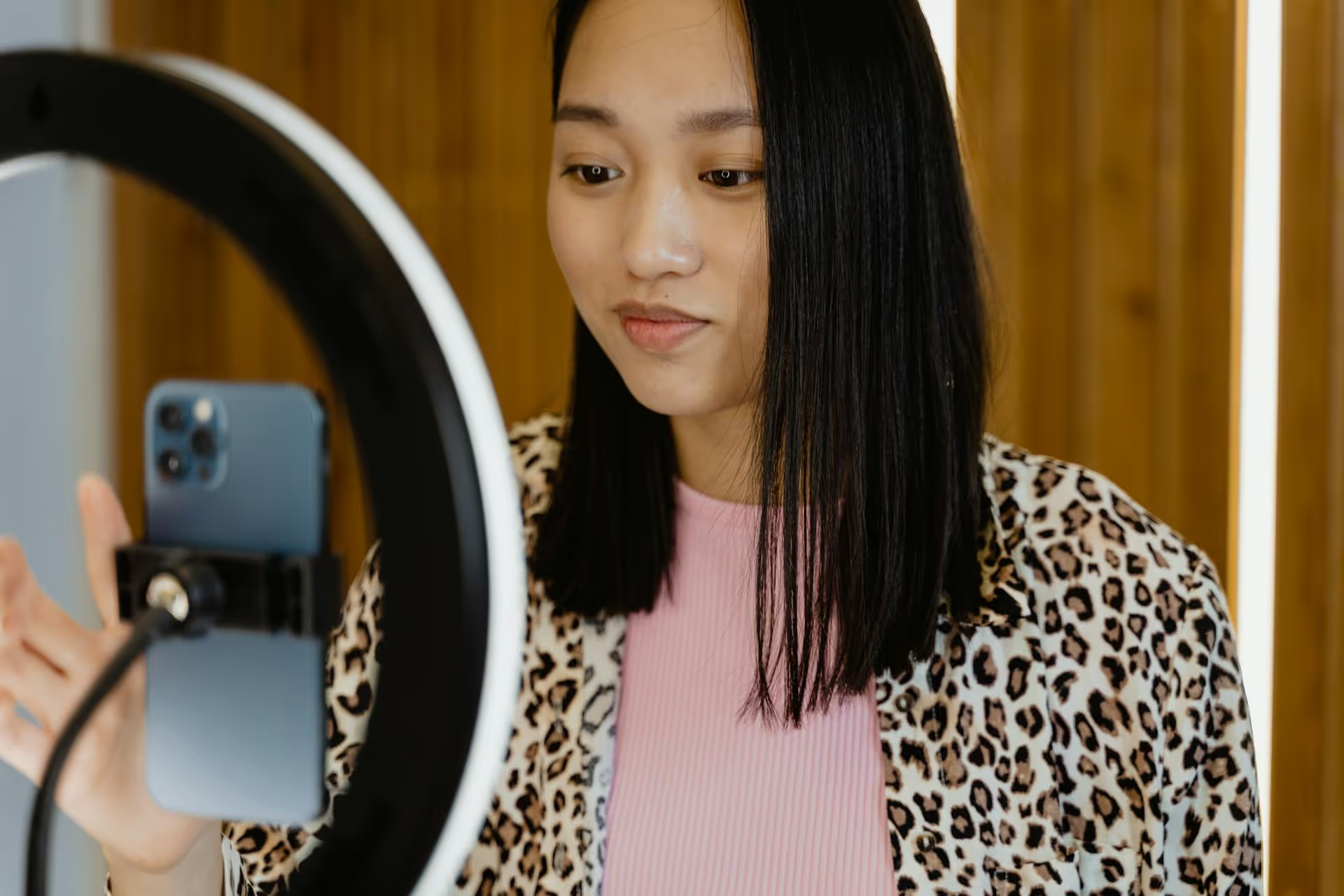
Finishing a great Facebook Live session feels fantastic, but that feeling fades quickly when you realize your Twitter audience missed the entire thing. You can't just share the link and expect results. This guide will walk you through exactly how to properly post your Facebook Live videos on Twitter, step by step, so you can maximize your reach and get more mileage out of every piece of content you create.
Let's get this out of the way first. Facebook and Twitter (now known as X) are separate platforms, and they don't play nicely together when it comes to video. Simply copying the link to your Facebook Live and pasting it into a Tweet is one of the worst things you can do for engagement. Here’s why:
So, the challenge isn't simply "sharing" your video, it's about repurposing it in a smart way. The good news is, it's a straightforward process once you know the steps.
The best way to get your Facebook Live content onto Twitter is through a simple, yet powerful, three-step process. This method puts you in complete control and sets your video up for success on a completely different platform.
Think of it less as a copy-paste job and more as translating your content for a new audience. Let’s break down how to do each step.
Getting your video file from Facebook is surprisingly simple once you know where to look. You can only do this after your live broadcast has ended and is available as a replay. The easiest way to do this is on a desktop computer.
Here’s the process for a Facebook Business Page:
The video will download to your computer as an .MP4 file. Now you have the raw material you need for the most important part of the process: optimization.
If you went live from a personal profile, the process is similar. Find the video on your timeline, click the three-dot menu on the post itself, and you should see the download option there.
A 20-minute, horizontal Facebook Live video is not going to work on Twitter's fast-paced, vertical feed. To get views, clicks, and engagement, you need to adapt your video. This is where you transform a long livestream replay into a bite-sized, attention-grabbing clip designed specifically for Twitter.
Twitter is about quick hits of information. Users are scrolling fast. Organic videos are limited to 2 minutes and 20 seconds (140 seconds). Your goal isn’t to post the entire livestream, but to pull out the single most valuable moment.
Simple Tools for Trimming: You don't need to be a professional video editor. Simple tools work perfectly for this.
Most Facebook Lives are filmed in a horizontal (16:9) format. But more than 80% of Twitter users are on mobile, where a vertical format dominates the screen. Cropping your video to a square (1:1) or vertical (4:5 or 9:16) aspect ratio will instantly make it more visible and engaging in the feed.
When you're editing your trimmed clip, simply change the project's aspect ratio. If cropping cuts out important information, you can place your horizontal video clip inside a vertical frame and add a text headline above or below it.
This is perhaps the single most important optimization you can make. The vast majority of social media videos are watched with the sound off. If your video doesn't have open captions (captions that are permanently part of the video image), most people will just scroll right past it.
Once you have your trimmed, reformatted, and captioned video clip saved as an .MP4 file, you’re ready for the final step. Here’s how to post it natively on Twitter for the best results.
#SocialMediaTips or #ContentMarketing instead of #Business.Don't stop at one clip. Your single Facebook Live broadcast is a goldmine of content waiting to be unleashed. Slicing up one 30-minute livestream can give you:
By treating your livestream as the starting point of a larger content strategy, you turn a single hour of work into a full week’s worth of high-quality, targeted content across all your platforms.
Sharing your Facebook Live video on Twitter requires a few extra steps, but the payoff is enormous. By downloading your replay, strategically optimizing short clips for a mobile-first audience, and uploading them natively, you breathe new life into your content and connect with thousands of people who otherwise would have missed it.
Creating great pillar content and repurposing it across different platforms is a brilliant strategy, but it can quickly become chaotic to manage dozens of individual clips and posts. We actually built Postbase to solve this exact headache. Our visual calendar lets you easily map out all your repurposed video content across Twitter, TikTok, Reels, and more, all from a single dashboard. Because our platform is built from the ground up for video formats, you can upload once and schedule everywhere, making a sophisticated repurposing an organized, repeatable process instead of a mess.
Spencer's spent a decade building products at companies like Buffer, UserTesting, and Bump Health. He's spent years in the weeds of social media management—scheduling posts, analyzing performance, coordinating teams. At Postbase, he's building tools to automate the busywork so you can focus on creating great content.

Enhance your email signature by adding social media icons. Discover step-by-step instructions to turn every email into a powerful marketing tool.
Record clear audio for Instagram Reels with this guide. Learn actionable steps to create professional-sounding audio, using just your phone or upgraded gear.
Check your Instagram profile interactions to see what your audience loves. Discover where to find these insights and use them to make smarter content decisions.
Requesting an Instagram username? Learn strategies from trademark claims to negotiation for securing your ideal handle. Get the steps to boost your brand today!
Attract your ideal audience on Instagram with our guide. Discover steps to define, find, and engage followers who buy and believe in your brand.
Activate Instagram Insights to boost your content strategy. Learn how to turn it on, what to analyze, and use data to grow your account effectively.
Wrestling with social media? It doesn’t have to be this hard. Plan your content, schedule posts, respond to comments, and analyze performance — all in one simple, easy-to-use tool.



