

How to Add Social Media Icons to an Email Signature
Enhance your email signature by adding social media icons. Discover step-by-step instructions to turn every email into a powerful marketing tool.

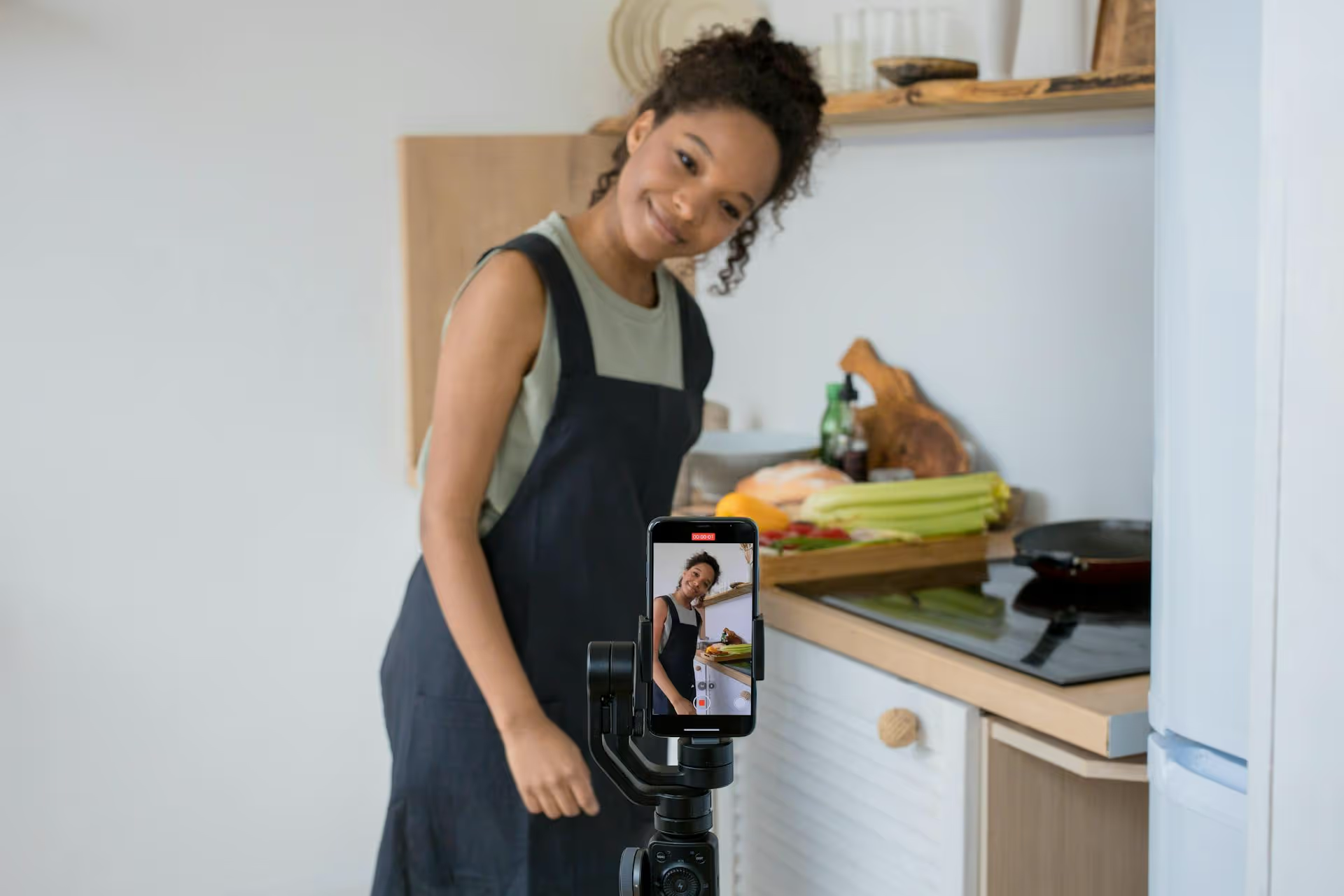
You’ve seen those slick TikTok edits with killer transitions and perfectly synced audio, and now you want to make them yourself. The great news is you don’t need expensive software or a powerful computer, the entire process can happen right on your phone using CapCut. This guide will show you exactly how to make compelling TikTok edits on CapCut, starting with the basics and moving up to the advanced tricks that will make your content stand out.
There's a reason nearly every TikTok editing tutorial mentions CapCut. It's the unspoken official editor for the platform, and for good reason. First, it's completely free to use, without intrusive watermarks or annoying feature paywalls that get in your way. Second, it's owned by ByteDance - the same company that owns TikTok - which means it has seamless integration and features designed specifically for creating short-form vertical videos.
But the biggest advantage is its power. For a mobile app, CapCut is packed with features that rival some desktop editing software. You get access to multi-track editing, keyframes, chroma key (green screen), advanced audio tools, and a massive library of effects, transitions, and filters that are constantly updated with trending styles. It gives you the power of a pro editor with the convenience of a mobile app.
Opening CapCut for the first time can feel a little busy, but you only need to know a few key areas to get started. Tapping "New project" will take you into the main editing screen. Here’s a quick breakdown:
Let's walk through the fundamental steps of creating a simple TikTok edit. The process involves importing media, cutting it to the right moments, and setting it to music.
Starting is simple. Tap New project. CapCut will open your phone's photo library. Select the video clips and photos you want to use for your edit. You can select multiple files at once. After you've chosen them, tap the Add button. Your selected clips will now appear in order on your editing timeline.
Very rarely will you use an entire video clip as is. Your first job is to cut out the excess and find the most interesting moments. In CapCut, you have two main ways to do this:
Pro Tip: Practice making lots of quick cuts. TikTok videos move fast. Keeping your clips short and punchy (1-2 seconds each) is a good way to maintain viewer engagement.
Sound is half the experience on TikTok. To add music, tap the Audio button on the main toolbar. You have several options:
This is the secret sauce for many impressive edits. Syncing your video cuts to the beat of a song creates a satisfying rhythm that mesmerizes viewers. CapCut makes this incredibly easy.
Once you’ve added an audio clip to your timeline, tap on the audio clip itself. In the bottom toolbar, you'll see an option called Beats (it might be labeled as "Beat" with a flag icon).
After you’ve added beat markers (they appear as small yellow dots on the audio clip), you can easily trim and arrange your video clips to start and end right on those dots. Zoom in on the timeline to get precise placement. When the visuals change perfectly in time with the music, your edit instantly feels more professional.
Once you’ve mastered the basics, you can start adding flair with transitions, effects, and text to make your edits pop.
To add a transition, simply tap the small white square icon that appears between two clips on your timeline. This will open CapCut's transition library. Avoid the basic fades and wipes. For a TikTok feel, look in these categories:
Remember, less is often more. Sticking to one or two styles of transitions throughout a video creates a cleaner, more cohesive look.
Clear, engaging text hooks viewers in the first few seconds. Tap the Text button on the main toolbar to add a text layer. But don’t just leave it static! After typing your text, use these features:
Varying the speed of your clips is a classic editing trick. Instead of just making a whole clip faster or slower, use Speed Ramping for dramatic effect. Select a clip and go to Speed >,, Curve.
CapCut gives you presets like Bullet Time or Jump Cut that create dynamic speed changes. You can also tap Custom to edit the curve yourself. Drag points on the curve up to speed up that part of the clip and drag them down to create slow motion. This is perfect for emphasizing an action - slowing down right at the climax and speeding up right after.
Ready to try the techniques that make the top editors stand out? These features are surprisingly easy to use in CapCut.
Keyframes are markers that tell CapCut a property of a clip (like its position, size, or opacity) at a specific point in time. By setting two or more keyframes, CapCut automatically generates the animation between them.
Here’s a simple example: a slow zoom-in effect.
Now, when you play the clip, you’ll see it smoothly zoom from the starting size to the ending size. You can use keyframes to animate position, rotation, scale, and even opacity, giving you full control over your visuals.
The Overlay feature lets you place a video or photo on top of another video clip, also known as picture-in-picture. This is great for reaction videos, gaming content, or creative edits.
On the main toolbar, tap Overlay >,, Add overlay and select the media you want to place on top. You can then resize and reposition it in the preview window. Combine this with the Remove BG tool (select the overlay clip and find 'Remove Background') to magically cut out people or objects and place them in entirely new settings.
Once your edit is complete, it's time to export. Tap the resolution number at the very top of your editing screen (it usually defaults to 1080p). For the best quality on TikTok, use these settings:
After adjusting, tap the export arrow in the top-right. Once it's done rendering, CapCut gives you a shortcut to Share to TikTok, which takes you directly to the TikTok app with your video ready to go. You can add your final trending sounds, hashtags, and caption there before posting.
Making professional-looking TikTok edits is completely within your reach with CapCut. By getting comfortable with trimming clips, syncing them to audio, using transitions, and adding dynamic text, you have everything you need to create videos that hold a viewer’s attention and show off your personality or brand.
Once you’ve poured your creativity into a great edit, the last thing you want is for it to get lost in a messy content calendar. We originally built Postbase because we were tired of tools that just couldn’t handle short-form video properly. With our platform, you can plan your TikToks with a simple visual calendar and reliably schedule them to go live alongside your Reels and Shorts, without worrying about your social accounts constantly disconnecting or posts mysteriously failing to publish. It’s a modern tool designed to just work for the video-first world we actually create for.
Spencer's spent a decade building products at companies like Buffer, UserTesting, and Bump Health. He's spent years in the weeds of social media management—scheduling posts, analyzing performance, coordinating teams. At Postbase, he's building tools to automate the busywork so you can focus on creating great content.

Enhance your email signature by adding social media icons. Discover step-by-step instructions to turn every email into a powerful marketing tool.
Record clear audio for Instagram Reels with this guide. Learn actionable steps to create professional-sounding audio, using just your phone or upgraded gear.
Check your Instagram profile interactions to see what your audience loves. Discover where to find these insights and use them to make smarter content decisions.
Requesting an Instagram username? Learn strategies from trademark claims to negotiation for securing your ideal handle. Get the steps to boost your brand today!
Attract your ideal audience on Instagram with our guide. Discover steps to define, find, and engage followers who buy and believe in your brand.
Activate Instagram Insights to boost your content strategy. Learn how to turn it on, what to analyze, and use data to grow your account effectively.
Wrestling with social media? It doesn’t have to be this hard. Plan your content, schedule posts, respond to comments, and analyze performance — all in one simple, easy-to-use tool.



