

How to Add Social Media Icons to an Email Signature
Enhance your email signature by adding social media icons. Discover step-by-step instructions to turn every email into a powerful marketing tool.

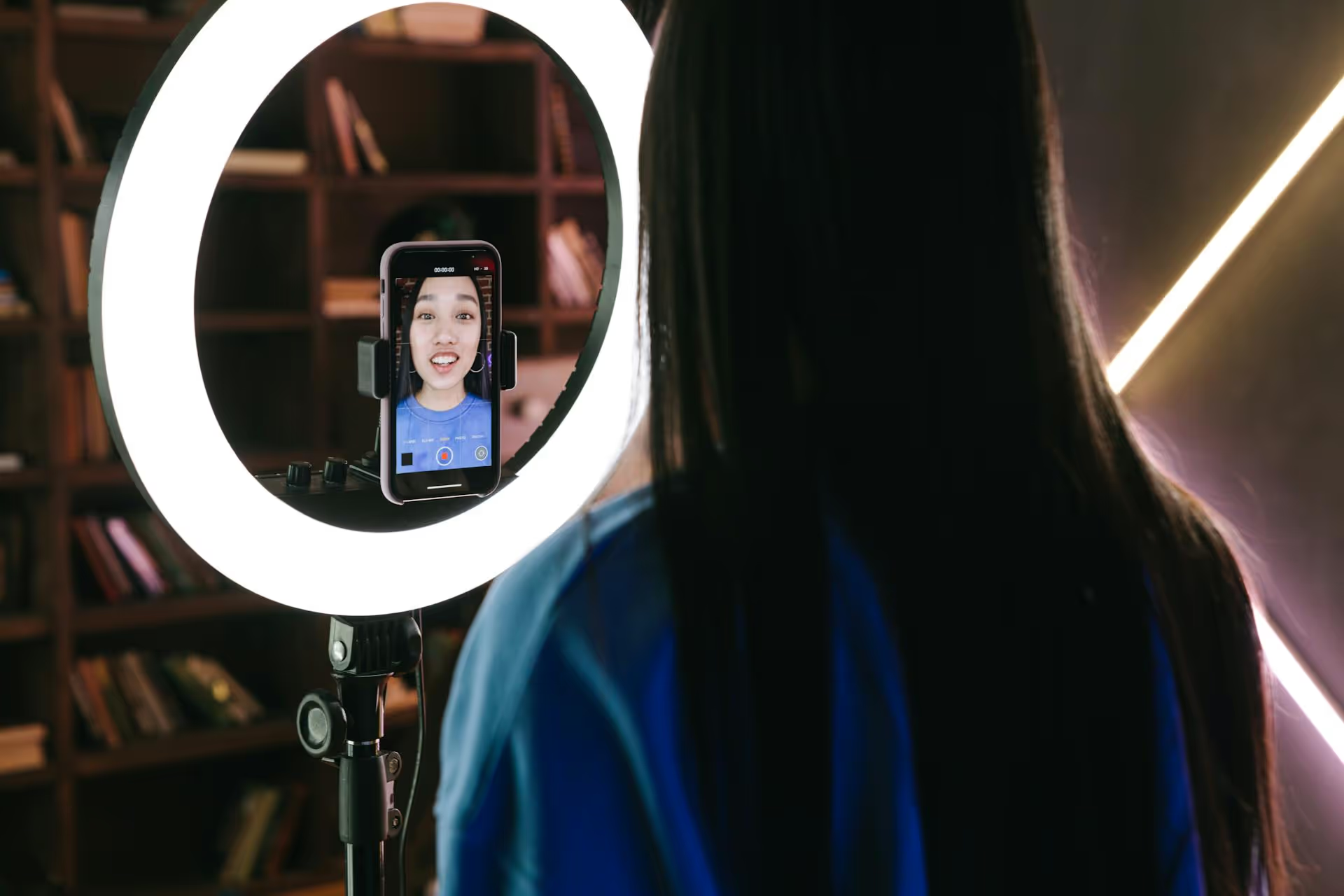
Going live on social media is the fastest way to build a real, unfiltered connection with your audience. Ditching slick, pre-recorded content for a raw, real-time conversation builds trust and excitement like nothing else. This guide will walk you through exactly how to get started, from your very first single-platform stream to broadcasting everywhere at once.
A successful live stream begins long before you're on camera. A little bit of planning can turn a potentially awkward, glitchy stream into a smooth, engaging experience for your viewers. Here’s what you need to cover first.
Just because it's live doesn't mean you should wing it a hundred percent of the time. Think about what you want to accomplish and how you'll keep your audience hooked.
You don't need a professional production studio to create a high-quality live stream. In fact, you probably already have everything you need. The key is making the most of it.
Each social platform has its own workflow for going live and caters to a slightly different vibe. Here’s a quick-start guide for the major players.
Instagram Live is perfect for casual, in-the-moment conversations and building a direct connection with your followers.
Facebook Live is versatile, working well for everything from personal updates to more structured, professional presentations on a business Page.
TikTok is all about spontaneous, fast-paced fun. Going live here is a great way to hang out with your community and show a different side of your personality. Note: you generally need at least 1,000 followers and to be over 18 to go live.
YouTube Live is ideal for longer, more planned-out content, like tutorials, webinars, and live gaming sessions. Note: On mobile, you need at least 50 subscribers to go live. There are no subscriber requirements for streaming from a desktop.
Once you’re comfortable going live on one platform, you might wonder: why limit yourself? Your audience exists across multiple channels – why not reach them all at the same time? That’s where multistreaming comes in.
Multistreaming (or simulcasting) is the process of broadcasting a single live video stream to multiple platforms simultaneously. Instead of choosing between Facebook, YouTube, or X for your live event, you can go live on all of them – and more – from a single dashboard.
Natively, social platforms don't allow you to stream anywhere else. To multistream, you'll need the help of a third-party tool. These tools act as a central hub, taking your single video feed and distributing it out to all your connected accounts. They generally fall into two categories:
Regardless of the tool you choose, the setup process is pretty similar:
The biggest challenge of multistreaming is managing engagement from multiple chat feeds. Thankfully, most multistreaming platforms solve this by providing a unified chat interface. This feature pulls all comments from Facebook, YouTube, X, and anywhere else into a single, combined feed, often labeling which platform each comment came from. To better connect your audiences, make a habit of referencing where people are watching from. Saying "Great question from Sarah over on YouTube!" makes everyone feel like they are part of one big, shared experience.
Live streaming is a powerful skill, whether you start small on a single platform to build confidence or use multistreaming tools to reach your entire audience at once. What matters most is breaking through the initial fear, hitting that "Go Live" button, and creating a genuine moment of connection with your community.
While live streaming builds the powerful in-the-moment buzz, sustaining that momentum afterward is what builds a loyal audience. After a great stream, the work continues with scheduling follow-up posts and repurposing video clips. At Postbase, we built our tool for exactly that modern, video-centric workflow. With our simple visual calendar, you can plan and schedule content across all your platforms, especially the Reels, TikToks, and Shorts that make perfect bite-sized replays of your live event. We help you turn a one-time live moment into a lasting campaign, without the headache of using a confusing, outdated planning tool.
Spencer's spent a decade building products at companies like Buffer, UserTesting, and Bump Health. He's spent years in the weeds of social media management—scheduling posts, analyzing performance, coordinating teams. At Postbase, he's building tools to automate the busywork so you can focus on creating great content.

Enhance your email signature by adding social media icons. Discover step-by-step instructions to turn every email into a powerful marketing tool.
Record clear audio for Instagram Reels with this guide. Learn actionable steps to create professional-sounding audio, using just your phone or upgraded gear.
Check your Instagram profile interactions to see what your audience loves. Discover where to find these insights and use them to make smarter content decisions.
Requesting an Instagram username? Learn strategies from trademark claims to negotiation for securing your ideal handle. Get the steps to boost your brand today!
Attract your ideal audience on Instagram with our guide. Discover steps to define, find, and engage followers who buy and believe in your brand.
Activate Instagram Insights to boost your content strategy. Learn how to turn it on, what to analyze, and use data to grow your account effectively.
Wrestling with social media? It doesn’t have to be this hard. Plan your content, schedule posts, respond to comments, and analyze performance — all in one simple, easy-to-use tool.



