

How to Add Social Media Icons to an Email Signature
Enhance your email signature by adding social media icons. Discover step-by-step instructions to turn every email into a powerful marketing tool.

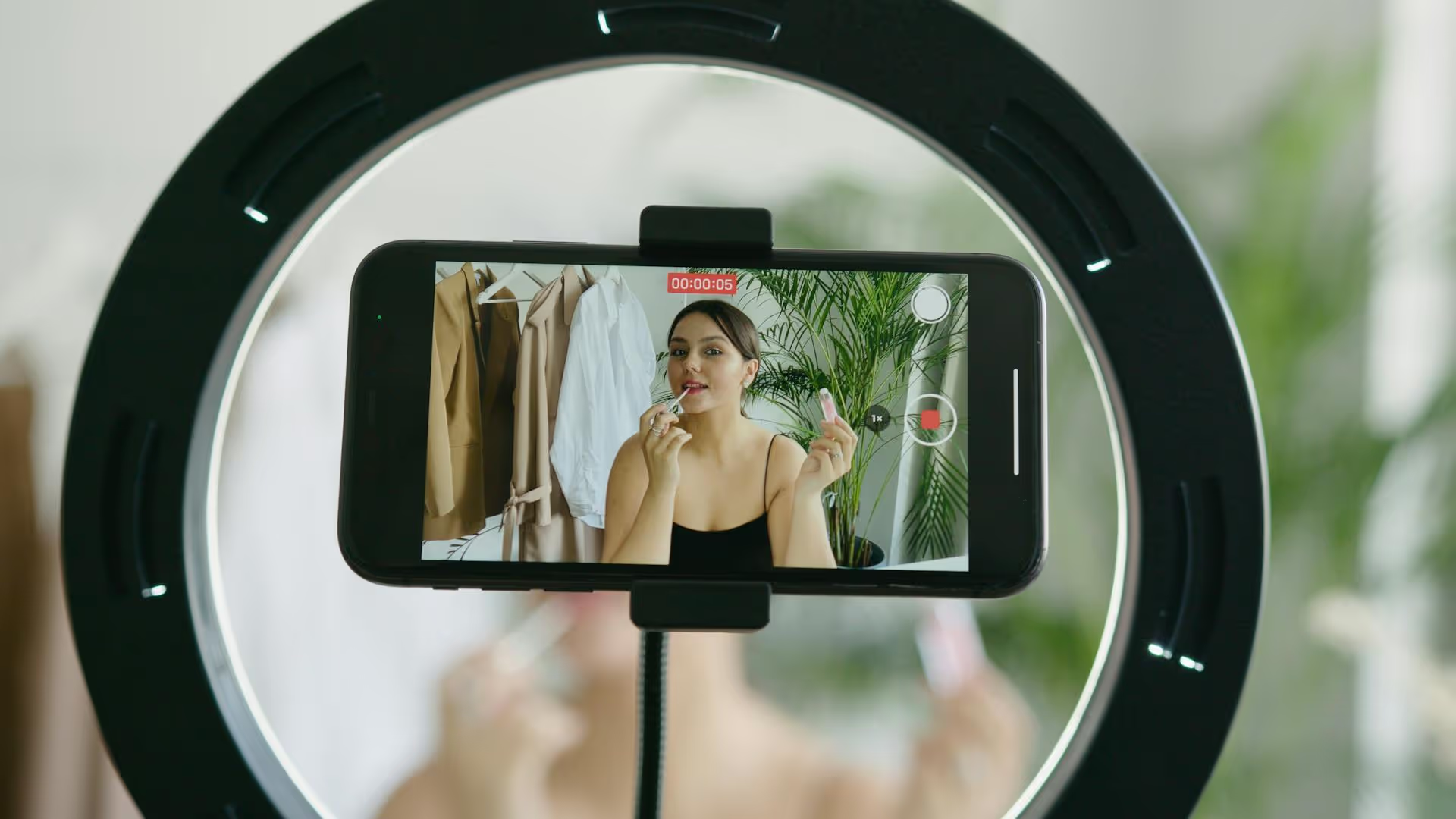
Want to stream on TikTok with professional quality using software like OBS or Streamlabs? To do that, you'll need two critical pieces of information: your TikTok Server URL and Stream Key. This guide will show you exactly where to find them, how to set them up, and what to do if you run into problems, so you can transform your live broadcasts from simple mobile streams into polished, high-quality productions.
Before we get into the steps, let's quickly break down what these two things are and why they are so important for your live stream. Think of it like sending a package.
In short, these two pieces of information work together to create a secure, private bridge between your professional streaming software on your computer and your TikTok account. They are the credentials that make high-quality, off-platform streaming possible.
Here's something important to know upfront: not every TikTok account has access to stream with a key. TikTok reserves this feature for creators who meet specific criteria. While the exact requirements can change and vary by region, they generally include:
If you don't see the options we're about to cover, it likely means your account hasn't met the internal threshold yet. The best thing to do is to continue creating engaging content, growing your audience, and checking back periodically for access.
Once your account has the necessary permissions, finding your streaming credentials is straightforward. You can typically do this directly from a desktop browser.
A Quick Security Note: Treat your stream key like your account password. Never share it publicly. Anyone who has your stream key can stream directly to your TikTok profile. If you think it has been compromised, you can usually reset it by navigating back to this page and selecting an option to generate a new key.
Now that you have your credentials, it's time to connect them to your broadcasting software. The process is nearly identical for OBS Studio, Streamlabs Desktop, and other similar programs.
Here's how to do it in OBS Studio, which is one of the most popular and free options available:
Your OBS setup is now connected to your TikTok account! From here, you can add your sources (webcam, screen share, images, overlays) and arrange them in the main window. When you are ready to send your video feed to TikTok, simply hit the "Start Streaming" button in OBS.
Don't forget this final, critical step! After you start the stream in OBS, you must go back to your TikTok LIVE Center page in your browser. There, you'll set your stream title, cover image, and category, and then you have to click the final "Go LIVE" button on that page. This tells TikTok to start broadcasting the feed it's now receiving from OBS.
Putting in the effort to stream from a desktop might seem like a lot of work, but the benefits in production quality are immense. Here's what you gain:
Sometimes things don't go as planned. Here are a few common issues and how to solve them.
This nearly always means the account has not yet met TikTok's eligibility requirements for desktop streaming. The solution is organic growth: focus on posting quality short-form videos and engaging with your community to build your follower base. Be sure to go live from your phone a few times as well, which can sometimes help activate the feature on desktop.
TikTok stream keys often expire after you end a stream or after a certain period of inactivity. They are single-use for security. If you're trying to use an old key from a previous session, it will fail. Always copy a fresh server URL and stream key from the LIVE Center just before you start your broadcast setup.
This is almost always related to your internet connection's upload speed or your OBS bitrate settings. Streaming requires a stable upload speed of at least 5-6 Mbps for a clean 1080p stream. Run an internet speed test to check your upload bandwidth. If your connection is weak, go into your OBS Settings, click the "Output" tab, and lower your "Video Bitrate" to a number your connection can handle (e.g., from 4500 Kbps down to 2500 Kbps). If your videos look pixelated, check your upload speed and bitrate settings.
Getting your TikTok Server URL and Stream Key opens up a new world of professional streaming, allowing you to use powerful software like OBS to create engaging, high-quality live broadcasts. By following these steps to connect your setup, you can take your live content strategy well beyond what's possible with just a phone and build a more dynamic brand presence.
Once you've wrapped up an amazing live stream, managing that content and an entire social media calendar can feel like a full-time job. We ran into this ourselves, which is why we built a scheduling tool that's actually designed for today's video-first world. With Postbase, we make it simple to plan and schedule all your social content - including TikToks, Reels, and Shorts - from one central, visual calendar, so you can focus more on creating and less on the administrative grind.
Spencer's spent a decade building products at companies like Buffer, UserTesting, and Bump Health. He's spent years in the weeds of social media management—scheduling posts, analyzing performance, coordinating teams. At Postbase, he's building tools to automate the busywork so you can focus on creating great content.

Enhance your email signature by adding social media icons. Discover step-by-step instructions to turn every email into a powerful marketing tool.
Record clear audio for Instagram Reels with this guide. Learn actionable steps to create professional-sounding audio, using just your phone or upgraded gear.
Check your Instagram profile interactions to see what your audience loves. Discover where to find these insights and use them to make smarter content decisions.
Requesting an Instagram username? Learn strategies from trademark claims to negotiation for securing your ideal handle. Get the steps to boost your brand today!
Attract your ideal audience on Instagram with our guide. Discover steps to define, find, and engage followers who buy and believe in your brand.
Activate Instagram Insights to boost your content strategy. Learn how to turn it on, what to analyze, and use data to grow your account effectively.
Wrestling with social media? It doesn’t have to be this hard. Plan your content, schedule posts, respond to comments, and analyze performance — all in one simple, easy-to-use tool.



