

How to Add Social Media Icons to an Email Signature
Enhance your email signature by adding social media icons. Discover step-by-step instructions to turn every email into a powerful marketing tool.

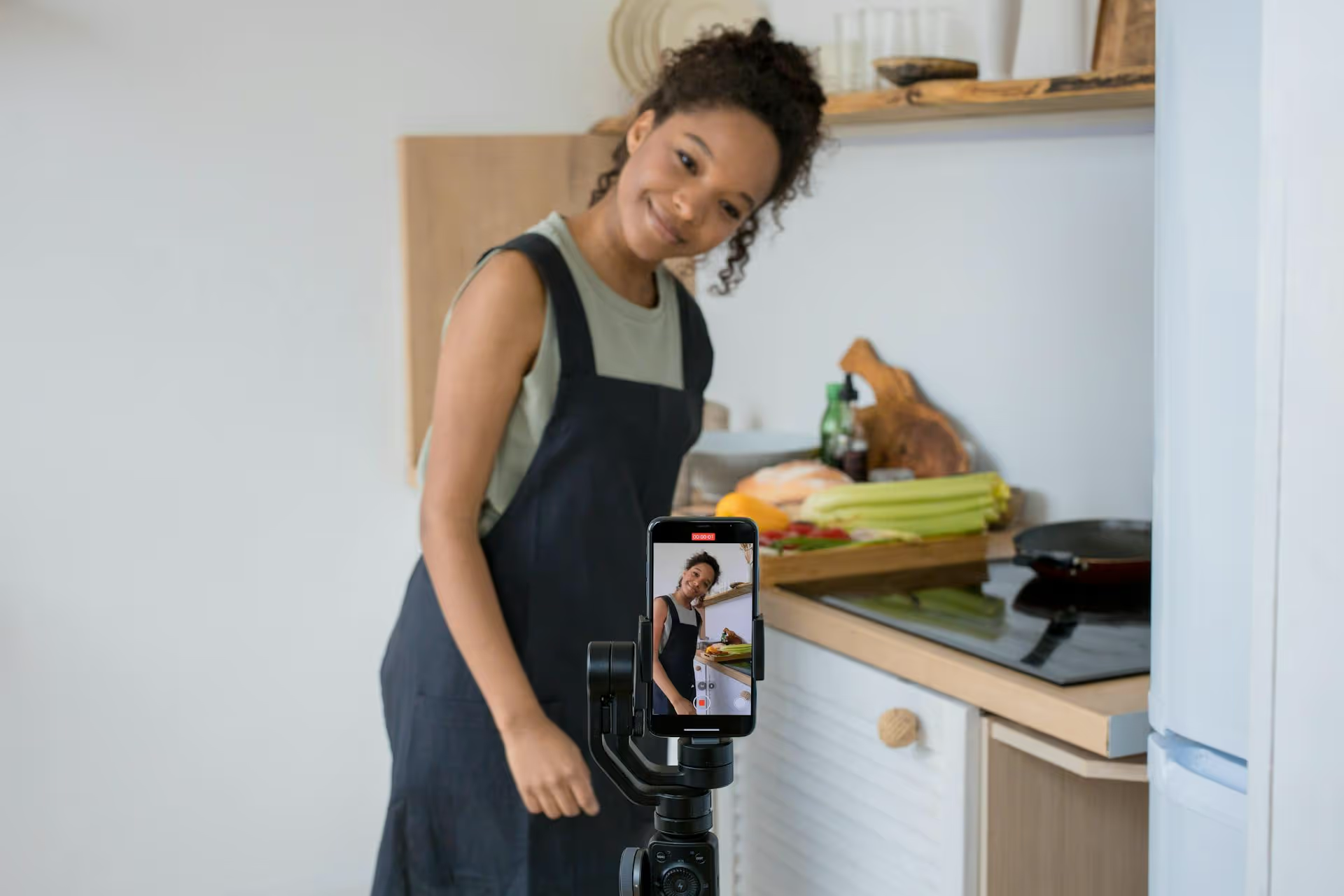
Want to upgrade your TikTok LIVE streams from a simple phone camera feed to a professional-grade broadcast with custom graphics, multiple camera angles, and crystal-clear audio? You're going to need your TikTok RTMP key. This guide breaks down exactly what RTMP is, the requirements you’ll need to meet to get access, and the step-by-step process for finding your key and going live from your desktop.
In simple terms, RTMP (Real-Time Messaging Protocol) is a digital bridge that connects external streaming software on your computer directly to your TikTok LIVE. Instead of being limited to your phone’s camera and microphone, you can use powerful, professional broadcasting software like OBS Studio, Streamlabs, or vMix to produce a much more dynamic and engaging live experience for your viewers.
Think about the difference between a standard phone stream and an RTMP broadcast:
If you're serious about creating high-quality live content, switching to an RTMP setup is a complete game-changer. Here's what you unlock:
Here’s the part where realistic expectations are important: not every creator has immediate access to RTMP streaming. TikTok gradually rolls out its advanced features, and an RTMP stream key is a perk reserved for creators who have already demonstrated consistency and an engaged community.
While TikTok doesn't publish an official, concrete checklist, the community has observed a few common requirements that seem to gate access to the feature.
To go LIVE at all on TikTok, you generally need to have at least 1,000 followers. For RTMP access, the bar is usually higher. While there's no magic number, many creators report that access starts to become available once an account crosses the 1,000 follower threshold and has had LIVE access activated for a few weeks. The key here appears to be a history of responsible LIVE behavior rather than a strict follower count.
This might be the most important factor of all. TikTok wants to see that you're an active and regular live streamer before giving you more powerful tools. If you've never gone live from your phone, it’s extremely unlikely you'll see the option to stream from a PC. Start by going live from your mobile device consistently, building your audience, and proving you can create engaging content within the platform's standard ecosystem.
Your account must be in good standing. This means you have not had any recent or serious Community Guideline violations. An account with active strikes or a history of being suspended will find it much more difficult to get approved for advanced features like RTMP streaming.
In the past, the RTMP feature was heavily skewed toward gaming creators, as screen sharing gameplay is one of its most obvious applications. Even now, categorizing your LIVE sessions under the "Gaming" topic can sometimes improve your chances of getting access, but it's no longer a firm requirement as the feature has expanded to more categories.
If you believe you meet the criteria and want to start streaming from your desktop, there are a couple of ways to do it. The easiest is using TikTok's proprietary software, but the most flexible method involves finding your unique stream key for use in programs like OBS.
Before hunting for an RTMP key, first check if you have access to TikTok LIVE Studio. This is TikTok’s official desktop streaming software for Windows PCs that connects to your account without needing you to manually copy and paste any keys. It's essentially a simplified version of OBS designed specifically for TikTok.
To check for access, visit tiktok.com/studio/download on your desktop browser. If your account is eligible, you'll be able to download the application directly. If not, the page will likely tell you that you don't yet meet the requirements.
If you don't have access to LIVE Studio, or if you prefer using a more powerful and configurable tool like OBS Studio or Streamlabs, you'll need to find your Server URL and Stream Key manually.
Remember, this option will only appear in your account if TikTok has enabled it for you.
IMPORTANT: Treat your Stream Key like a password! Never share it publicly or with anyone you don't trust. Anyone who has your Stream Key can broadcast live video to your TikTok account. For security, TikTok often resets this key between sessions, so you may need to complete these steps each time you want to go live.
With your Server URL and Stream Key in hand, it's time to connect your broadcasting software. We'll use OBS Studio for this example, as it's free, powerful, and wildly popular.
TikTok is a vertical platform, so your stream needs to be set up in a vertical format (a 9:16 aspect ratio).
Now all the setup is done, and you're ready to go live. This part involves a quick hand-off between OBS on your computer and the TikTok app on your phone.
It can be frustrating when you're ready to level up your content but the feature hasn't been enabled on your account. If you don't see the option to get your key, here are a few things you can do.
This really is the best advice. Focus on what you can control. Continue to go LIVE from your phone, interact with your audience, create valuable clip-based content, and abide by the Community Guidelines. Often, the feature will simply appear one day after a period of consistent activity.
Update your TikTok app to the latest version. Sometimes features are tied to app updates. You can also try setting your LIVE topic to "Gaming," going to the live setup screen to check for the RTMP option, and then switching the topic back if it’s still not there. It’s a trick that may no longer work, but it’s quick to try.
While not a guaranteed route, you can try contacting TikTok support through the in-app help center. Politely explain that you are a serious creator looking to improve the quality of your broadcasts for the viewer community by using streaming software. Success rates vary widely, but it's another option if all else fails.
Getting your TikTok RTMP key empowers you to move beyond mobile streaming and create truly professional live broadcasts that captivate your audience. By establishing a solid LIVE history and following the steps to connect your software, you can unlock a suite of production tools to help your content stand out and look its absolute best.
Once your stream is over, continuing that momentum depends on your broader content strategy. We built Postbase for creators who want to stay consistent without the headache of managing multiple platforms. Our visual calendar lets you plan and schedule all your video content - from TikToks to Reels and Shorts - in one clean space. Because our platform was designed with short-form video as the priority, it reliably handles the formats that drive growth today, helping you keep your content flowing long after you've ended your last broadcast.
Spencer's spent a decade building products at companies like Buffer, UserTesting, and Bump Health. He's spent years in the weeds of social media management—scheduling posts, analyzing performance, coordinating teams. At Postbase, he's building tools to automate the busywork so you can focus on creating great content.

Enhance your email signature by adding social media icons. Discover step-by-step instructions to turn every email into a powerful marketing tool.
Record clear audio for Instagram Reels with this guide. Learn actionable steps to create professional-sounding audio, using just your phone or upgraded gear.
Check your Instagram profile interactions to see what your audience loves. Discover where to find these insights and use them to make smarter content decisions.
Requesting an Instagram username? Learn strategies from trademark claims to negotiation for securing your ideal handle. Get the steps to boost your brand today!
Attract your ideal audience on Instagram with our guide. Discover steps to define, find, and engage followers who buy and believe in your brand.
Activate Instagram Insights to boost your content strategy. Learn how to turn it on, what to analyze, and use data to grow your account effectively.
Wrestling with social media? It doesn’t have to be this hard. Plan your content, schedule posts, respond to comments, and analyze performance — all in one simple, easy-to-use tool.



