

How to Add Social Media Icons to an Email Signature
Enhance your email signature by adding social media icons. Discover step-by-step instructions to turn every email into a powerful marketing tool.

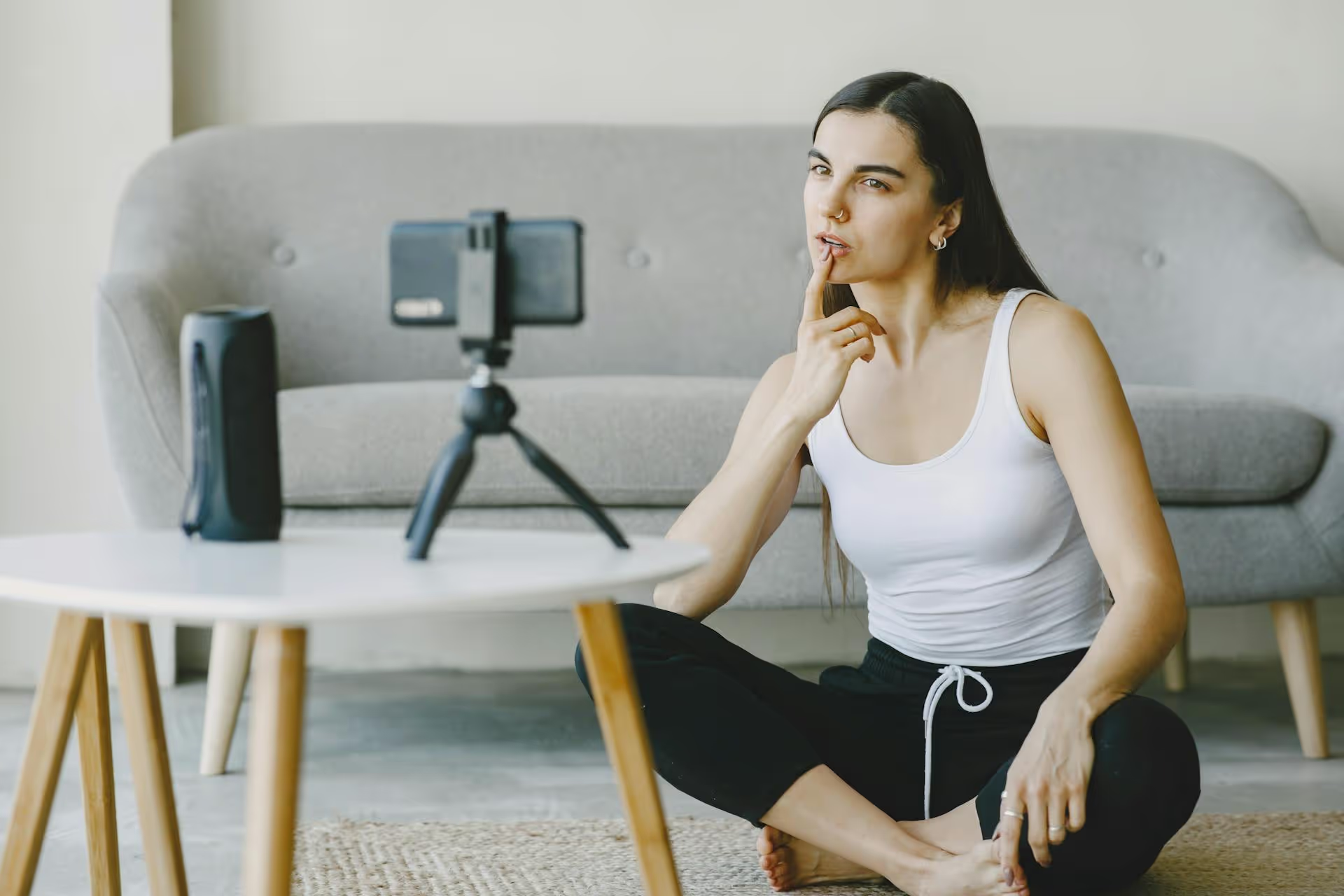
Uploading a raw, unedited video to Facebook is like serving a meal with all the ingredients just thrown on a plate - it might get the job done, but it won’t impress anyone. Polishing your videos with a few simple edits can dramatically boost watch time, engagement, and how your brand is perceived by followers. This guide will walk you through exactly how to edit your Facebook videos, covering everything from the built-in tools for quick fixes to the essential techniques for creating content that people actually want to watch.
In a feed crowded with content, an unedited video screams "amateur." A well-edited video, on the other hand, tells your audience that you value their time and attention. Here’s why taking a few extra minutes to edit is so important:
Facebook offers a suite of basic editing tools that are perfect for quick adjustments right before you post. While they aren’t going to replace a dedicated video editor, they are surprisingly useful for simple tasks. The tools available will vary depending on whether you're uploading a standard feed video, a Reel, or a Story.
You’ll find these options in the "Create Post" window on both desktop and mobile as you’re uploading your video. After you select your video file, click the "Edit" button (it often looks like a pencil or magic wand icon).
The real native editing power on Meta platforms lies within the Reels and Stories creator studios on the mobile app. This is where you can get much more creative.
To access it, open the Facebook app, tap “Create Reel” or “Create Story,” and either record a new video or upload one from your camera roll. Once you have your clip(s) loaded into the editor, a new world of options opens up.
Facebook’s native tools are great for simple edits, but if you want to create truly standout content, you’ll eventually need to use an external editing app. These apps give you more granular control over your edits, offering features like multi-track audio, precise color correction, complex transitions, and more advanced text effects.
You don't need a powerful computer to create professionally edited videos. These mobile apps are intuitive, powerful, and built for creating social-first content.
When you're ready to get serious about video production, moving to a desktop editor will unlock ultimate creative freedom.
Knowing how to use the tools is one thing, knowing what to do with them is another. Here are the editing techniques that will make the biggest difference in your video performance.
You have to earn a viewer's attention instantly. Start your video with your most interesting visual, a provocative question on screen, or the "aha" moment. Don’t waste time on an animated logo intro or a slow fade-in. Get straight to the value.
Long, static shots are boring. Trim every second of dead air, every "um" and "uh," and every awkward pause. Shorter clips pieced together create a faster pace and a feeling of momentum, which keeps the viewer’s brain engaged. For a 30-second Reel, aim for multiple clips, each lasting only 2-5 seconds.
We've already mentioned it, but it's worth stressing again. Most video on social media is viewed without sound. If your video relies on someone talking, but you don't have captions, your message is completely lost. Use Facebook’s auto-captioning or an app like CapCut to generate them, then style them to be large, clear, and easy to read.
Don’t rely on just the spoken word. Use bold text on screen to call out key takeaways, ask questions, or provide context. Simple graphics, emojis, and highlighting effects can guide the viewer’s eye and make your video more scannable and digestible. For more tips, check out how to add text to Facebook video.
Audio is half of the video experience. For Reels, using a trending sound can significantly increase your reach. For longer videos, subtle background music can set the mood and keep the energy up. Use Facebook’s Sound Collection for licensed music, or look at services like Artlist or Epidemic Sound for higher-quality tracks. Always make sure your speaking audio is louder and clearer than your background music.
What do you want the viewer to do after watching? Tell them! Use a text overlay or a verbal cue at the end of your video to say, "Follow for more tips," "Comment your thoughts below," or "Click the link in our bio to learn more." A video without a CTA is a missed opportunity.
Editing your Facebook videos moves them from being simple uploads to strategic pieces of content designed to capture attention and drive results. Whether you stick with Facebook's handy native tools for quick trims and captions or move to an external app for more creative control, the key is to be intentional with every cut, text overlay, and sound choice.
Once you’ve perfectly edited your videos, a reliable scheduling tool is essential to ensure they go out flawlessly. Since Postbase was built specifically for video-first content, we use its visual calendar to plan out our Reels and Shorts, trusting that they’ll publish on time without compression issues or random failures. It simplifies the final step of the process, so we can focus on creating great content instead of wrestling with our tools.
Spencer's spent a decade building products at companies like Buffer, UserTesting, and Bump Health. He's spent years in the weeds of social media management—scheduling posts, analyzing performance, coordinating teams. At Postbase, he's building tools to automate the busywork so you can focus on creating great content.

Enhance your email signature by adding social media icons. Discover step-by-step instructions to turn every email into a powerful marketing tool.
Record clear audio for Instagram Reels with this guide. Learn actionable steps to create professional-sounding audio, using just your phone or upgraded gear.
Check your Instagram profile interactions to see what your audience loves. Discover where to find these insights and use them to make smarter content decisions.
Requesting an Instagram username? Learn strategies from trademark claims to negotiation for securing your ideal handle. Get the steps to boost your brand today!
Attract your ideal audience on Instagram with our guide. Discover steps to define, find, and engage followers who buy and believe in your brand.
Activate Instagram Insights to boost your content strategy. Learn how to turn it on, what to analyze, and use data to grow your account effectively.
Wrestling with social media? It doesn’t have to be this hard. Plan your content, schedule posts, respond to comments, and analyze performance — all in one simple, easy-to-use tool.



