

How to Add Social Media Icons to an Email Signature
Enhance your email signature by adding social media icons. Discover step-by-step instructions to turn every email into a powerful marketing tool.

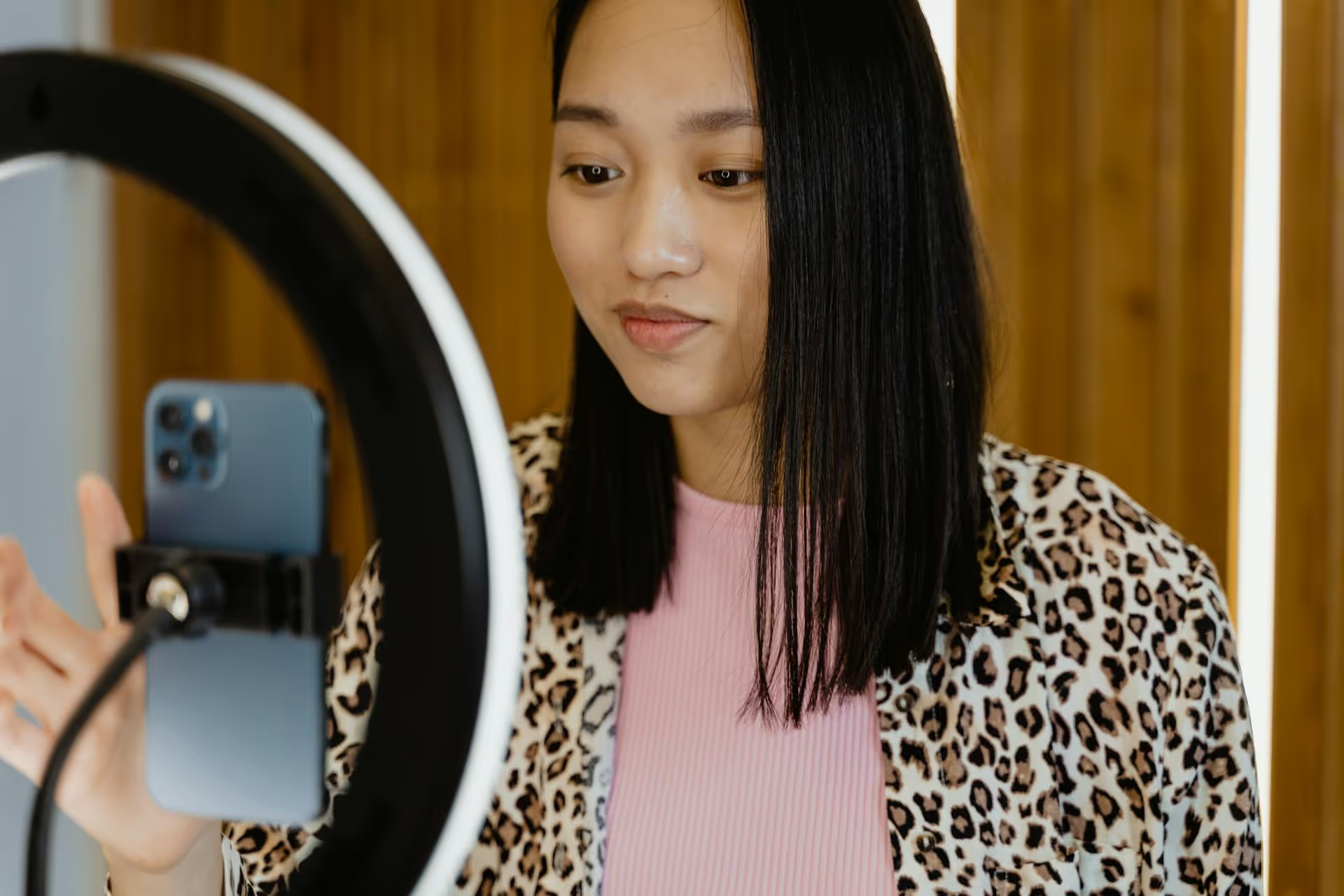
Accidentally reposted something that doesn’t quite fit your feed or just want to tidy up your profile? Removing a repost on Instagram is simple, but the exact steps depend on how you reposted it in the first place. This guide will walk you through deleting reposts from your Feed and Stories, handling collaboration posts, and managing what happens when others share your content.
Unlike platforms like X (formerly Twitter) or Facebook, Instagram doesn't have a single, native "repost" or "share" button for the main feed. Because of this, users have found clever ways to share content, and the term "repost" can refer to a few different actions. For this guide, we'll cover the most common ones:
Figuring out which type of repost you're dealing with is the first step. From there, the solution is just a few taps away.
If the reposted content appears on your permanent profile grid, it's likely either a screenshot you uploaded or a collaboration post you joined. The deletion process is slightly different for each.
When you take a screenshot of another user’s post and upload it to your feed, Instagram treats it just like any other photo or video you've published yourself. You have full control over it and can delete it permanently at any time.
Here’s how to do it:
A helpful tip: If you change your mind, you haven't lost the post forever just yet. Instagram keeps deleted content in a "Recently Deleted" folder for 30 days. You can access this through Settings and Privacy >,, Your Activity >,, Recently Deleted to restore the post if needed.
Collaboration posts are a fantastic tool for reach, but sometimes partnerships change or the content no longer aligns with your brand. Unlike a regular post, you don't "delete" a collab post. Instead, you "stop sharing" it. This removes the post from your profile grid but allows it to remain on the original creator's profile.
Here are the steps to remove yourself as a collaborator:
The post will immediately disappear from your profile grid and your name will be removed from the post's header. The likes and comments will remain attached to the post on the original creator's account.
Sharing posts and Reels to your Story is an incredibly common way to show support or share interesting content. Because Stories are temporary by nature, sometimes you just want to remove one before its 24-hour cycle is complete. Luckily, this is very easy to do, and the process is the same whether you shared a feed post, a Reel, or an image you took yourself.
Follow these quick steps:
That's it! The shared post will no longer be visible to your followers.
Sometimes, the repost you want removed isn't on your own account. This situation requires a different approach, as you don't have direct control. Here's a breakdown of your options.
Seeing your photo or video on someone else's feed without your permission can be frustrating. You can't just delete it yourself, but you're not out of options.
The best first step is always to send a polite direct message. Often, people share content with good intentions and don't realize they've crossed a boundary. Just reach out and kindly ask them to take it down.
You could say something like: “Hey! Thanks for sharing my photo on your feed. I appreciate the love, but I’d prefer to keep my content on my own profile. Would you mind deleting it? Thanks so much for understanding!”
In most cases, this is enough to resolve the issue without any conflict.
If the person refuses to remove your content or simply doesn't respond, your next option is to report the post for copyright infringement. When you post an original photo or video, you own the copyright to it. Reposting it without your permission is a violation of Instagram's terms of service.
You can find the option to report a post by tapping the three-dot icon and selecting Report. Follow the on-screen prompts for "Intellectual property violation." Instagram has a dedicated form to handle these claims. While it's a more serious step, it's an effective tool for protecting your work.
Want to prevent your content from being reposted to other people's Stories in the first place? Instagram provides privacy settings that give you more control.
This setting change won't affect older posts that have already been shared, but it will prevent anyone from sharing your future feed posts into their own Stories.
Knowing how to delete a repost is one thing, but knowing why is just as important for building a strong brand on social media. Your Instagram feed is your digital storefront, and every piece of content contributes to your overall message and aesthetic.
Here are a few strategic reasons why content creators and marketers remove reposted content:
Deleting a reposted piece of content on Instagram is straightforward once you identify how it was shared. Whether you're decluttering your feed, removing a temporary Story, or ending a collaboration, the options are simple and give you total control over what appears on your profile and represents your brand.
Thinking carefully about what appears on your profile is just as important as knowing how to remove it after the fact. At Postbase, we designed our platform with a visual calendar that lets you see a bird’s-eye view of your content strategy before anything ever goes live. Planning your feed, Reels, and Stories together in Postbase helps you schedule with confidence, spot potential content gaps, and maintain a consistent brand look from the very start, which saves you countless hours in the long run.
Spencer's spent a decade building products at companies like Buffer, UserTesting, and Bump Health. He's spent years in the weeds of social media management—scheduling posts, analyzing performance, coordinating teams. At Postbase, he's building tools to automate the busywork so you can focus on creating great content.

Enhance your email signature by adding social media icons. Discover step-by-step instructions to turn every email into a powerful marketing tool.
Record clear audio for Instagram Reels with this guide. Learn actionable steps to create professional-sounding audio, using just your phone or upgraded gear.
Check your Instagram profile interactions to see what your audience loves. Discover where to find these insights and use them to make smarter content decisions.
Requesting an Instagram username? Learn strategies from trademark claims to negotiation for securing your ideal handle. Get the steps to boost your brand today!
Attract your ideal audience on Instagram with our guide. Discover steps to define, find, and engage followers who buy and believe in your brand.
Activate Instagram Insights to boost your content strategy. Learn how to turn it on, what to analyze, and use data to grow your account effectively.
Wrestling with social media? It doesn’t have to be this hard. Plan your content, schedule posts, respond to comments, and analyze performance — all in one simple, easy-to-use tool.



