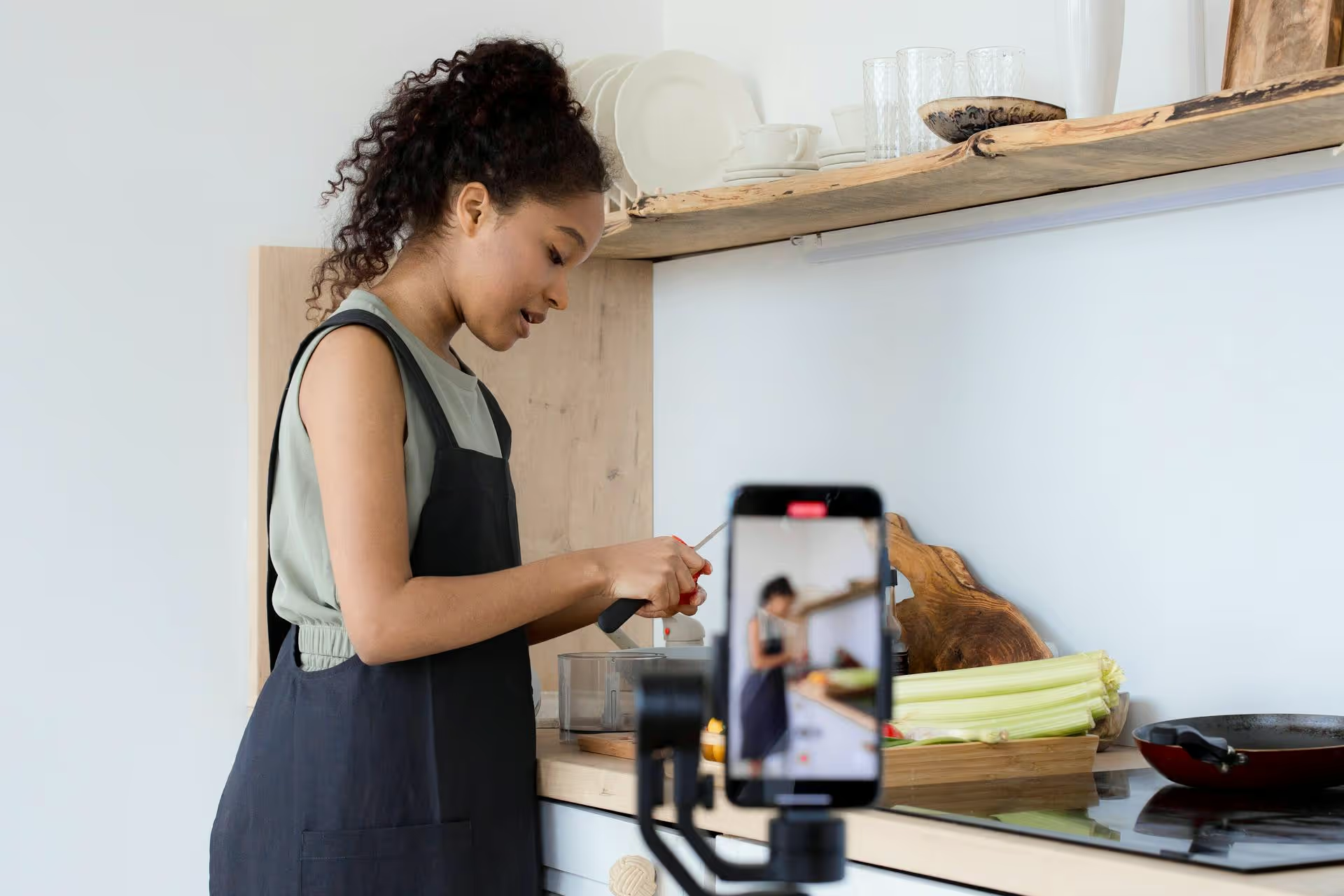
Creating a tutorial video on how to set up a Facebook Page is a fantastic way to attract new clients or build an audience of aspiring business owners. It’s a timeless piece of content that demonstrates your expertise right from the start. This guide breaks down the full process, covering everything from planning and recording your screen to editing and promoting your finished video.
Why Bother Creating a Facebook Page Tutorial?
You might think, "Isn't this topic already covered?" Yes, but that's a good thing. A topic with high search volume means there's a constant, fresh audience of people looking for help. Small business owners, freelancers, non-profit organizers, and marketing students need this specific guidance every single day. By creating your own version, you position yourself as a helpful authority.
An effective tutorial video can work for you in multiple ways:
- It builds trust: You’re offering pure value without asking for anything in return, which is the best way to start a relationship with a potential customer or follower.
- It's an evergreen asset: A well-made tutorial on a fundamental skill can attract views and leads for years.
- It works as a lead magnet: You can guide viewers from the video to a more in-depth resource, like a content calendar template or a free checklist.
- It demonstrates your own professionalism: A clear, well-produced video tells people you know what you’re doing and you care about quality.
Step 1: Planning Your Tutorial (The Pre-Production Work)
A great tutorial rarely happens by just hitting "record" and talking. The best ones are planned with intention. Taking a few moments here to get organized will save you hours of headaches during recording and editing.
Map Out Your Script
You don't need a word-for-word script, but an outline is non-negotiable. It keeps you on track, prevents rambling, and ensures you don’t forget a critical step. An unstructured video is often confusing for the viewer and a nightmare to edit.
Think about your tutorial in three parts:
- The Hook (First 15 Seconds): Quickly state what the video is about and what the viewer will achieve by watching it. Get straight to the value.
Example: "In this video, I'm going to show you exactly how to create a professional Facebook Business Page, step-by-step, in under 10 minutes. By the end, you'll have a page that's ready to attract your first followers." - The Core Steps (The Main Tutorial): This is the meat of the video. Break down the process into clear, logical steps. Your outline here might look something like this:
- Sign in and navigate to the Page creation screen.
- Choose a Page Name and Category. (Pro-tip: Use keywords!)
- Upload a professional Profile Picture &, a branded Cover Photo. (Mention a tool like Canva for easy design.)
- Fill out the "About Us" and Contact Info sections completely.
- Select and customize a Call-to-Action button (e.g., "Message Us," "Visit Website").
- Explore Page settings briefly (e.g., messaging and notifications).
- Show how to invite friends to like the new page.
- Walk through creating the very first welcome post.
- The Call to Action (The End): Tell the viewer what to do next. This is where you can promote a resource or simply ask them to subscribe.
Example: "Now that your page is live, what should you post? To get you started, you can download my free 'First Five Posts' template using the link in the description below. If this video was helpful, hit that subscribe button!"
Assemble Your Toolkit
You don't need a Hollywood budget, but a few key pieces of software and hardware will make a huge difference in quality.
- Screen Recording Software: The centerpiece of your tutorial.
- OBS Studio: Free, incredibly powerful, and industry-standard for a reason. It has a learning curve but offers total control.
- ScreenPal (formerly Screencast-O-Matic): Very beginner-friendly with a user-friendly interface and simple editing tools. Great for getting started.
- Apple QuickTime Player: If you're on a Mac, it has a solid screen recorder built right in. Simple and effective for basic recordings.
- Camtasia: A paid, all-in-one solution that pairs a powerful screen recorder with a full-featured video editor built specifically for tutorials.
- A Decent Microphone: Bad audio is the #1 reason people click away from videos. Your laptop's built-in microphone just won't cut it. A simple USB microphone like the Blue Yeti or a lavalier mic that plugs into your phone will give you much clearer voice quality.
- Video Editing Software:
- DaVinci Resolve: Offers a free version that is more powerful than most paid software. It’s what Hollywood pros use, but the basic editing features are easy to learn.
- CapCut: Famous on mobile, but its free desktop app is surprisingly robust, intuitive, and loaded with easy-to-use text and animation features.
- Adobe Premiere Pro / Final Cut Pro: The paid, professional-grade standards. If you already have access to them, they’re perfect.
Step 2: Recording Your Video (Showtime)
With your plan in place, it's time to capture the magic. Focus on being clear, direct, and helpful. Authenticity beats perfection every time, so don't stress about being flawless.
Set Up Your Digital Space
Your viewer sees what you see on your screen, so make it look clean and professional.
- Desktop Clean-Up: Use a clean, simple desktop wallpaper and hide any random files and folders.
- Mute Everything: Close out of email, Slack, messaging apps, and any other program that might produce pop-up notifications or sounds.
- Close Unnecessary Tabs: Have only the browser tabs you absolutely need for the tutorial. It looks cleaner and helps your computer run smoother.
Screen Recording Best Practices
- Pace Yourself: Speak clearly and slightly slower than your normal conversational pace. Remember, topics that feel basic to you are brand new to your audience.
- Use Your Cursor: Treat your mouse cursor as a pointer. Move it deliberately to guide the viewer’s eye to where you want them to look. Make slow, smooth movements, not frantic zipping across the screen. Many apps let you highlight your cursor to make it even more visible.
- Record in Chunks: You don't have to nail it all in one take. If you stumble on a section, just pause for a few seconds, take a breath, and re-record that part. The pause will create a clean break that's easy to cut out during editing.
Step 3: Editing Your Tutorial (Adding the Polish)
Editing is where your raw footage transforms into a polished, engaging, and professional video. The goal is to remove distractions and add elements that enhance comprehension.
Make Your First Assembly Edit
Start by simply cleaning up the timeline. This is the most important step for making your video feel tight and professional.
- Trim the Start and End: Cut off the moments at the beginning where you're triple-checking your settings and fumbling to hit the record button.
- Cut Out Mistakes and Pauses: Go through your recording and remove every "um," "ah," long silence, or moment where you had to re-do a sentence. Be ruthless here - it drastically improves the pace and flow of the video.
Sprinkle in Enhancements
Once your audio and video flow smoothly, add visual elements to keep viewers engaged and highlight key information.
- Zoom In on Details: When you're clicking a small button or typing in a text field, use your editing software to zoom and pan the screen. This forces the viewer's attention right where it needs to be.
- Add Text Callouts: Use simple text on screen to reinforce important steps, share a pro tip, or define a term. For example, when you're uploading a cover photo, you might add a text overlay that says, "Ideal Size: 851px by 315px."
- Include Intro and Outro Graphics: A simple animated title card at the beginning and an end screen with your contact info or a call-to-action can frame your tutorial nicely.
- Add Subtle Background Music: A gentle, royalty-free instrumental track playing at a very low volume (-25db is a good starting point) can fill dead air and add a layer of professionalism.
Step 4: Publishing and Promoting Your Video
Your video is edited and ready to go. Now, it needs to get in front of the right people. How you publish and promote it is just as important as how you made it.
Choose the Right Platforms
- YouTube is Primary: For a step-by-step tutorial, YouTube should be your number one destination. It's the world's second-largest search engine, and it actively serves up "how-to" content to people seeking it out. Work on your title, thumbnail, and description to maximize SEO value.
- Your Blog or Website: Don't just leave it on YouTube. Embed the video in a blog post alongside a text summary of the steps. This adds SEO value to your own website and provides an alternative format for people who prefer reading.
- Create Mini-Clips for Socials: Your full 10-minute tutorial won't perform well on fast-paced platforms like Instagram Reels, TikTok, or YouTube Shorts. Instead, pull out a 30-60 second golden nugget. For example, a quick clip titled "Avoid This #1 Mistake When Creating Your Facebook Page" could point viewers to the full tutorial in your bio link.
Share It Proactively
Don’t just "post and pray." Put your new asset to work.
- Email Your List: Your email subscribers are your most engaged audience. Send them a message letting them know you created a helpful new resource.
- Share in Relevant Communities: Post your video in Facebook groups for small business owners or LinkedIn groups for entrepreneurs, but only where it's allowed and genuinely helpful. Don’t just spam links. Frame it as, "Hey everyone, I know a lot of people here are just getting started, so I made this quick tutorial to help you set up your Facebook page properly."
Final Thoughts
Creating a high-quality Facebook Page tutorial is a powerful way to share your knowledge, build trust, and attract the right audience for your business or brand. By approaching it with a clear plan, choosing the right tools, and adding a bit of polish in the edit, you can produce a valuable asset that works for you around the clock.
Once people follow your tutorial and have their brand new Page live, the real work of content creation and scheduling begins. That's a challenge we've put all our focus on. When our team started building social media tools, we were tired of legacy platforms that felt clunky and weren't built for modern, video-first content. At Postbase, we created a tool with a clean visual calendar and rock-solid scheduling, so brands can manage their social media without the constant hassle of broken connections or clunky workflows.
Spencer's spent a decade building products at companies like Buffer, UserTesting, and Bump Health. He's spent years in the weeds of social media management—scheduling posts, analyzing performance, coordinating teams. At Postbase, he's building tools to automate the busywork so you can focus on creating great content.