

How to Add Social Media Icons to an Email Signature
Enhance your email signature by adding social media icons. Discover step-by-step instructions to turn every email into a powerful marketing tool.

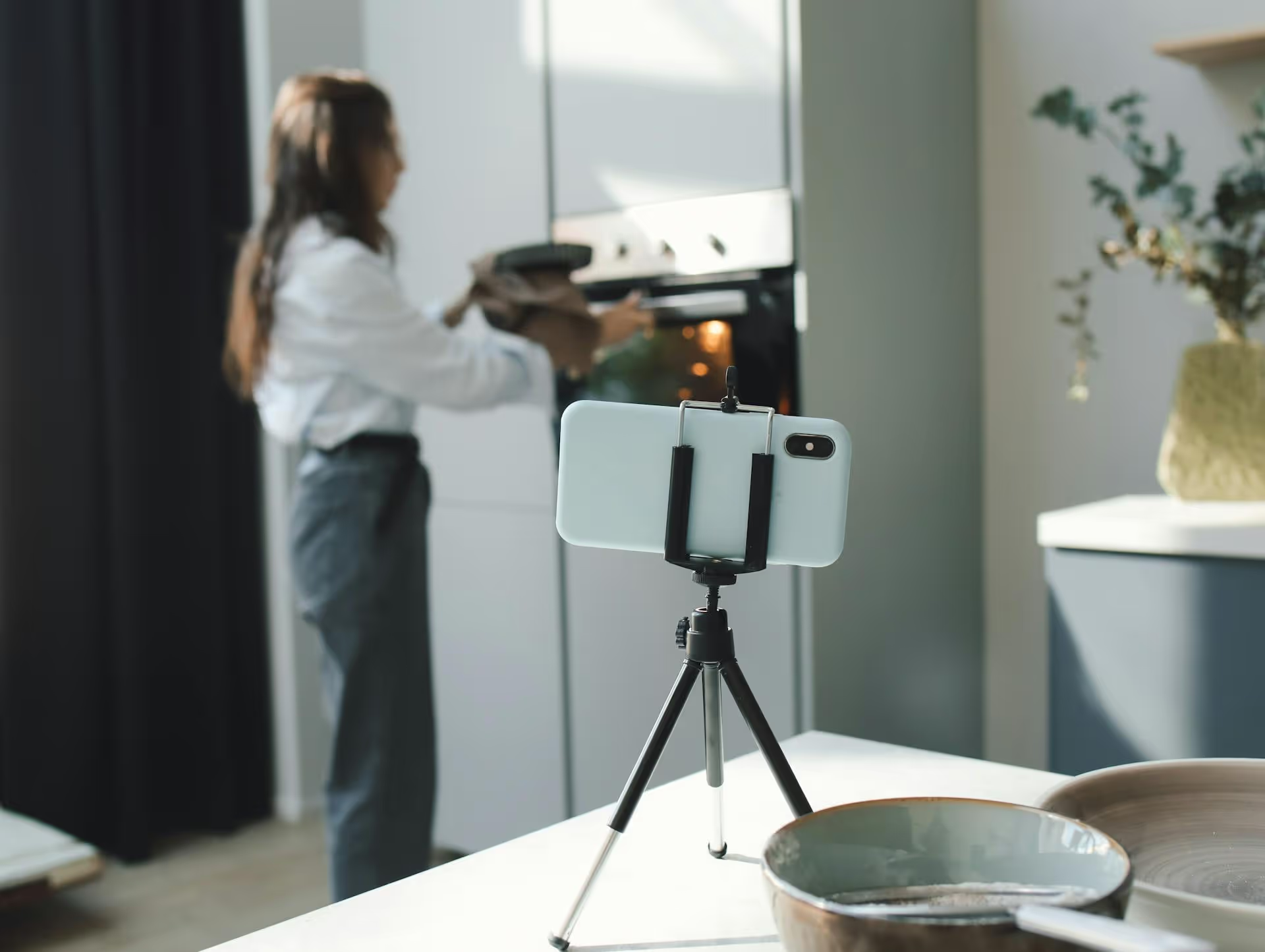
Using two cameras on your TikTok LIVE stream instantly makes your content more dynamic, interactive, and professional. This guide gets right to it, showing you exactly how the dual camera feature works, when to use it for maximum engagement, and a step-by-step process to get started right away. You'll learn how to set it up, get ideas for creative streams, and sidestep common mistakes.
The dual camera feature on TikTok LIVE allows you to broadcast video from both your phone’s front-facing and rear-facing cameras simultaneously. Instead of having to awkwardly flip back and forth between showing your face and what you're looking at, this feature presents both views on the screen at the same time.
Typically, this appears in one of two ways:
This simple function completely changes the game for live content. It lets you narrate an action in real time without ever taking the camera off yourself or the subject. You can demonstrate a product while showing your genuine reaction, conduct an interview where you see both people clearly, or give a tour while personally guiding your audience.
Going live with two camera views isn't just a gimmick, it’s a strategic tool for creating more compelling and engaging content. By showing two perspectives at once, you provide context, build trust, and deliver a more polished broadcast that keeps viewers tuned in longer.
The biggest benefit is an immediate, immersive feeling. When viewers can see both the action and your reaction in real time, it feels like they are right there with you, sharing the experience. Imagine streaming a walk through a vibrant street market. With one camera, viewers see either you or the market. With two, they see the stalls and crowds while also watching your face as you react to the sights, sounds, and smells. It transforms them from passive observers into active participants in your moment.
Audiences connect with people, not just with anonymous hands holding a phone. By keeping your face in the frame, you maintain that crucial human element. This is especially effective for product reviews or unboxings. Viewers see the product up close through the main camera, but they also get to see your undiluted facial expressions in the smaller window. That authenticity builds a level of trust that a simple voiceover or single-camera stream can't match.
If you've ever tried to teach something on a live stream, you know the struggle of positioning the camera. Whether you're a makeup artist showing a new technique, a chef demonstrating a difficult recipe, or a gamer explaining a strategy, the dual camera setup is invaluable. Your audience can watch a clear, stationary shot of your hands at work while also seeing your face as you explain each step. No more choosing between a good view of the action and explaining things clearly to the camera – you get to do both at once.
A great multi-camera stream starts before you ever hit the "Go LIVE" button. A little preparation makes the difference between a frustrating, glitchy broadcast and a smooth, professional one that impresses your audience.
TikTok is constantly rolling out new features and improving existing ones. The dual camera functionality might be hidden or buggy if your app is out of date. Before anything else, head to your phone’s app store and check if there's a TikTok update available. This simple step can solve a surprising number of technical problems.
Spontaneity is great, but a plan is better. Think about what you want to accomplish with your live stream content. A compelling dual-camera broadcast needs a purpose. Ask yourself:
Now that you have two scenes to manage, you need to consider lighting and audio for both. Your face might be perfectly lit by a ring light, but if the product demo you're showing is shrouded in shadow, the whole experience falters.
For Lighting: Ensure both the subject of your main camera and your face (on the second camera) are well-lit. Natural light from a window is always a great option. If you're indoors, a simple ring light for you and another small light for your subject can work wonders.
For Audio: Your phone's built-in microphone will pick up your voice, but consider an external microphone if you plan to be further away from your device or if you're in a noisy environment. A wired lavalier mic or a wireless mic is an affordable investment that drastically improves your audio quality.
Shaky footage is one of the quickest ways to get people to leave your stream. Since you'll be actively using both views, it's a good idea to stabilize your phone. A small, flexible tripod is perfect for placing your phone on a desk for tutorials or demos. If you plan on moving around, like for a virtual tour, a gimbal will give you incredibly smooth footage that looks far more professional than handheld recording.
Ready to get started? The process is straightforward once you know where to find the options. Here’s exactly how to set up your dual camera live stream.
Now that you know how it works, what will you create? Here are some proven ideas that perform really well with a dual-camera setup.
Using two cameras on your TikTok LIVE is a fantastic way to elevate your streams from simple broadcasts to engaging, interactive shows. It makes your content more immersive, simplifies tutorials, and builds a stronger, more authentic connection with your viewers by always keeping you in the frame as the guide for their experience.
Planning these engaging sessions is just one piece of your strategy. Once the stream is over, you may want to repurpose clips or schedule follow-up content. Managing a complex content calendar across TikTok, Instagram, and YouTube Shorts can become messy. That’s why we built Postbase to simplify things, allowing our team to see everything on a visual calendar. By planning what is going live ahead of time, we can ensure our content is always consistent – without spending hours stuck in spreadsheets.
Spencer's spent a decade building products at companies like Buffer, UserTesting, and Bump Health. He's spent years in the weeds of social media management—scheduling posts, analyzing performance, coordinating teams. At Postbase, he's building tools to automate the busywork so you can focus on creating great content.

Enhance your email signature by adding social media icons. Discover step-by-step instructions to turn every email into a powerful marketing tool.
Record clear audio for Instagram Reels with this guide. Learn actionable steps to create professional-sounding audio, using just your phone or upgraded gear.
Check your Instagram profile interactions to see what your audience loves. Discover where to find these insights and use them to make smarter content decisions.
Requesting an Instagram username? Learn strategies from trademark claims to negotiation for securing your ideal handle. Get the steps to boost your brand today!
Attract your ideal audience on Instagram with our guide. Discover steps to define, find, and engage followers who buy and believe in your brand.
Activate Instagram Insights to boost your content strategy. Learn how to turn it on, what to analyze, and use data to grow your account effectively.
Wrestling with social media? It doesn’t have to be this hard. Plan your content, schedule posts, respond to comments, and analyze performance — all in one simple, easy-to-use tool.



