

How to Add Social Media Icons to an Email Signature
Enhance your email signature by adding social media icons. Discover step-by-step instructions to turn every email into a powerful marketing tool.

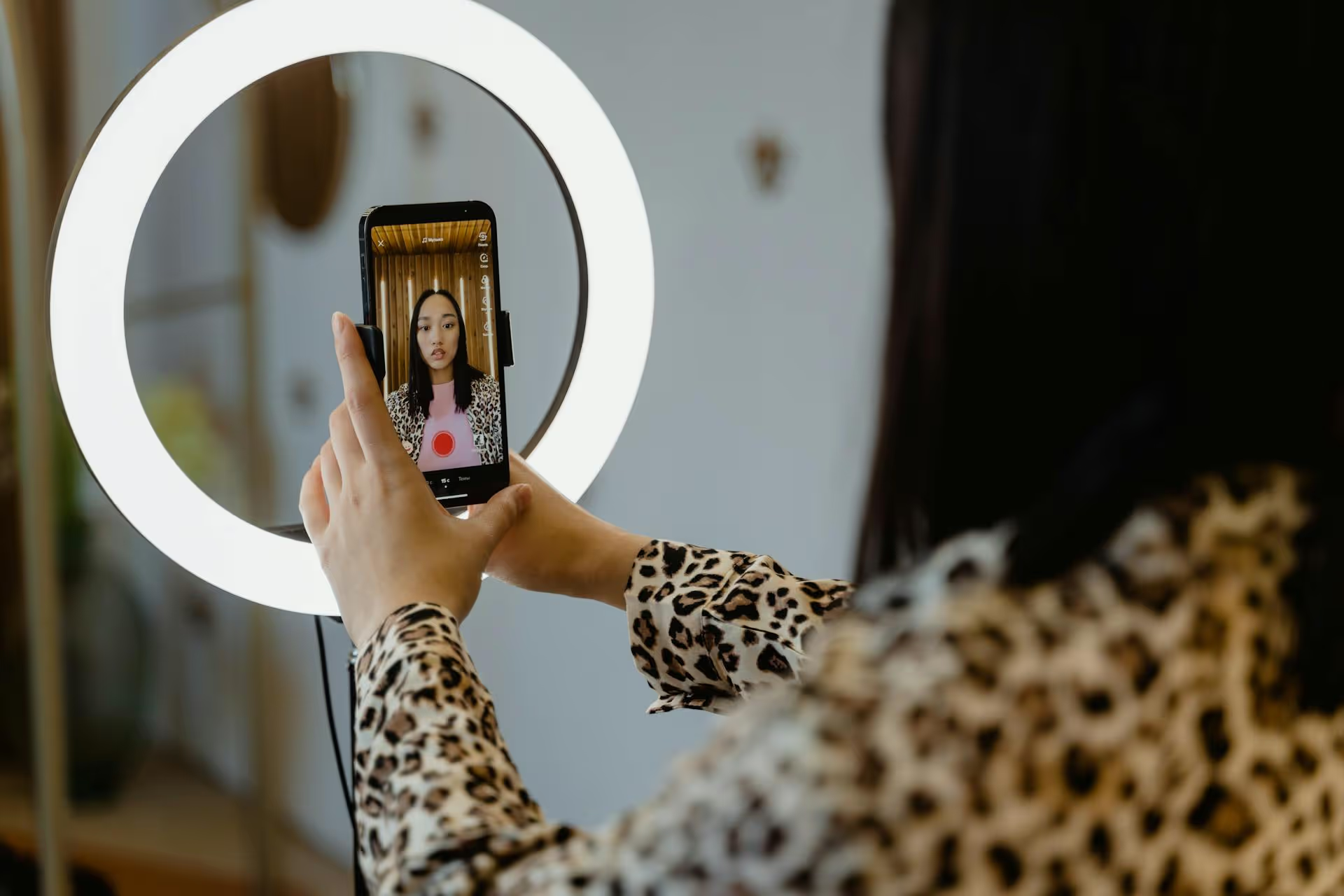
Sharing your phone screen on TikTok LIVE opens up a ton of possibilities for your content, from streaming mobile games to walking your audience through an app tutorial in real-time. This guide will show you exactly how to use the screen share feature, some pro tips to make your stream stand out, and how to troubleshoot common issues you might encounter.
First off, what are we talking about here? The TikTok screen share feature is a tool accessible only during a TikTok LIVE session that allows you to broadcast your phone’s screen directly to your viewers. Instead of seeing your face, your audience sees exactly what you see on your screen, all while still hearing your voice.
But why is this so powerful? It completely changes the type of content you can create. Forget needing complicated desktop software and capture cards, you can run an engaging, interactive broadcast straight from the palm of your hand. For creators and marketers, this is a game-changer.
Before you get too excited, there are a few boxes you need to tick. The screen share feature, like TikTok LIVE itself, isn't available to everyone. It’s important to make sure you have everything in order before you plan your first screen share stream.
TikTok has specific criteria to grant users access to its LIVE features. These are in place to help protect the community and maintain a positive environment. Here’s what you need:
Once you’ve confirmed you're good to go, don't just hit the "Go LIVE" button. A little prep work can make the difference between a frustrating, glitchy broadcast and a polished, professional stream that keeps viewers hooked.
A weak or spotty internet connection is the number one enemy of a live streamer. If possible, connect to a strong Wi-Fi network instead of relying on cellular data. Choppy video or a dropped stream is a quick way to lose your audience.
When you're sharing your screen, everything on your screen is broadcasted. This includes incoming text messages, social media notifications, emails, and calendar reminders. Prevent private messages or embarrassing notifications from popping up by enabling your phone's "Do Not Disturb" mode before you go live. This single step is the most important for protecting your privacy.
Even though your face isn't the focus, your voice is. Find a quiet spot to stream from to minimize background noise like family members, pets, or traffic. Using headphones with a built-in microphone can dramatically improve your audio quality compared to your phone's default mic.
Live streaming is resource-intensive. To give your phone the best chance at a smooth performance, close out all unnecessary apps running in the background. This frees up processing power and can help prevent your phone from overheating or lagging during the broadcast.
Don't just wing it. Know what you’re going to show on screen and what you're going to talk about. If it’s a tutorial, have the necessary apps and files ready. If you're gaming, decide on the game and what goals you want to accomplish during the stream. A loose outline can go a long way in preventing awkward pauses.
You're eligible, you're prepared, and you're ready to share your screen. Here’s exactly how to do it.
Just knowing how to turn on screen share isn't enough. You need to create an experience that keeps people watching. Here are a few tricks to level up your broadcast.
The hardest part of screen sharing is that you can't easily see comments while you're in another app. Viewers will drop off if you ignore them completely. The best solution is to use a second device - a tablet, laptop, or another phone logged into your TikTok account - to monitor the chat in real-time. If that's not possible, make it a habit to periodically switch back to the TikTok app to check in on comments, answer questions, and acknowledge gifts.
Silence is boring. Your voice is the bridge connecting your on-screen actions with your audience. Think like a sports commentator - describe what you’re doing, explain your thought process, and verbalize your strategy. If you're playing a game, react out loud. If you're editing a photo, explain why you’re adjusting the saturation or cropping in a certain way.
You can still show your face! In the TikTok LIVE settings while screen sharing, you can enable your camera to appear as a small, moveable bubble on top of your screen share. This picture-in-picture (PiP) mode is fantastic for maintaining a personal connection, as viewers can still see your reactions and expressions. It makes the stream feel much more personal.
When you're ready to finish, don't just close the app you're sharing. You need to officially end the broadcast. Swipe back to the TikTok app. You’ll be taken back to your live management screen. Tap the power button icon in the top corner and then confirm that you want to "End LIVE."
Things don't always go perfectly. If you run into trouble, here are fixes for some of the most common problems.
This is almost always an eligibility issue. Double-check that you meet all the requirements: 1,000+ followers, you are 18+, and your app is fully updated. The feature is also rolled out regionally, so in rare cases, it might not be available where you live yet.
This is a performance problem. First, check your Wi-Fi speed. If that's strong, your phone is likely struggling. Before your next stream, be sure to close all other apps, consider lowering your screen brightness, and avoid charging your phone while streaming, as that can add to the heat.
Audio settings for screen sharing can be tricky and vary between Android and iOS. Your mic is always captured, but a separate setting often controls whether the internal "system audio" from your phone is broadcast. Look for an audio settings icon on your live screen and test different configurations to see what works best for your setup. Using an external microphone is the surest way to get clear voice audio.
TikTok's screen share functionality is a seriously underrated tool that lets you go far beyond dancing and trends. By broadcasting your screen, you can deliver detailed tutorials, exciting gameplay, and interactive content that provides real value and builds a loyal community on TikTok. It takes a little practice to get fully comfortable, but the steps are pretty straightforward for anyone ready to go live.
Once you’ve put in the work to create engaging LIVE streams, the next step is making sure your broader content strategy supports your efforts. Keeping a consistent content schedule is a huge part of growing on any platform, but planning it all out in-app or with clunky spreadsheets can feel chaotic. This is why we built Postbase to help streamline things. Our visual calendar makes it easy to schedule your promotional videos ahead of your LIVEs, repurpose the best clips from your streams, and see your entire multi-platform strategy in one clean view. It helps you stay organized so you can focus more on creating great content and less on the logistics.
Spencer's spent a decade building products at companies like Buffer, UserTesting, and Bump Health. He's spent years in the weeds of social media management—scheduling posts, analyzing performance, coordinating teams. At Postbase, he's building tools to automate the busywork so you can focus on creating great content.

Enhance your email signature by adding social media icons. Discover step-by-step instructions to turn every email into a powerful marketing tool.
Record clear audio for Instagram Reels with this guide. Learn actionable steps to create professional-sounding audio, using just your phone or upgraded gear.
Check your Instagram profile interactions to see what your audience loves. Discover where to find these insights and use them to make smarter content decisions.
Requesting an Instagram username? Learn strategies from trademark claims to negotiation for securing your ideal handle. Get the steps to boost your brand today!
Attract your ideal audience on Instagram with our guide. Discover steps to define, find, and engage followers who buy and believe in your brand.
Activate Instagram Insights to boost your content strategy. Learn how to turn it on, what to analyze, and use data to grow your account effectively.
Wrestling with social media? It doesn’t have to be this hard. Plan your content, schedule posts, respond to comments, and analyze performance — all in one simple, easy-to-use tool.



