

How to Add Social Media Icons to an Email Signature
Enhance your email signature by adding social media icons. Discover step-by-step instructions to turn every email into a powerful marketing tool.

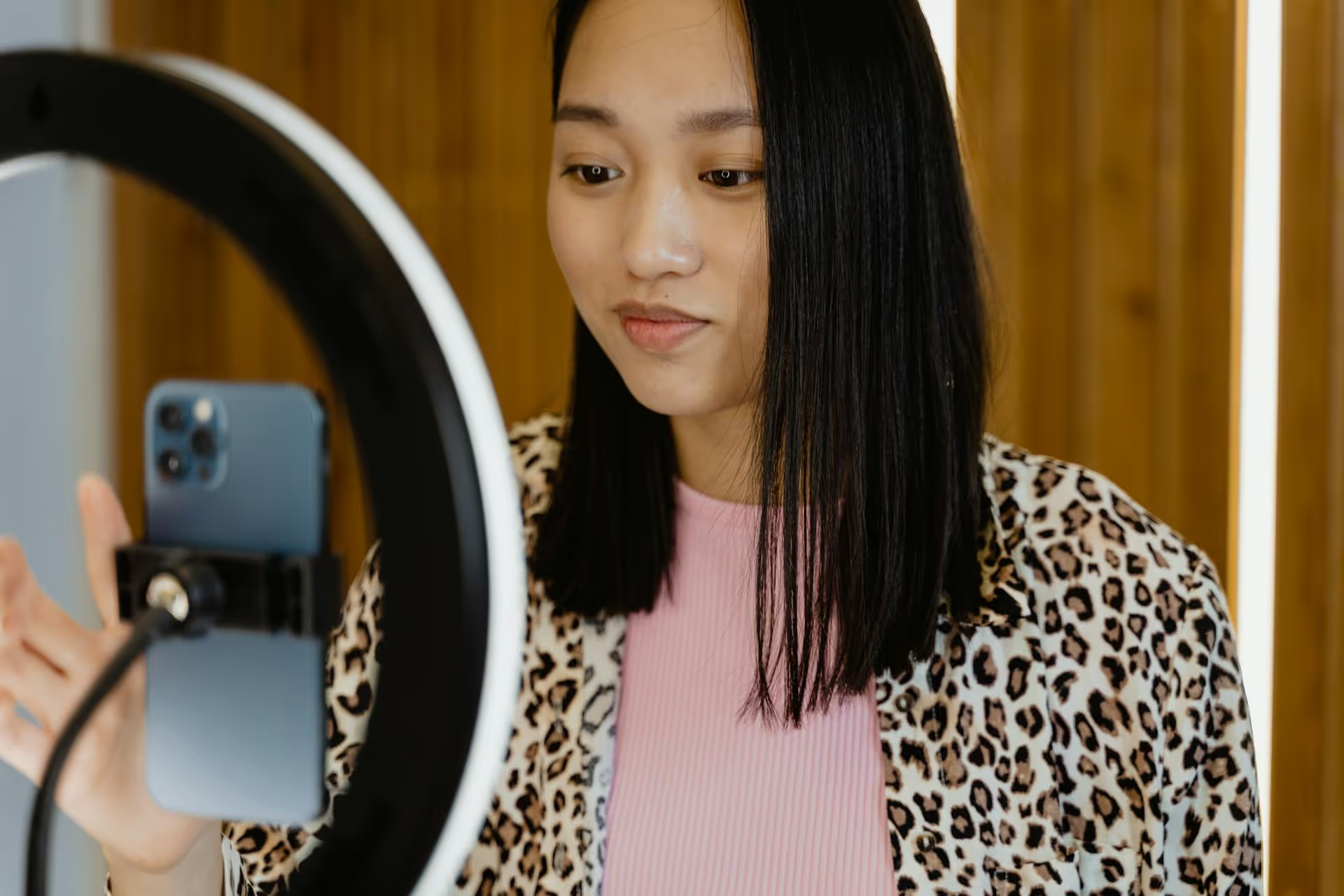
Adding the temperature to your Instagram Story is a quick way to add real-world context and a bit of personality to your updates. This simple sticker can help transport your followers to your location, set the scene for an outfit, or just start a conversation about that unexpected heatwave. This guide will walk you through exactly how to add the degree sticker, what to do if it's not showing up, and some creative ways to make it part of your content strategy.
You can add the temperature to any photo or video in just a few taps. It's one of Instagram's built-in location-based features, making it super easy to use once you know where to find it.
Here's the simple breakdown:
It's a common frustration: you follow the steps, open the sticker tray, and the temperature sticker is nowhere to be found. Don't worry, this is usually caused by a simple settings issue that's easy to fix. The sticker relies on your phone's location data to work, so ninety-nine percent of the time, the problem lies there.
Here are the most common reasons the sticker is missing and exactly how to fix them.
The temperature sticker is a location-based feature. If Instagram can't figure out where you are, it can't tell you the weather. You need to enable location services for the Instagram app specifically.
After adjusting these settings, completely close and reopen the Instagram app. The temperature sticker should now appear in your sticker tray.
Sometimes, features can malfunction or disappear if you're running an old version of the app. App updates often include bug fixes and improvements that can solve these kinds of issues.
Like any app, Instagram can sometimes have temporary glitches. Clearing the cache can often resolve these strange issues without any heavy lifting.
Just sticking the temperature on a random photo is fine, but you can be much more strategic about it. A tiny weather detail can make your content more compelling, relatable, and even professional. Here are a few ideas to get you started.
Are you finally breaking out a trench coat for the first day of fall? Show off your outfit and add the 15°C (59°F) sticker to give it context. Hitting the beach on a scorching day? Pair your selfie with the 32°C (90°F) sticker. It adds a "you are here" vibe that makes your style content feel more immediate and genuine.
When you're visiting a new place, your audience is curious about everything - including the weather. Dropping a temperature sticker on your first photo from a new city is a perfect scene-setter. It answers a common question and helps your followers feel like they're along for the journey, whether you've just landed in chilly London or humid Bangkok.
Extreme weather is a universal conversation starter. A photo of a frosty morning with a -5°C (23°F) sticker or a shot of a sweltering cityscape with a 40°C (104°F) warning makes a bold statement. It's dramatic, shareable, and connects you to everyone else experiencing the same thing.
The temperature sticker works great in combination with others. Try these duos:
Think about aesthetics. The clean, digital look of the temperature sticker can create a cool visual contrast against a more organic, textured background. Try placing it over a shot of a snowy field, a blurry cafe backdrop, or a bright blue sky. This small design choice can make your Story look more thoughtfully composed.
Adding the temperature sticker to your Instagram Story is a tiny detail that makes a big impact, providing instant context and making your content more relatable. If you run into trouble, the fix is usually as simple as checking your phone's location services before diving into more creative strategies that help tell a better story.
Planning this kind of engaging, layered content in advance is key to a consistent social presence. For our own content strategy, we use a visual calendar in Postbase to map out our Story sequences so they feel cohesive. This helps us mix planned content with in-the-moment details like the weather, ensuring our Stories are always dynamic without requiring a last-minute scramble.
Spencer's spent a decade building products at companies like Buffer, UserTesting, and Bump Health. He's spent years in the weeds of social media management—scheduling posts, analyzing performance, coordinating teams. At Postbase, he's building tools to automate the busywork so you can focus on creating great content.

Enhance your email signature by adding social media icons. Discover step-by-step instructions to turn every email into a powerful marketing tool.
Record clear audio for Instagram Reels with this guide. Learn actionable steps to create professional-sounding audio, using just your phone or upgraded gear.
Check your Instagram profile interactions to see what your audience loves. Discover where to find these insights and use them to make smarter content decisions.
Requesting an Instagram username? Learn strategies from trademark claims to negotiation for securing your ideal handle. Get the steps to boost your brand today!
Attract your ideal audience on Instagram with our guide. Discover steps to define, find, and engage followers who buy and believe in your brand.
Activate Instagram Insights to boost your content strategy. Learn how to turn it on, what to analyze, and use data to grow your account effectively.
Wrestling with social media? It doesn’t have to be this hard. Plan your content, schedule posts, respond to comments, and analyze performance — all in one simple, easy-to-use tool.



