

How to Add Social Media Icons to an Email Signature
Enhance your email signature by adding social media icons. Discover step-by-step instructions to turn every email into a powerful marketing tool.

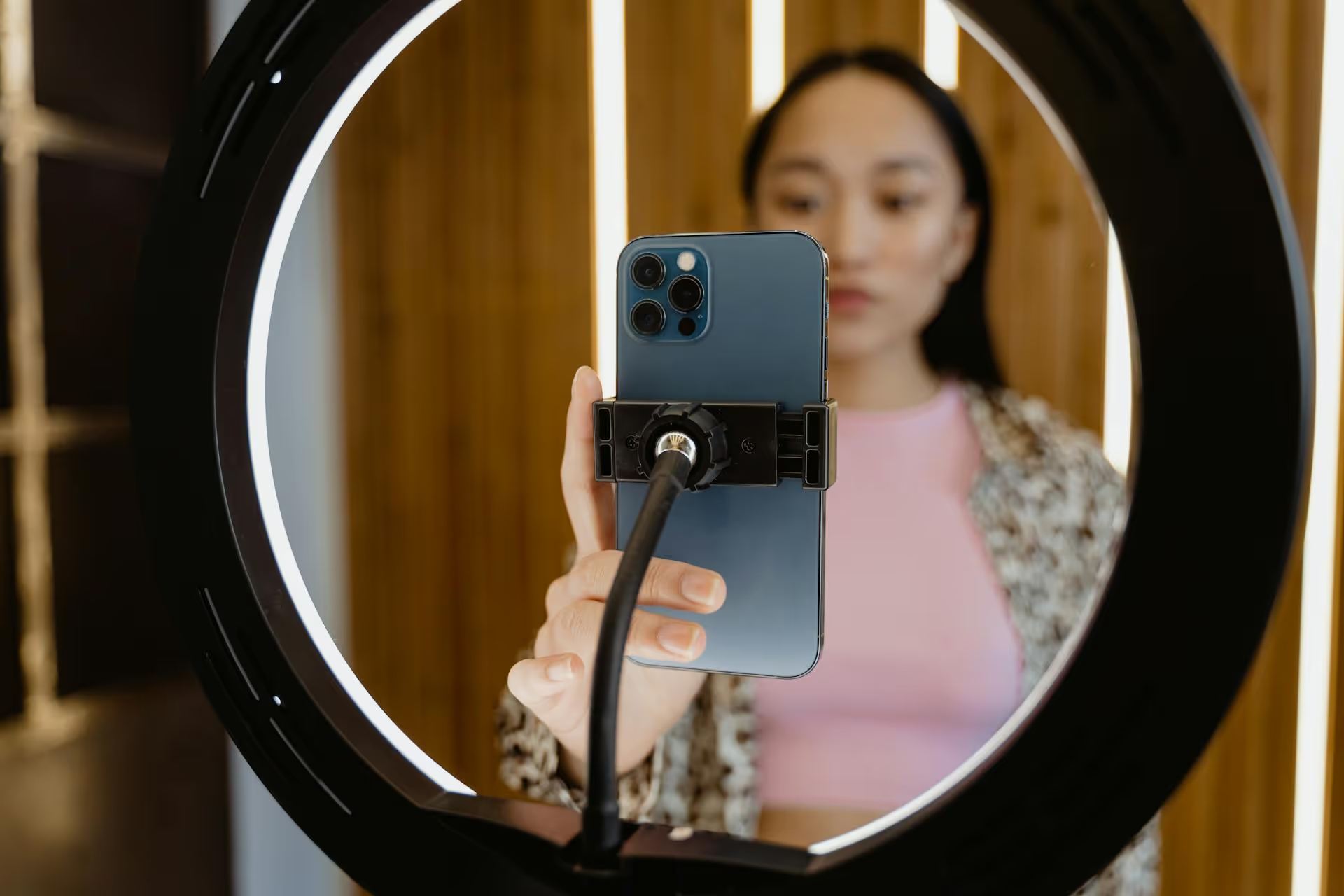
Ready to move beyond your phone's camera and broadcast a professional-looking stream on Facebook Live? Your passport to higher-quality streaming is a special code called a stream key, which links pro tools like OBS or Streamlabs directly to your Facebook account. This guide will walk you through exactly what a stream key is, how to find yours in minutes, and how to use it to level up your live content.
Think of a Facebook stream key as a unique, private password for your live broadcast. It's a specific code that tells Facebook, "Hey, a quality video stream is coming from this specific computer, and you should show it on my page." You don't need it if you're just broadcasting from your phone with the Facebook app, but it is essential when you use third-party broadcasting software on your desktop.
When you use software like OBS (Open Broadcaster Software), Streamlabs, or vMix, you gain a massive amount of control over your stream. You can add polished graphics, screen share for tutorials, switch between multiple cameras, and invite guests. To make this work, the software needs a way to send your meticulously crafted video feed to the correct destination - your Facebook profile, page, or group. This connection is made using two pieces of information:
Together, they act like a specific address and a key to a post office box. The Server URL gets your stream to the right post office (Facebook's servers), and the Stream Key makes sure it gets put into your box so your audience can see it. Because it's a direct link to your feed, you must never share your stream key publicly. If someone else gets it, they can stream whatever they want directly to your page.
Finding your stream key is a straightforward process, but the option is slightly hidden inside Facebook's Live Producer dashboard. Follow these steps to generate one for your next live stream.
First, you need to tell Facebook you want to go live. The way you get there is slightly different depending on whether you're streaming to a Page, a Group, or your personal Profile.
All of these paths will take you to the same place: the Facebook Live Producer.
Once you're in the Live Producer, you'll be greeted with a choice: "Go live now" or "Schedule a live video." For finding your key immediately, choose "Go live."
On the next screen, Facebook will ask you to select a video source. It defaults to "Webcam." This is the pivotal step. You must click on "Streaming Software." This is what tells Facebook you'll be using an external tool like OBS and that you need a stream key to connect it.
As soon as you select "Streaming Software," the dashboard will refresh, and a new set of options will appear in the main panel.
With "Streaming Software" selected, look for a section titled "Streaming Software setup." This is where your golden ticket lies. You will see two important fields:
Facebook provides convenient "Copy" buttons next to each of these fields. Click them to copy the information to your clipboard without any mistakes. You're now ready to plug these details into your broadcasting software.
Below the stream key, you'll find an important setting under Advanced Settings: a checkbox labeled "Persistent stream key." This is a valuable feature for regular streamers. Here's the difference:
Our recommendation? If you are a frequent streamer broadcasting from a secure personal computer, using a persistent key is a huge time-saver. Just remember where to find the "Reset" button (right next to the key) in case you ever need it.
Now that you have your Server URL and Stream Key, it's time to connect your software. The process is similar across most broadcasting platforms, but we'll use OBS Studio, a popular and free option, as our example.
That's it! Your software is now linked to your Facebook account. When you're ready to start your broadcast, simply click "Start Streaming" in OBS. You'll see a video preview appear in the Facebook Live Producer dashboard. From there, you just need to add your post details (title, description) and click the big blue "Go Live" button to begin your broadcast to the world.
Getting your stream key is half the battle, using it effectively is the other half. Here are a few tips and answers to common problems to make your streaming experience smooth.
If you suspect someone else has your key, especially if it's a persistent one, reset it immediately. Go back to the Live Producer dashboard (your streaming software setup section), and next to your persistent stream key, you will see a "Reset" button. Click it to instantly disable the old key and generate a brand-new one. Remember to update the key in your streaming software afterward.
If you've hit "Start Streaming" in OBS but see nothing on the Facebook side, a few things could be wrong:
Nope! The stream key is just for authentication, it has no impact on stream quality. Lag, buffering, or dropped frames are almost always caused by one of two things:
Finding and using your Facebook stream key is the gateway to unlocking more dynamic, professional, and engaging live broadcasts. Once you're comfortable with the steps, hooking up your broadcasting software becomes a quick, seamless part of your pre-stream routine, letting you focus on creating great content for your audience.
As creators ourselves, we know a great live stream is just one part of a successful content strategy. Once the broadcast is over, you still have to promote it, create highlight clips, and track performance. This is where having a seamless workflow helps. We built Postbase to centralize everything else, so after your stream ends, you can easily schedule teaser Reels or Shorts made from the recording, manage comments across all your platforms in one inbox, and see which content is resonating without jumping between a dozen tabs.
Spencer's spent a decade building products at companies like Buffer, UserTesting, and Bump Health. He's spent years in the weeds of social media management—scheduling posts, analyzing performance, coordinating teams. At Postbase, he's building tools to automate the busywork so you can focus on creating great content.

Enhance your email signature by adding social media icons. Discover step-by-step instructions to turn every email into a powerful marketing tool.
Record clear audio for Instagram Reels with this guide. Learn actionable steps to create professional-sounding audio, using just your phone or upgraded gear.
Check your Instagram profile interactions to see what your audience loves. Discover where to find these insights and use them to make smarter content decisions.
Requesting an Instagram username? Learn strategies from trademark claims to negotiation for securing your ideal handle. Get the steps to boost your brand today!
Attract your ideal audience on Instagram with our guide. Discover steps to define, find, and engage followers who buy and believe in your brand.
Activate Instagram Insights to boost your content strategy. Learn how to turn it on, what to analyze, and use data to grow your account effectively.
Wrestling with social media? It doesn’t have to be this hard. Plan your content, schedule posts, respond to comments, and analyze performance — all in one simple, easy-to-use tool.



