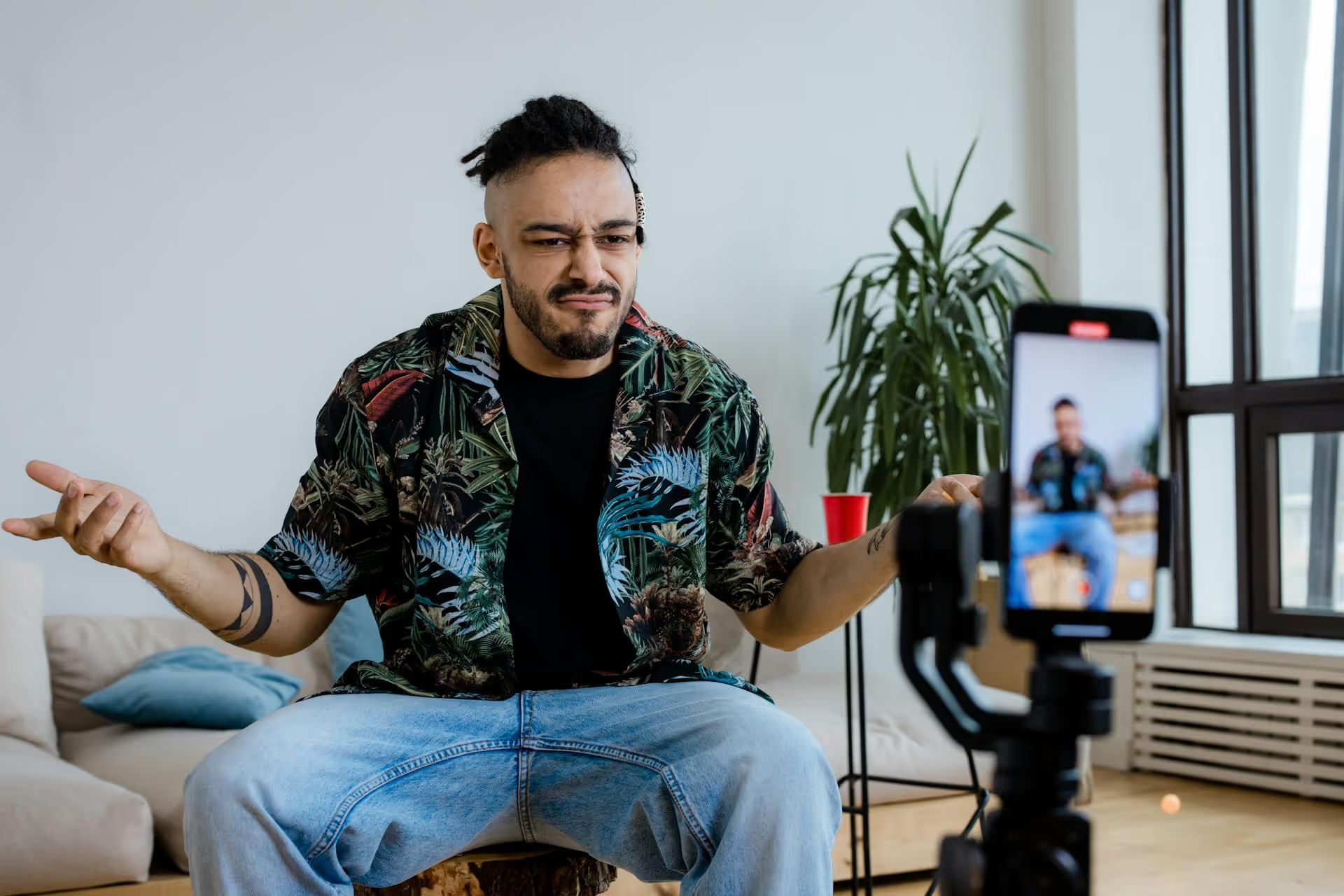
Streaming to both Twitch for your long-form content and TikTok for bite-sized, high-energy vertical video is one of the most powerful growth hacks for creators today. You’re not just broadcasting, you’re tapping into two completely different audiences simultaneously, maximizing every moment you’re live. This guide will walk you through exactly how to set up a professional dual stream using OBS, so you can go live on both Twitch and TikTok at the same time.
Why You Should Dual Stream to Twitch and TikTok
Simulcasting isn't just about being in two places at once, it's a deliberate growth strategy. The viewers you find on Twitch are often different from those scrolling through TikTok LIVE, and bringing them together can have a massive impact on your brand.
- Explode Your Discoverability: Twitch's discovery algorithm can be tough. It primarily favors bigger streamers. TikTok LIVE, on the other hand, pushes live content directly into users' "For You" pages, giving you a massive, free wave of potential new viewers who have never heard of you. It’s an incredible tool for top-of-funnel audience growth.
- Cross-Pollinate Your Audiences: You can actively funnel viewers from one platform to another. Use your TikTok stream to give a high-energy preview of what’s happening on your main Twitch channel. Encourage TikTok viewers to head over to Twitch for the full experience, game lobbies, or deeper conversations, turning casual scrollers into dedicated community members.
- Maximize Your Content Effort: You’re already putting in the work to go live. Why limit maximizing your reach to a single platform? By streaming to both, you’re doubling the potential return on your time without doubling the effort. Every highlight, funny moment, or epic play is now exposed to two audiences in real time.
What You’ll Need to Get Started
Before diving into the software side, let’s make sure you have the basics covered. While you don’t need a NASA-level computer, dual streaming is a bit more demanding than a single stream, so a solid foundation is important.
Hardware essentials:
- A Decent PC: Your computer will be encoding two separate video streams at once. While most modern gaming PCs with a good multi-core CPU (like an AMD Ryzen 7 series or Intel Core i7 or newer) and a dedicated graphics card (like an NVIDIA RTX 30-series or newer) are more than capable, be prepared to monitor your system’s performance. The NVIDIA NVENC encoder found in newer RTX cards is especially good at handling multiple streams with minimal impact on gaming performance.
- Webcam and Microphone: Your connection with your audience is built on them seeing and hearing you clearly. A high-quality USB microphone (like a Blue Yeti or Rode NT-USB+) and a sharp webcam (like a Logitech C920 or a mirrorless camera via a capture card) are non-negotiable for looking and sounding professional on both platforms.
- Stable Internet Connection: You'll need a reliable upload speed. For a quality stream to both Twitch (e.g., 1080p60 at 6000 kbps) and TikTok (e.g., 1080p30 at 2500 kbps), you'll want an upload speed of at least 10-15 Mbps to have a comfortable buffer. A wired ethernet connection is always recommended over Wi-Fi.
The software toolbox:
- OBS Studio: Open Broadcaster Software (OBS) is the free, powerful, and industry-standard software for streaming. This will be the command center for your entire operation.
- A Vertical Scene Plugin for OBS: To broadcast in TikTok's native 9:16 vertical format while simultaneously streaming in a 16:9 horizontal format to Twitch, you'll need some extra help. The Aitum Vertical Plugin is currently the most popular and user-friendly option. It essentially adds a second, independent vertical canvas and streaming output right inside OBS.
The Step-by-Step Guide to Setting Up Your Dual Stream in OBS
This is where the real work happens. We'll set up your traditional Twitch stream first, then create your optimized vertical stream for TikTok, all within a single instance of OBS.
Step 1: Install the Aitum Vertical Plugin
First things first, close OBS if it’s open. Head over to Aitum's website, download their Vertical Plugin, and run the installer. It’s a straightforward process. Once installed, re-open OBS. You should now see three new docks: Vertical Scene, Vertical Sources, and a vertical video preview canvas labeled Vertical. If you don’t see them, check the Dock menu at the top of OBS.
Step 2: Configure Your Main Scene for Twitch (16:9)
If you already stream to Twitch, your horizontal scenes are likely good to go. If you're new, set up your primary scene for Twitch first. This is your standard, widescreen layout.
- Create a scene in your main OBS "Scenes" dock. Let’s call it "Twitch - gameplay".
- Add your sources: Game Capture for your gameplay, a Video Capture Device for your webcam, and whatever overlays or alerts you use for your 16:9 stream.
- Arrange these elements to create a visually appealing layout for a widescreen viewer. This is your home base.
Step 3: Create Your Vertical Scene for TikTok (9:16)
Now, let's build the layout for your TikTok viewers. Your goal is to creatively stack your horizontal content into an engaging vertical format. Slapping a cropped box in the middle of a black screen won’t cut it.
- In the Vertical Scene dock from the plugin, click the "+" button to create a new vertical scene. Let's name it "TikTok - gameplay".
- You don't need to re-add your sources. Instead of adding new sources, you can link existing ones from your main scene. Click the "link" icon (which looks like a chain) in the Vertical Sources dock. Select your "Twitch - gameplay" scene. This will pull all the sources from your horizontal scene into your vertical one.
- Now, arrange your sources on the vertical canvas. For the TikTok scene, drag your webcam feed to be prominent, either at the top or bottom of the vertical canvas. Gameplay can sit in the middle section. A great layout often has a large camera view and then the gameplay.
- Use this space wisely! Leave an area at the very bottom empty for the TikTok UI (like comments and the user's name). You can even add text that says something like "Full screen on Twitch!" at the top.
Pro Tip: Since gameplay will be cropped, try to place your character or critical action in the centermost part of your screen for the benefit of your TikTok audience.
Step 4: Configure Stream Settings for Both Platforms
Now you need to tell OBS where to send each stream. You'll have two sets of stream settings: the main OBS settings for Twitch, and the plugin's settings for TikTok.
For Twitch:
- Go to OBS Settings >, Stream.
- Select "Twitch" as the service and connect your account (recommended for easy chat integration) or use your stream key.
- Navigate to Settings >, Output. Set the Output Mode to Advanced. For the Streaming tab, set a bitrate appropriate for your internet speed (e.g., 6000 kbps for 1080p60), choose the NVENC encoder if you have a NVIDIA card, and select a preset like "Quality".
For TikTok:
- On the main OBS window, look for the Vertical Plugin's interface and find the settings gear icon within it.
- Under the General Tab set your "Vertical Resolution" to 1080x1920 to match TikTok's format.
- Under the Streaming Tab, click "Get stream key from TikTok". This will open a browser window asking you to log in to TikTok. Once logged in, it grabs the RTMP URL and Stream Key for your TikTok LIVE session automatically.
- Set the bitrate for your vertical stream. A range of 2500-4000 kbps for a 1080p30 stream is a good starting point. TikTok's bitrate requirements are generally lower than Twitch's.
Going Live: Your Pre-Flight Checklist
Everything is set up. Now it's time to start the show. The process is simple, but do it in the right order.
- Start Your Main Twitch Stream First: In the main OBS Controls dock, click "Start Streaming". Your primary feed should now be live on Twitch.
- Start Your Vertical TikTok Stream: In the Vertical Plugin's Control Panel window, click the START button (it will often display the green TikTok live icon to help). Your vertical feed is now being sent to TikTok's servers.
- Verify Both Streams: Quickly check your dashboards on both Twitch and TikTok to confirm that both streams are live, healthy, and receiving data.
That's it! You are now successfully dual streaming to both platforms from a single machine, using one instance of OBS.
Best Practices for a Great Dual-Streaming Experience
Getting the tech to work is half the battle. Creating an experience that engages both audiences is the other half. Here’s how you can make your dual stream feel natural and inclusive.
- Acknowledge and Engage Both Chats: Viewers want to feel seen. Use a tool like the integrated OBS chat dock to see your Twitch chat, and prop open your phone nearby to monitor your TikTok comments. Make a genuine effort to welcome and respond to viewers from both platforms by name. Saying "Hey, welcome from TikTok!" goes a long way.
- Tailor Your Energy: Understand the culture of each platform. Your Twitch community is there for the long haul, ready for deep conversations and gameplay. Your TikTok audience is likely experiencing you for the first time and has an incredibly short attention span. Use higher energy and quicker explanations when addressing TikTok, making sure there's always something visually exciting going on.
- Create On-Stream Crossover Moments: Actively integrate the two audiences. Announce on your TikTok stream that you're about to do a subscriber-only gameplay session on Twitch and invite them over. On Twitch, when you get a gifted Sub, thank them and then tell your TikTok chat something like "John just supported the stream – thank you!" This makes everyone feel they are part of one big event.
Final Thoughts
Dual streaming to Twitch and TikTok is no longer a complex workaround for technically savvy streamers. With modern tools like OBS and supportive plugins, anyone can set up a professional simulcast that massively expands their reach and builds community on two of the world's biggest platforms. It's about working smarter, not harder, to get your content in front of more people.
After a great stream, the work isn't over - you have VODs and a dozen amazing clips ready to go. Turning that live content into discoverable, short-form video is key for promoting your next stream, but scheduling it everywhere can be a huge time sink. We built Postbase to solve precisely this problem. Instead of wrestling with old-school social media tools that aren’t built for video, we make it easy to upload content once and schedule it across TikTok, Instagram Reels, YouTube Shorts, and everywhere else your audience is, so you can focus more on creating and less on managing.
Spencer's spent a decade building products at companies like Buffer, UserTesting, and Bump Health. He's spent years in the weeds of social media management—scheduling posts, analyzing performance, coordinating teams. At Postbase, he's building tools to automate the busywork so you can focus on creating great content.