

How to Add Social Media Icons to an Email Signature
Enhance your email signature by adding social media icons. Discover step-by-step instructions to turn every email into a powerful marketing tool.

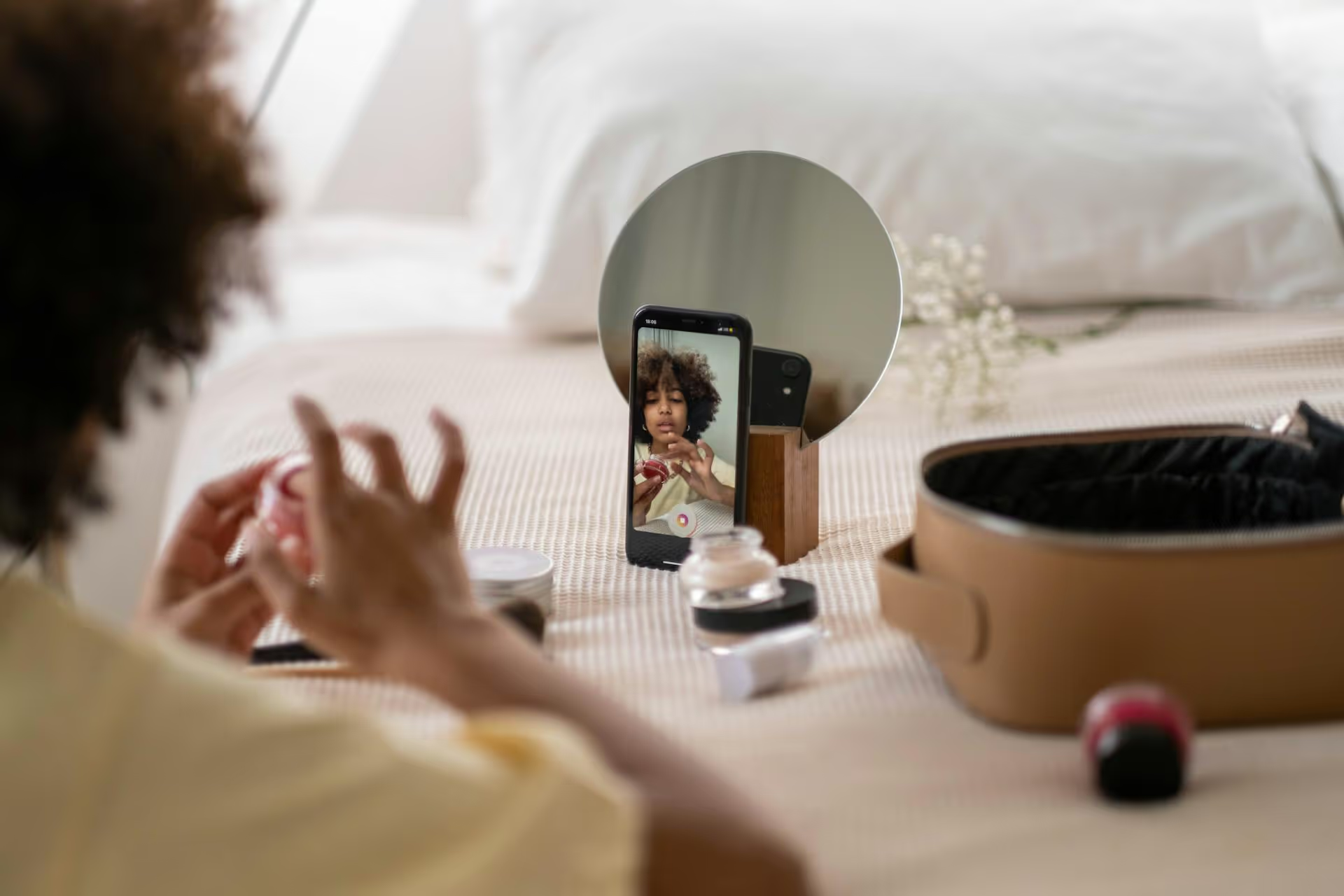
Connecting your Shopify store directly to a TikTok Shop transforms your profile from a simple content channel into a powerful, interactive storefront. Forget sending customers to a link in your bio, this integration lets them discover, browse, and buy your products without ever leaving the app. This guide will walk you through every step of the process, from installing the app to syncing your first products and managing your orders like a pro.
If you're already selling on Shopify, integrating with TikTok Shop isn't just a "nice-to-have" add-on - it's a huge opportunity to reach a large, engaged audience where they spend their time. TikTok is a discovery engine, and making your products shoppable right inside the platform capitalizes on the impulse-driven nature of social commerce.
Here are the biggest advantages:
This integration reduces friction for both you and your customers, turning passive viewers into active buyers by shortening the journey from discovery to purchase.
To make the connection process as smooth as possible, ensure you have everything prepared beforehand. Fumbling with paperwork or account setup in the middle of the process can be frustrating. Here’s what you’ll need:
Having these in order beforehand will save you time and potential back-and-forth later.
Ready to get started? Follow these steps carefully to establish the connection, sync your products, and turn your TikTok profile into a selling powerhouse.
Your journey begins inside your Shopify dashboard, not the TikTok app.
This adds TikTok as a new sales channel within your Shopify system, similar to how Facebook, Instagram, or a Point of Sale system would appear.
Once the app is installed, you need to connect your accounts to authorize data sharing.
This establishes the basic link between Shopify and TikTok, but the Shop-specific features require one more setup step.
Now, let’s enable the shopping features.
After submitting your application, it will go into review. This process usually takes 24-48 hours. You will receive email and Seller Center notifications once approved. You cannot proceed with product syncing until your Shop is approved.
Great, you're approved! Now you can decide which products to sell on TikTok.
Your products will then be sent to TikTok for review. Like your shop registration, each product undergoes a review process to verify compliance with TikTok's policies. This can take from a few minutes up to a couple of hours. Products pending approval, not approved, or failed to sync will be clearly marked.
Setting up your shop is just the beginning. Success requires ongoing content strategy and how you present your products.
What works on desktop doesn't always work on TikTok. Review your synced product listings with these tips:
Creating content that sells is crucial. Take an active role in driving traffic to your products:
A smooth post-purchase process is vital for maintaining a good reputation.
Connecting your Shopify store with TikTok Shop is more than just a technical move - it’s a strategic step to put your brand at the forefront of social commerce today. By following these steps and pairing your storefront with a smart content plan, you can turn your TikTok presence into a strong revenue channel for your business.
Once your shop is set up, generating consistent content becomes paramount. Planning videos, campaigns, and scheduling posts to keep audience engagement high is the next challenge. At Postbase, we built our platform specifically for today’s video-first social media landscape. With our visual calendar, you can plan all your TikToks, Reels, and Shorts weeks in advance, identify gaps, and stay just a few taps away from your audience.
Spencer's spent a decade building products at companies like Buffer, UserTesting, and Bump Health. He's spent years in the weeds of social media management—scheduling posts, analyzing performance, coordinating teams. At Postbase, he's building tools to automate the busywork so you can focus on creating great content.

Enhance your email signature by adding social media icons. Discover step-by-step instructions to turn every email into a powerful marketing tool.
Record clear audio for Instagram Reels with this guide. Learn actionable steps to create professional-sounding audio, using just your phone or upgraded gear.
Check your Instagram profile interactions to see what your audience loves. Discover where to find these insights and use them to make smarter content decisions.
Requesting an Instagram username? Learn strategies from trademark claims to negotiation for securing your ideal handle. Get the steps to boost your brand today!
Attract your ideal audience on Instagram with our guide. Discover steps to define, find, and engage followers who buy and believe in your brand.
Activate Instagram Insights to boost your content strategy. Learn how to turn it on, what to analyze, and use data to grow your account effectively.
Wrestling with social media? It doesn’t have to be this hard. Plan your content, schedule posts, respond to comments, and analyze performance — all in one simple, easy-to-use tool.



