

How to Add Social Media Icons to an Email Signature
Enhance your email signature by adding social media icons. Discover step-by-step instructions to turn every email into a powerful marketing tool.

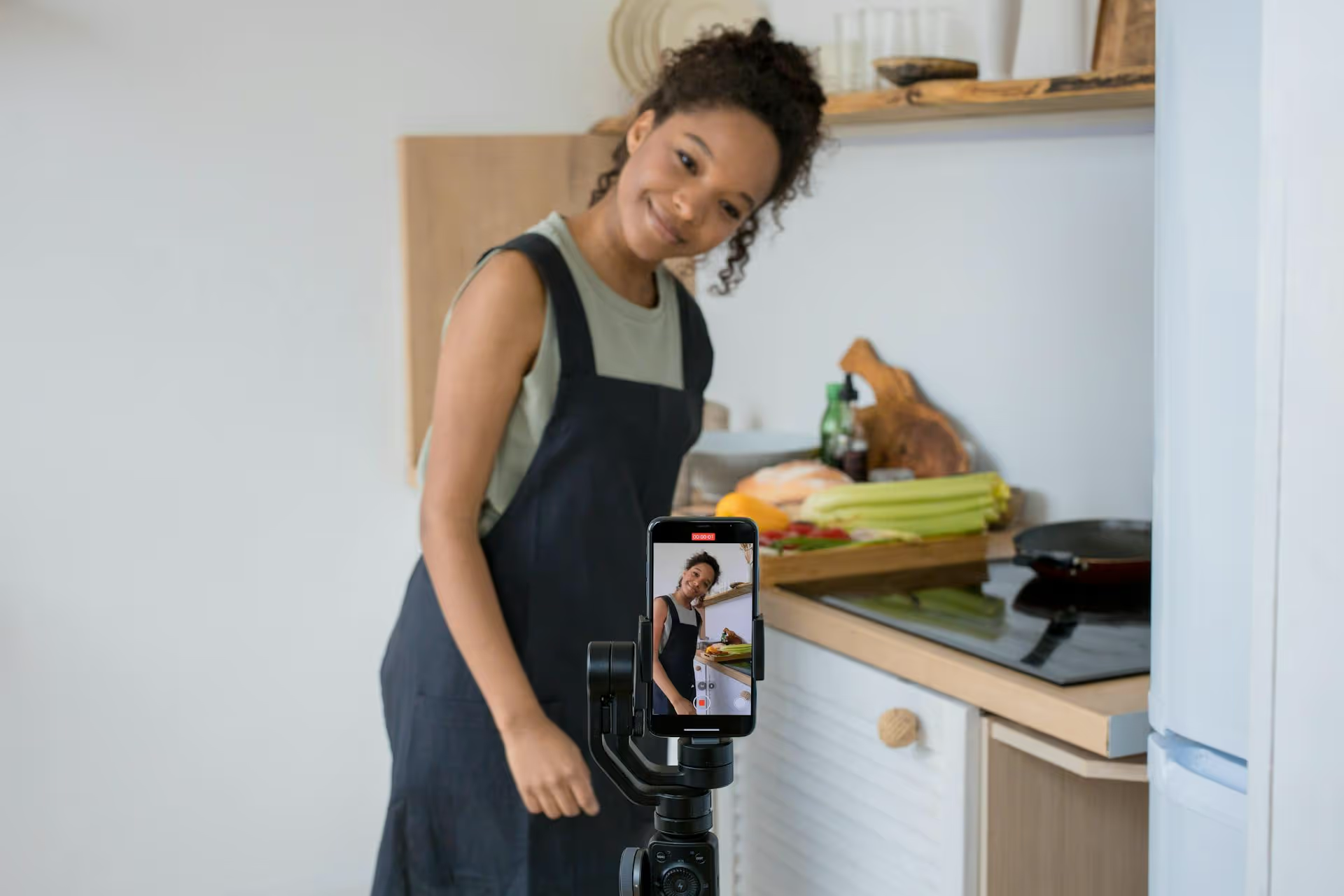
Want to tell a bigger story by merging multiple video clips into a single, compelling post on Instagram? Stitching several scenes together is a fantastic way to create more dynamic, narrative-driven content that stops the scroll. This guide will walk you through exactly how to combine videos directly in the Instagram app for Reels and Stories, and we'll also touch on when it makes sense to use a third-party app for more advanced edits.
Before we get into the "how," let's quickly cover the "why." Merging video clips isn't just a fun editing trick, it’s a strategic move that can seriously level up your content game. It allows you to create more sophisticated, professional-looking content that captivates your audience for longer.
A single, unedited video clip rarely tells a full story. By combining multiple shots, you can build a narrative with a clear beginning, middle, and end. Think about popular content formats that rely on merged clips:
Let's face it: attention spans on social media are short. Quick, dynamic cuts between scenes are visually stimulating and keep viewers hooked. When you combine video clips with clever transitions, you signal to your audience that something new and interesting is about to happen. This curiosity encourages them to keep watching. Longer watch times are a powerful signal to the Instagram algorithm, which can result in your content getting pushed to more people.
Sometimes, one clip just isn’t enough to get your message across. Combining videos lets you be more efficient with your content. You can use it to create:
Instagram Reels is, without a doubt, the most powerful and flexible native tool for combining and editing video clips directly within the app. Its editor is packed with features designed to help you create seamless, multi-clip videos with flair.
Here’s the step-by-step process:
You can get to the Reels editor in a few ways. Swipe right from your home feed to open the camera, then select "Reel" at the bottom. Alternatively, tap the "+" icon at the bottom of the screen and choose "Reel" from the menu.
You have two choices here: record a new clip directly in the app or upload a pre-recorded clip from your phone’s camera roll.
After your first clip is in place, you’ll see the timeline at the top of the screen start to fill up. To add the next scene, simply repeat the process. You can mix and match, too - record a clip, then upload one, then record another. Continue adding clips until you've assembled all the pieces of your story.
Pro Tip: Use the "Align" tool (it looks like a ghosted overlay of your last frame) to perfectly line up your next shot. This is ideal for creating those popular outfit-change or object transformation videos where continuity is everything.
Once you've added all your video clips, tap the "Next" button to move to the main editing screen. This is where you can fine-tune everything to make your combined video look polished and professional.
The Reels editing timeline is surprisingly capable. You won't just see your clips - you'll see an "Edit Video" button at the bottom left. Tap it to access the full editor, which gives you granular control.
On the editing timeline, each video you added appears as a separate block.
Choppy jump cuts can look jarring. To smooth them out, tap the small button that appears between two clips on the timeline. This opens the transitions library. Instagram offers several effects like Blur, Glitch, and Flare to help you create a fluid, professional flow from one scene to the next. Add transitions strategically to make the visual journey more enjoyable for your viewer.
Rhythm is a massive part of a Reel's viral potential. Once you’ve added a song or audio track, you can use the "Sync" feature. This tool automatically adjusts your clips' lengths to match the beat of the music, creating incredibly satisfying, high-energy edits with just one tap. It's a game-changer for montages and dance content.
After you finalize your sequence, you can add extra layers of polish. Add timed text captions that appear and disappear at specific moments, use polls or stickers to encourage interaction, or apply trending video effects and filters to match the mood of your content. Well-placed text can provide context, tell a better story, or simply reinforce your key message.
Combining videos for Stories works a bit differently. Instead of merging clips into one seamless video file within the editor, you can upload multiple clips at once to create a longer, consecutive Story that autoplays from one segment to the next. The viewer experiences it as one continuous thought, even though it's technically separate clips.
Here's how to do it:
While this method doesn't technically merge the files into one, it creates the intended effect of a narrative sequence. For a *true* single-clip Story that combines multiple smaller videos, your best bet is to build and export it in the Reels editor first, then upload that final edited video to your Story.
What if you want to feature a few long-form videos together in a single in-feed post? The video carousel is your answer. Similar to stories, this doesn't merge the video files, but it allows you to package up to 10 videos (and photos) into one swipeable post. It's an underrated method for sharing tutorials, behind-the-scenes content, or even customer testimonials.
The process is nearly identical to creating a photo carousel:
A video carousel is perfect for breaking down longer topics into digestible parts or giving your audience more bonus content behind the main feature. Viewers can interact with each slide by liking and commenting, which is great for engagement.
While the Instagram Reels editor is mighty impressive, it has its limits. Sometimes, you need more horsepower to bring your creative vision to life. That's where third-party apps come in.
Here's when you might want to edit outside of Instagram:
There are countless options, but a few standout apps used by creators everywhere include:
Your workflow would be to edit and combine your clips in one of these apps, export the final MP4 video file to your phone's camera roll, and then upload it to Instagram as a single, polished clip for your Reel, Story, or feed post.
Combining videos opens up a whole new world of creative storytelling on Instagram. Whether you’re leveraging the simplicity of the powerful Reels editor or digging into a more advanced third-party app, the goal remains the same: to create content that captivates your audience and keeps them coming back for more.
Getting your combined videos edited and ready to go is half the battle, but consistently getting them published is just as important. Having spent our careers wrestling with clunky, outdated social media tools that just didn't get video, we knew there had to be a better way. That’s exactly why we built Postbase. It’s designed for the reality of social media *today* - video-first, with a simple visual calendar that helps you plan your content and a reliable scheduler that just works, every single time.
Spencer's spent a decade building products at companies like Buffer, UserTesting, and Bump Health. He's spent years in the weeds of social media management—scheduling posts, analyzing performance, coordinating teams. At Postbase, he's building tools to automate the busywork so you can focus on creating great content.

Enhance your email signature by adding social media icons. Discover step-by-step instructions to turn every email into a powerful marketing tool.
Record clear audio for Instagram Reels with this guide. Learn actionable steps to create professional-sounding audio, using just your phone or upgraded gear.
Check your Instagram profile interactions to see what your audience loves. Discover where to find these insights and use them to make smarter content decisions.
Requesting an Instagram username? Learn strategies from trademark claims to negotiation for securing your ideal handle. Get the steps to boost your brand today!
Attract your ideal audience on Instagram with our guide. Discover steps to define, find, and engage followers who buy and believe in your brand.
Activate Instagram Insights to boost your content strategy. Learn how to turn it on, what to analyze, and use data to grow your account effectively.
Wrestling with social media? It doesn’t have to be this hard. Plan your content, schedule posts, respond to comments, and analyze performance — all in one simple, easy-to-use tool.



