

How to Add Social Media Icons to an Email Signature
Enhance your email signature by adding social media icons. Discover step-by-step instructions to turn every email into a powerful marketing tool.

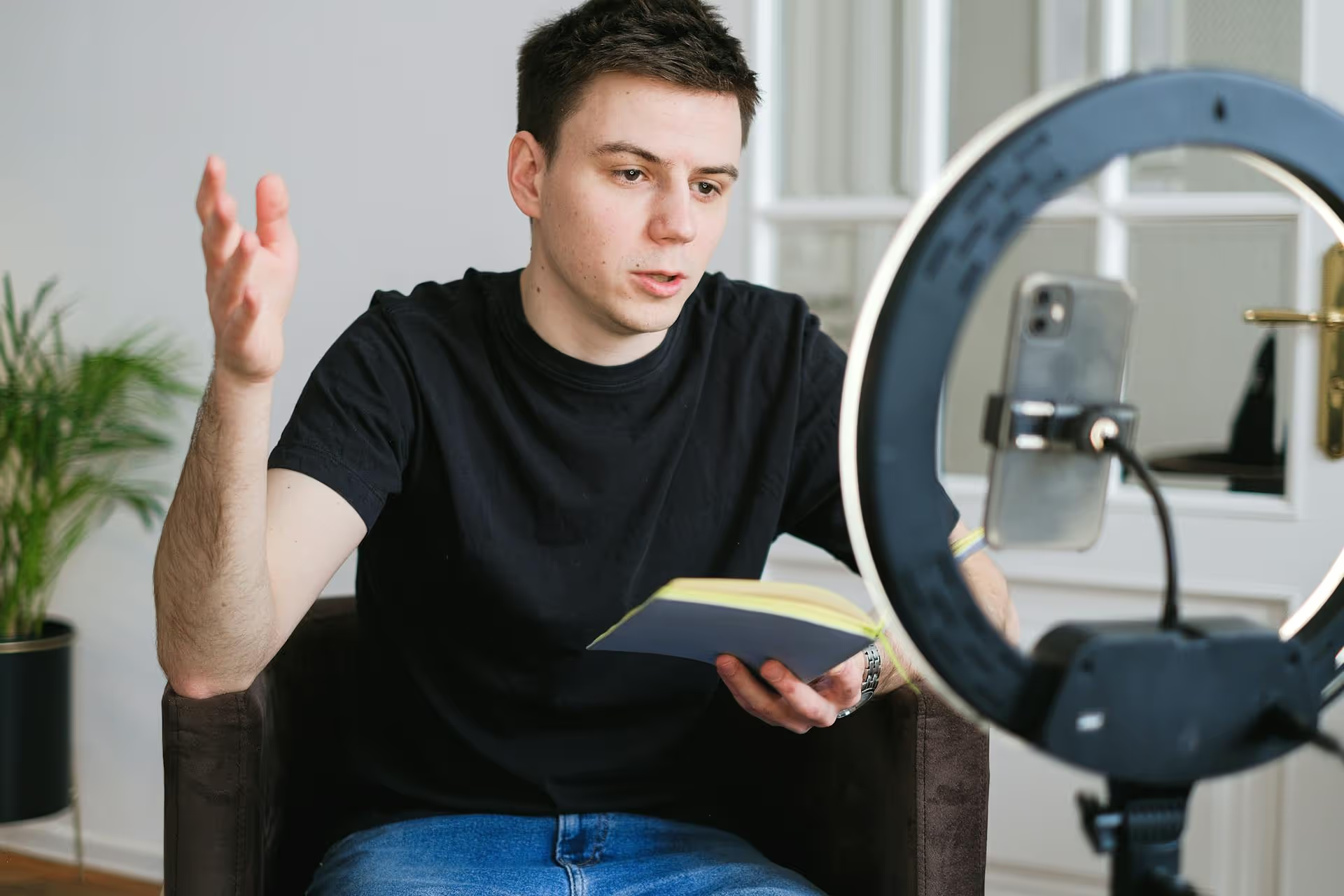
Trying to get an Instagram Reel to the perfect length can feel unnecessarily complicated. You have a great video, but the best part is buried in the middle, or the clip is just a few seconds too long. This guide will walk you through exactly how to change the length of an Instagram Reel, whether you're trimming a single uploaded clip or editing a masterpiece with multiple cuts.
Before you start editing, it helps to know the sandbox you're playing in. As of now, Instagram Reels can be anywhere from a single second up to 90 seconds long when you upload a pre-made video. If you're recording directly within the app, you can choose a length of 15, 30, 60, or 90 seconds. This is your maximum runtime, giving you a clear boundary for your creative work.
Most viral Reels, however, are much shorter. Often, they clock in between 7 and 15 seconds, matching the length of a trending audio clip. The key isn't always to hit the 90-second max, it's to make every second count. Knowing how to trim and adjust your clips precisely is what separates a good Reel from a great one.
If you're starting from scratch and record a Reel directly in the Instagram app, you can set your maximum length beforehand. This is a handy way to keep yourself on track, especially if you're doing a lip-sync or a timed challenge.
Here’s how to do it:
This method is great for setting a creative constraint. If you know you're working with a 15-second audio clip, setting your Reel length to 15 seconds prevents you from accidentally recording too much B-roll.
This is the most common scenario: you have a video (or several videos) saved to your phone that you want to turn into a Reel, but you only need a specific portion of the footage. Instagram’s built-in editor makes this straightforward once you know where to look.
Let's say you have one long video and just want to pull out the best 10-second segment for your Reel. Don't worry about editing it in a separate app - you can do it right inside Instagram.
What if your Reel is made up of five different short video clips and you need to tweak the length of just one of them? This is where the "Edit Clips" feature becomes your best friend. It’s the key to making clean transitions and controlling the pace of your video.
This is how creators make those fast-paced "day in the life" or outfit-change Reels. They shoot several short clips and then use the "Edit Clips" timeline to trim each one down to less than a second, creating a dynamic, jump-cut-style video.
Changing your video's length often means adjusting your audio to match. Nothing feels more unprofessional than a Reel where the sound cuts off weirdly or doesn't align with the video's best moments. Luckily, Instagram gives you control here, too.
After you’ve added music to your Reel from Instagram’s audio library:
Pro Tip: Pay close attention to the beat. Often, the most satisfying edits are ones where your scene changes happen right on the beat drop of the music. Use the trimming and audio selection tools together to line this up perfectly.
Knowing how to technically change the length is just step one. Using that skill to make better content is step two. Here are a few strategic pointers:
Regardless of your Reel's total length - whether it's 8 seconds or 80 - you have about three seconds to convince someone to stop scrolling. Use the trimmer to cut out any dead space at the beginning of your first clip. Start directly on the action.
If you're using a trending sound, try to keep your Reel's length similar to how other creators are using it. If most of the Reels using a sound are 7 seconds long, there's a reason - that's probably where the audio's punchline or best part sits. Your video will feel more native to the trend if it follows the unwritten rule.
Even a 15-second Reel should tell a micro-story. Use the multi-clip editor to structure it. Your first clip is the hook, the middle clips provide the context or build-up, and the final clip delivers the payoff or call-to-action.
Mastering the length of your Instagram Reels gives you complete creative control, allowing you to build suspense, land a punchline, or simply showcase a product in the most effective way possible. By using the built-in trimmer, the multi-clip editor, and the audio sync tools, you have everything you need to transform raw footage into a polished, engaging piece of content right within the app.
Creating compelling video is a huge part of social media, but reliably scheduling and managing that content across different platforms is where the real work begins. We built Postbase because we knew there had to be an easier way. Since our platform was designed for short-form video from day one, uploading your newly-perfected Reel and scheduling it across all your accounts is seamless. It’s about giving you back the time to focus on creating, not wrestling with an outdated tool to get your content published.
Spencer's spent a decade building products at companies like Buffer, UserTesting, and Bump Health. He's spent years in the weeds of social media management—scheduling posts, analyzing performance, coordinating teams. At Postbase, he's building tools to automate the busywork so you can focus on creating great content.

Enhance your email signature by adding social media icons. Discover step-by-step instructions to turn every email into a powerful marketing tool.
Record clear audio for Instagram Reels with this guide. Learn actionable steps to create professional-sounding audio, using just your phone or upgraded gear.
Check your Instagram profile interactions to see what your audience loves. Discover where to find these insights and use them to make smarter content decisions.
Requesting an Instagram username? Learn strategies from trademark claims to negotiation for securing your ideal handle. Get the steps to boost your brand today!
Attract your ideal audience on Instagram with our guide. Discover steps to define, find, and engage followers who buy and believe in your brand.
Activate Instagram Insights to boost your content strategy. Learn how to turn it on, what to analyze, and use data to grow your account effectively.
Wrestling with social media? It doesn’t have to be this hard. Plan your content, schedule posts, respond to comments, and analyze performance — all in one simple, easy-to-use tool.



