

How to Add Social Media Icons to an Email Signature
Enhance your email signature by adding social media icons. Discover step-by-step instructions to turn every email into a powerful marketing tool.

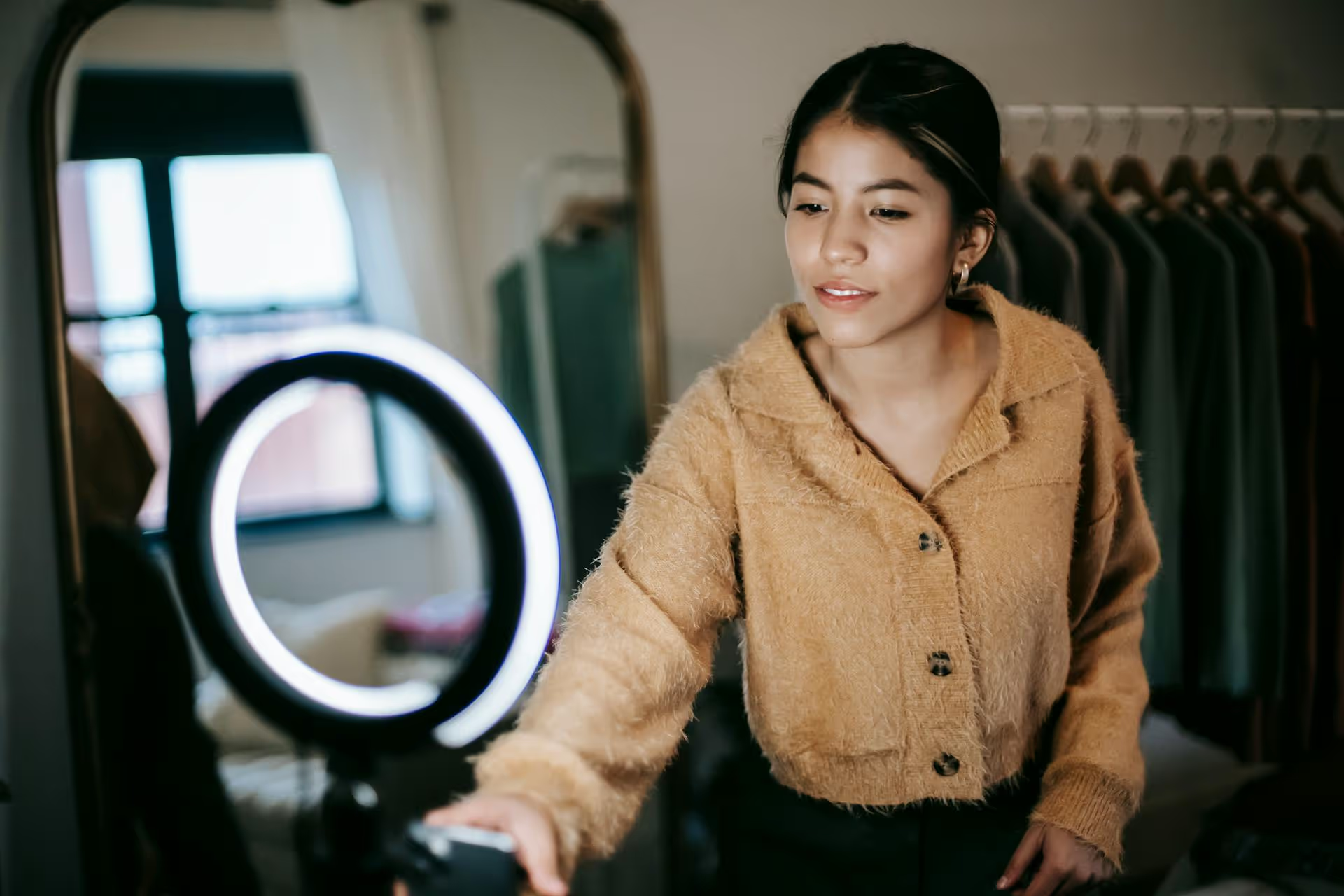
Perfectly formatting your video for Instagram can feel like a guessing game, but changing the aspect ratio in Premiere Pro doesn't have to be complicated. This guide walks you through the two easiest and most effective methods to resize any video for Instagram Reels, Stories, or feed posts. We'll cover how to set up your project correctly from the start and also how to repurpose an existing widescreen video in just a few clicks.
Before jumping into Premiere Pro, let's quickly go over why this is so important. Using the correct aspect ratio is about more than just fitting the screen, it's about performance. Videos that fill the screen feel more immersive and professional, capturing viewer attention immediately and stopping the scroll. An incorrectly formatted video with black bars tells your audience it was made for a different platform, which can look unprofessional and hurt engagement.
Here are the three standard aspect ratios you need to know for Instagram:
Trying to post a standard 16:9 widescreen video (like one formatted for YouTube) directly to your Instagram Story will result in the platform awkwardly zooming in and cropping the sides, likely cutting out important parts of your shot. Choosing the right aspect ratio gives you full creative control so your audience sees exactly what you intended.
The best way to edit for Instagram is to start with the correct aspect ratio from the beginning. This gives you complete control over your framing and composition as you edit, rather than trying to fix it later. Setting up a custom sequence sounds technical, but it’s a simple process that you only need to do once.
1. Open Premiere Pro and create a new project or open an existing one.
2. Create a new sequence by going to the top menu and clicking File >, New >, Sequence… (or using the shortcut Cmd + N on Mac / Ctrl + N on Windows).
3. In the "New Sequence" window that appears, ignore the long list of presets on the left. Instead, click on the “Settings” tab at the top.
4. In the Settings tab, make the following adjustments:
1080 Horizontal and 1920 Vertical.1080 Horizontal and 1350 Vertical.1080 Horizontal and 1080 Vertical.5. Pro-Tip: Save Your Settings as a Preset. To avoid repeating these steps every time, click the “Save Preset…” button at the top of the Settings window. Give it a descriptive name like "Instagram Reel - 9:16 Vertical" or "Instagram Feed - 4:5". Next time you need to create a vertical sequence, you can find your custom preset in the "Available Presets" folder at the very bottom of the preset list from Step 2.
6. Click "OK," and you're ready to go! Drag your footage onto the timeline. Premiere Pro may ask if you want to change the sequence settings to match the clip's settings. Always select "Keep existing settings." Your video clip will likely look zoomed in or awkwardly positioned on your new vertical timeline. Simply select the clip and go to the "Effect Controls" panel to adjust its Scale and Position properties to reframe it perfectly.
What if you've already finished editing a 16:9 widescreen video and now you need to create a vertical version for a Reel? Manually re-editing everything would take hours. Luckily, Premiere Pro has a powerful feature called Auto Reframe that uses AI to analyze your video and automatically convert it to a new aspect ratio, keeping the main subject in the frame.
This method works best on a completed sequence. It doesn't edit your existing work, it creates a brand new, reframed sequence, leaving your original timeline untouched.
1. Locate your final, edited 16:9 sequence in the Project Panel (usually in the bottom-left corner of your workspace).
2. Right-click on the sequence icon and from the menu that appears, select "Auto Reframe Sequence…"
3. A dialog box will appear with a few simple options:
4. After selecting your settings, click the "Create" button. Premiere Pro will get to work. It will analyze every clip in your sequence, create a duplicate sequence with the new aspect ratio, and add keyframes to the position of each clip to keep the subject centered.
5. You'll find a new folder in your Project Panel named "Auto Reframe [Your Sequence Name]" containing your newly created vertical sequence.
Auto Reframe is powerful, but it's not a magic bullet. The AI does an excellent job, but it's important to watch your new vertical video from start to finish. You may find a few moments where the automatic framing feels a little off or where the subject drifts too close to the edge.
If you need to make an adjustment, simply click a clip in the reframed timeline, go to the Effect Controls panel, and look at the Position property under the `Motion` effect. Premiere has added keyframes here. You can easily adjust these existing keyframes or add your own to perfect the shot's framing.
Once your video is in the correct 9:16 or 4:5 format, there's one last social media tip to remember. When your video is viewed on Instagram, the platform will overlay UI elements on top of it. For Reels, this includes your profile name, the caption, engagement buttons (like, comment, share), and the song title at the bottom.
When framing shots and especially when placing text or graphics, be mindful of these "unsafe" areas, as on-screen text may get blocked by Instagram's user interface. As a general rule, try to keep the most important visual elements and any graphics or captions closer to the center of the frame, avoiding the very top 15% and bottom 25% of a 9:16 video.
There you have it - two reliable ways to format your videos for any Instagram placement. For brand-new projects, starting with a custom sequence is the cleanest workflow, but for repurposing finished content, Auto Reframe is an indispensable, time-saving tool that converts widescreen video to vertical in minutes, not hours.
Getting your video's technical specs right is the first step, but the final step is getting it scheduled and published without a headache. At Postbase, we built a social media management platform focused on today’s creator workflow, meaning short-form video is a priority, not an afterthought. We were tired of unreliable, clunky tools that struggled with Reels and TikToks, so we designed a simple, visual calendar that lets you drag, drop, and schedule your video content seamlessly. Once your Premiere export is ready, our platform ensures it publishes on time, every time, without any unexpected issues.
Spencer's spent a decade building products at companies like Buffer, UserTesting, and Bump Health. He's spent years in the weeds of social media management—scheduling posts, analyzing performance, coordinating teams. At Postbase, he's building tools to automate the busywork so you can focus on creating great content.

Enhance your email signature by adding social media icons. Discover step-by-step instructions to turn every email into a powerful marketing tool.
Record clear audio for Instagram Reels with this guide. Learn actionable steps to create professional-sounding audio, using just your phone or upgraded gear.
Check your Instagram profile interactions to see what your audience loves. Discover where to find these insights and use them to make smarter content decisions.
Requesting an Instagram username? Learn strategies from trademark claims to negotiation for securing your ideal handle. Get the steps to boost your brand today!
Attract your ideal audience on Instagram with our guide. Discover steps to define, find, and engage followers who buy and believe in your brand.
Activate Instagram Insights to boost your content strategy. Learn how to turn it on, what to analyze, and use data to grow your account effectively.
Wrestling with social media? It doesn’t have to be this hard. Plan your content, schedule posts, respond to comments, and analyze performance — all in one simple, easy-to-use tool.



