

How to Add Social Media Icons to an Email Signature
Enhance your email signature by adding social media icons. Discover step-by-step instructions to turn every email into a powerful marketing tool.

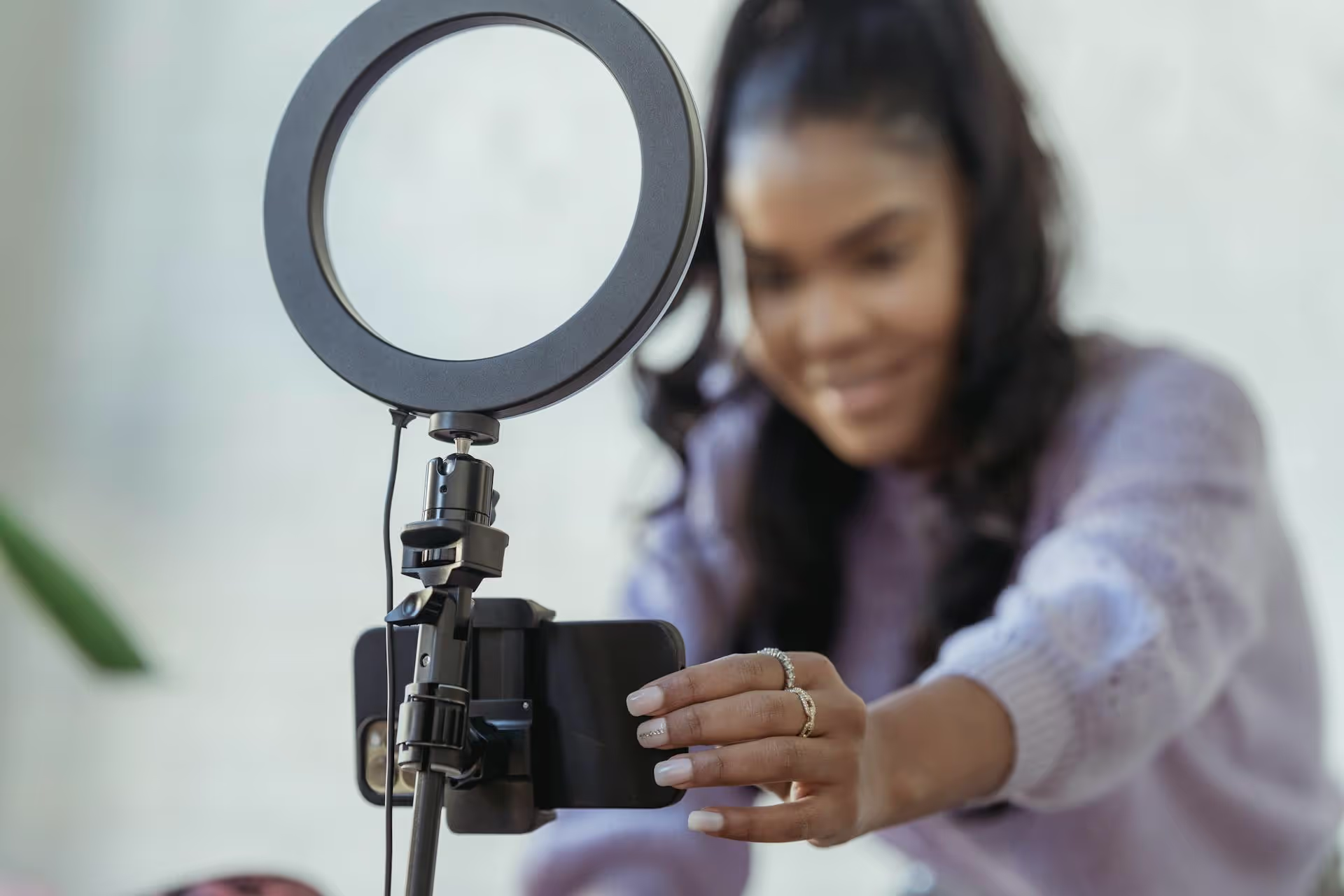
YouTube Shorts isn't just a place for viral dances and funny clips anymore, it's a massive opportunity to get your brand in front of millions of highly engaged viewers. As users scroll through their feeds, your short, vertical video ad can slide right in, grabbing their attention in a native, non-disruptive way. This guide will walk you through exactly how to create and launch effective YouTube Shorts ad campaigns, from building the perfect ad creative to setting up your campaign in Google Ads and measuring what works.
If you're already running ads on platforms like TikTok or Instagram Reels, stepping into YouTube Shorts is a logical next move. If you're new to short-form video ads entirely, this is a prime place to start. Here's why it's worth your time and budget:
Before you even open your Google Ads account, you need to understand what makes a Shorts ad work. Simply resizing your horizontal TV commercial won't cut it. The best Shorts ads feel like Shorts – they're authentic, fast-paced, and built for a vertical, sound-on experience. Here’s what yours needs.
You literally have a second or two to stop someone from swiping past your ad. The opening of your video is everything. Don't waste time with slow introductions or fading logos. Jump straight into the action.
The goal is to create immediate curiosity and make the viewer think, "Wait, what's this about?"
This is non-negotiable. Your ad must be in a 9:16 aspect ratio to fill the entire mobile screen. Filming with a smartphone makes this easy and adds an element of authenticity. Don't use a horizontal video with black bars on the top and bottom, it looks lazy and instantly signals "this is an ad I can skip."
Unlike other platforms where many users scroll silently, most people watch Shorts with the sound on. This is a huge advantage. Use trending audio, an engaging voiceover, or sound effects to enhance your message. A great voiceover can explain your product's value proposition while the visuals show it in action.
However, you should still add captions or on-screen text overlays for clarity. This makes your ad accessible to everyone and ensures your message lands even if a viewer is watching with the sound off.
The ideal length is between 15 and 60 seconds, but the sweet spot for grabbing and holding attention is often under 30 seconds. Don't try to cram too much information in. Focus on a single theme or benefit. Your structure should be simple:
Polished, big-budget ads can feel out of place in the Shorts feed. The best-performing creative often has a lo-fi, user-generated content (UGC) feel. Think about what a real customer or creator would post about your product. This builds trust a lot faster than an ad that screams "corporate marketing team." You want your ad to feel less like a commercial and more like a great discovery.
Google Ads will add a clickable CTA button to your ad, but you should also include a verbal or visual CTA in the video itself. Literally tell your viewers what you want them to do. Point to the "Shop Now" button on the screen, or say, "Click the link below to get your free trial." Don't assume they'll figure it out on their own.
YouTube Shorts ads run through the Google Ads platform. You can't just pick "Shorts" as a placement. Instead, your vertical video ads become eligible to show up in the Shorts feed when you use specific campaign types like Video Action Campaigns or Performance Max. For the most control, a Video Action Campaign is a great place to start.
Start in your Google Ads dashboard.
Determine how much you're willing to spend. You can set a daily budget (e.g., $20 per day) or a total campaign budget (e.g., $500 for the entire run).
For your bidding strategy, starting with Maximize conversions is a good option. This tells Google's algorithm to get you the most conversions possible within your budget. As your campaign gathers data, you can switch to Target CPA (Cost Per Acquisition) if you want to control how much you pay for each conversion.
Now, you'll tell Google who you want to see your ads. Here's where you select your locations, languages, and audience segments.
A good best practice is to start with a blend of in-market and affinity audiences who are a close match for your ideal customer. Don't be too narrow, as Google's algorithm needs some room to find the people most likely to convert.
This is where you'll upload your video and write the copy. You'll do this within an "Ad Group."
Take one last look over everything. Check your budget, targeting details, URLs, and ad creative. Once everything looks good, click Create Campaign. Your ads will go into a review process (usually quick) and then start running.
Launching the campaign is just the beginning. The real work is in seeing what's working and making it better.
Advertising on YouTube Shorts is a powerful way to connect with a thriving community in a format they love. Success hinges on creating authentic, vertical-first video that grabs attention instantly and combining it with the smart targeting and optimization tools available within Google Ads. It’s an investment in meeting your customers where they are right now.
While you're running ads to get new eyes on your brand, it's just as important to build a strong organic presence on platforms like YouTube Shorts. But juggling multiple video platforms can quickly become overwhelming. At Postbase, we built our tool specifically for today’s short-form video reality. Because we focus on letting you plan, schedule, and analyze your content across all platforms without the connection issues or complexity of legacy tools, you can spend less time wrestling with software and more time building a community that will eventually become loyal customers.
Spencer's spent a decade building products at companies like Buffer, UserTesting, and Bump Health. He's spent years in the weeds of social media management—scheduling posts, analyzing performance, coordinating teams. At Postbase, he's building tools to automate the busywork so you can focus on creating great content.

Enhance your email signature by adding social media icons. Discover step-by-step instructions to turn every email into a powerful marketing tool.
Record clear audio for Instagram Reels with this guide. Learn actionable steps to create professional-sounding audio, using just your phone or upgraded gear.
Check your Instagram profile interactions to see what your audience loves. Discover where to find these insights and use them to make smarter content decisions.
Requesting an Instagram username? Learn strategies from trademark claims to negotiation for securing your ideal handle. Get the steps to boost your brand today!
Attract your ideal audience on Instagram with our guide. Discover steps to define, find, and engage followers who buy and believe in your brand.
Activate Instagram Insights to boost your content strategy. Learn how to turn it on, what to analyze, and use data to grow your account effectively.
Wrestling with social media? It doesn’t have to be this hard. Plan your content, schedule posts, respond to comments, and analyze performance — all in one simple, easy-to-use tool.



