

How to Add Social Media Icons to an Email Signature
Enhance your email signature by adding social media icons. Discover step-by-step instructions to turn every email into a powerful marketing tool.

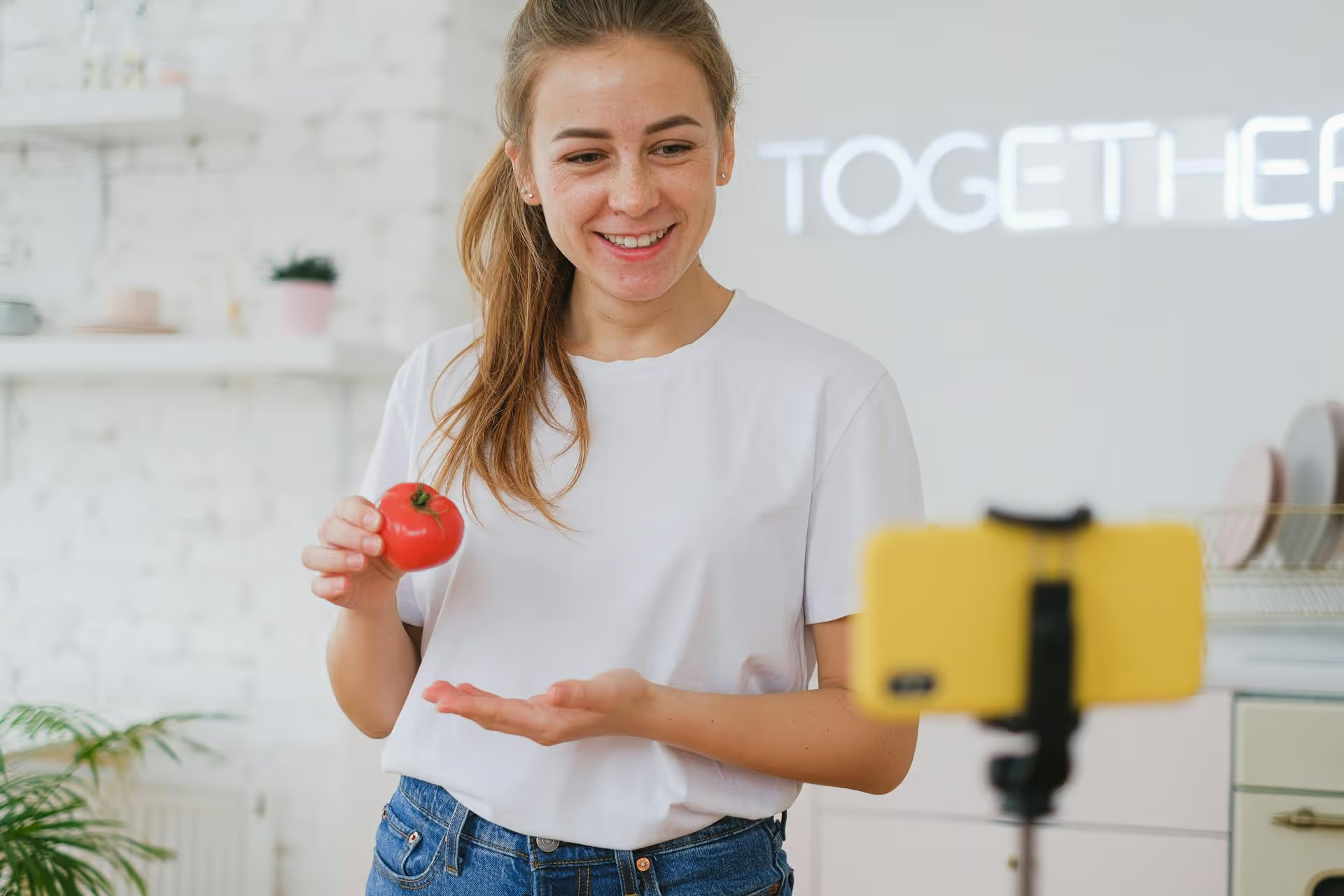
Adding photos to your TikTok videos can totally transform your content, letting you create scroll-stopping slideshows, funny green screen effects, and engaging visual stories. Whether you want to make a simple photo carousel or layer an image on top of a video, there are several easy ways to do it right inside the app. This guide will walk you through four different methods, step-by-step, along with some powerful tips to make your photo-based content stand out.
TikTok gives you a ton of creative flexibility, and that includes how to integrate static images into an otherwise video-centric world. Depending on your goal - whether it's a "photo dump" recap, a reaction video, or a polished promotional clip - one method will likely work better than others. Let’s break down the best options and when to use them.
If you've noticed posts that let you swipe through a collection of high-quality images at your own pace, you've seen Photo Mode. This is one of the most popular and straightforward ways to use photos on TikTok. It’s perfect for sharing a collection of images from an event, creating a step-by-step tutorial, showing off a "photo dump," or telling a visual story with distinct chapters.
Here’s how to create one:
When to use this method: Excellent for high-resolution photography, before-and-after reveals, lists ("My top 5 favorite hikes"), restaurant reviews, or "day in the life" collections.
The Green Screen effect is a creator classic. It allows you to use any photo from your camera roll as a virtual background while you record yourself talking or reacting in the foreground. This technique is fantastic for explaining a concept, reviewing a product, or providing commentary on a screenshot.
Follow these steps to use the Green Screen effect:
When to use this method: Perfect for news commentary, reacting to memes or tweets, product unboxings where you show the product page, or educational content where you explain a chart or an image.
What if you don't want a photo to be your entire background? Sometimes you just need to add a small image on top of a video you've already recorded. For this, the photo sticker is the perfect tool. You can use it to show a product while talking, pop up a related meme for comedic effect, or display a "before" picture for a moment in a transformation video.
Here’s how to add a photo sticker overlay:
When to use this method: Indispensable for how-to videos (showing a picture of an ingredient), commentary (flashing up a reaction photo), or comparing two things side-by-side.
If you want a dynamic, professionally styled video without much fuss, TikTok's own Templates feature is your answer. These templates are pre-designed with popular music, transitions, and text effects. All you have to do is drop in your own photos, and the template does the rest of the hard work for you.
It's incredibly fast and easy:
When to use this method: Fantastic for beginners, creating quick recaps of a weekend trip, making highlight reels, or participating in a trend that is built around a specific template.
Knowing how to add photos is just the first step. To make your content truly engaging, keep these creative strategies in mind:
Mastering how to add photos to TikTok opens up a vast world of creative possibilities, moving beyond simple video clips to create dynamic stories, compelling tutorials, and viral carousels. By leveraging tools like Photo Mode, the Green Screen effect, and stickers, you can keep your content strategy fresh and your audience engaged.
Once you start creating a mix of video, photo modes, and slideshow content, keeping track of everything can get tricky. To stay organized, we use a visual calendar in Postbase to plan our own clients' content mix, ensuring we have a good variety of formats going out each week. It lets us schedule out all of our TikToks, Reels, and Shorts from one spot, so our feed never feels repetitive.
Spencer's spent a decade building products at companies like Buffer, UserTesting, and Bump Health. He's spent years in the weeds of social media management—scheduling posts, analyzing performance, coordinating teams. At Postbase, he's building tools to automate the busywork so you can focus on creating great content.

Enhance your email signature by adding social media icons. Discover step-by-step instructions to turn every email into a powerful marketing tool.
Record clear audio for Instagram Reels with this guide. Learn actionable steps to create professional-sounding audio, using just your phone or upgraded gear.
Check your Instagram profile interactions to see what your audience loves. Discover where to find these insights and use them to make smarter content decisions.
Requesting an Instagram username? Learn strategies from trademark claims to negotiation for securing your ideal handle. Get the steps to boost your brand today!
Attract your ideal audience on Instagram with our guide. Discover steps to define, find, and engage followers who buy and believe in your brand.
Activate Instagram Insights to boost your content strategy. Learn how to turn it on, what to analyze, and use data to grow your account effectively.
Wrestling with social media? It doesn’t have to be this hard. Plan your content, schedule posts, respond to comments, and analyze performance — all in one simple, easy-to-use tool.



