

How to Add Social Media Icons to an Email Signature
Enhance your email signature by adding social media icons. Discover step-by-step instructions to turn every email into a powerful marketing tool.

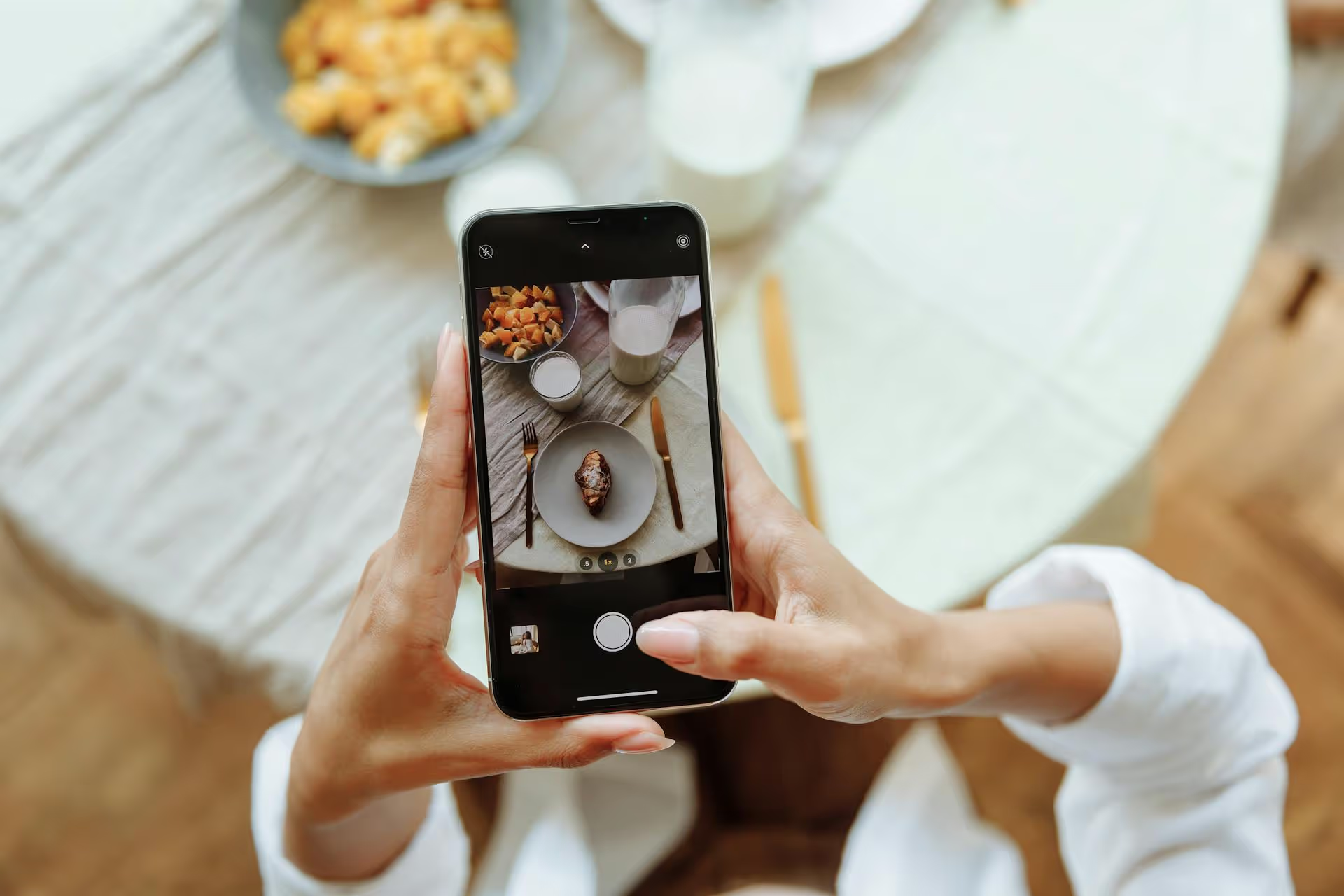
Adding the right music to your Pinterest Idea Pins can transform them from a simple clip into an engaging, thumb-stopping story. A good soundtrack sets the tone, captures attention instantly, and makes your content more memorable. This guide breaks down exactly how to add audio from Pinterest's library or use your own original sounds, along with actionable tips to make your pins truly stand out.
Before jumping into the "how," let's quickly cover the "why." In a sea of visual content, audio is your secret weapon for making an immediate connection. Well-chosen music does more than just fill the silence, it injects personality and emotion into your content.
In short, leaving music out of your strategy is like serving a delicious meal on a paper plate. It gets the job done, but it misses a huge opportunity to create a full, memorable experience.
When it comes to adding sound to your Idea Pins, you have two primary options. Each has its own benefits depending on your goals and resources.
Let's walk through how to use both methods.
Using the built-in library is quick, easy, and the recommended method for most creators. Here’s how you do it, step by step, right within the Pinterest mobile app.
Open the Pinterest app on your phone. Tap the plus sign (+) at the bottom of the screen and select "Idea Pin" from the menu. This will open the creator interface.
Select the video clips or static images you want to use from your phone’s camera roll. You can select one or multiple files. Once selected, arrange them in the order you want them to appear in your finished pin. Tap "Next" when you're ready to move on.
In the editing screen, you’ll see several icons on the right-hand side for adding text, stickers, and more. Look for the music note icon (♫) and tap it. This will open Pinterest's audio library.
You now have access to a massive library of songs and audio clips. You can explore it in a few ways:
Tap on any song to hear a preview. Once you've found the perfect track, tap it again to select it and return to the editor screen.
Pinterest doesn't play the entire song, it uses a short clip. Once you've added the music, you'll see a waveform at the bottom of the screen. You can slide this waveform left or right to select the exact part of the song you want to feature in your pin. Choose a clip that has a good intro, a catchy chorus, or a dramatic beat drop that syncs well with your video.
You can also adjust the volume. Tap the volume icon. If your original video has sound you want to keep (like someone talking), you can lower the music volume so it acts as background audio. If you want the music to be the star, keep its volume high and bring your clip's audio down to zero.
Once you’re happy with the music selection and volume, you can add any other elements like text overlays or stickers. When your masterpiece is complete, tap "Next," add your pin title, description, and relevant tags, and then hit "Publish." That’s it! Your Idea Pin is now live with the perfect soundtrack.
If you want to use a voiceover for a tutorial or include a custom brand jingle, you need to add it to your video before uploading it to Pinterest. This gives you unparalleled control over the final product.
The first step happens outside of Pinterest. Use a mobile video editing app like CapCut, InShot, VLLO, or Adobe Rush to assemble your video.
In your chosen app, you can:
Edit your audio, trim it to fit the video, adjust the volume, and make sure it sounds just right. When you're done, export the final video file (with your audio already baked in) to your phone's camera roll.
Now, head back to the Pinterest app and start creating an Idea Pin just like before. When you select your media, choose the video you just exported from your editing app. Since the audio is already part of the video file, it will be there automatically. You won't need to touch the music icon at all. Simply add your pin details and publish.
If you add commercially popular music (like a song from the radio) using an external video editor and you don’t own the license for it, you are violating copyright policies. Pinterest's algorithm may detect this and mute your audio or remove the pin entirely. It’s always safest to use audio you have the rights to, whether it's your own voice, royalty-free stock music, or a track from Pinterest's pre-cleared library.
Just adding music isn't enough. The right music can make your pin go viral. Here are some tips to help you choose wisely.
This is the golden rule. The music should feel like a natural extension of your brand and the content itself. A food blogger sharing a decadent cake recipe could use a sophisticated, light instrumental track. A fitness creator sharing a high-intensity workout needs something with a driving beat to get people energized.
Just like on other short-form video platforms, using trending audio on Pinterest can give your content a significant boost in visibility. Pay attention to the tracks you see appearing frequently in your feed and check the "Recommended" tab in the music library. Tapping into a trend can expose your pin to a much wider audience.
Think like a movie director. Use music to control the emotional flow of your pin. If you're creating a "before and after" reveal, use a simple, slower track for the "before" and switch to a more dynamic, exciting track for the "after" reveal. This audio cue makes the transformation feel much more impactful.
This is extremely important for pins with spoken audio. Your background music should be just that - in the background. It shouldn't overpower your voice. Always do a final sound check to make sure your voiceover is clear and easy to understand.
If you're creating a lot of content, consider establishing a consistent sonic identity. This doesn’t mean using the same song every time, but perhaps sticking to a particular genre or mood. For example, a home decor brand might always use calm, acoustic folk music. This consistency helps build a stronger, more recognizable brand on the platform.
Adding music to your Pinterest Idea Pins is a simple step that powerfully elevates your content, making it more dynamic and captivating for your audience. Whether you select a track from Pinterest’s extensive library or add your own custom audio, the right soundtrack helps complete your story and grow your brand.
Creating amazing video content is one thing, but consistently managing and scheduling it across all your social platforms is how true growth happens. At Postbase, we designed a social media management tool built for today’s creators - with a deep focus on short-form video. Our visual calendar helps you plan your content strategy, while our rock-solid scheduler ensures your Reels, TikToks, Shorts, and Idea Pins go live exactly when you intend, every time. It’s the perfect way to streamline your workflow so you can spend less time managing and more time creating.
Spencer's spent a decade building products at companies like Buffer, UserTesting, and Bump Health. He's spent years in the weeds of social media management—scheduling posts, analyzing performance, coordinating teams. At Postbase, he's building tools to automate the busywork so you can focus on creating great content.

Enhance your email signature by adding social media icons. Discover step-by-step instructions to turn every email into a powerful marketing tool.
Record clear audio for Instagram Reels with this guide. Learn actionable steps to create professional-sounding audio, using just your phone or upgraded gear.
Check your Instagram profile interactions to see what your audience loves. Discover where to find these insights and use them to make smarter content decisions.
Requesting an Instagram username? Learn strategies from trademark claims to negotiation for securing your ideal handle. Get the steps to boost your brand today!
Attract your ideal audience on Instagram with our guide. Discover steps to define, find, and engage followers who buy and believe in your brand.
Activate Instagram Insights to boost your content strategy. Learn how to turn it on, what to analyze, and use data to grow your account effectively.
Wrestling with social media? It doesn’t have to be this hard. Plan your content, schedule posts, respond to comments, and analyze performance — all in one simple, easy-to-use tool.



